Free Developer Tool
JSON To Excel Converter
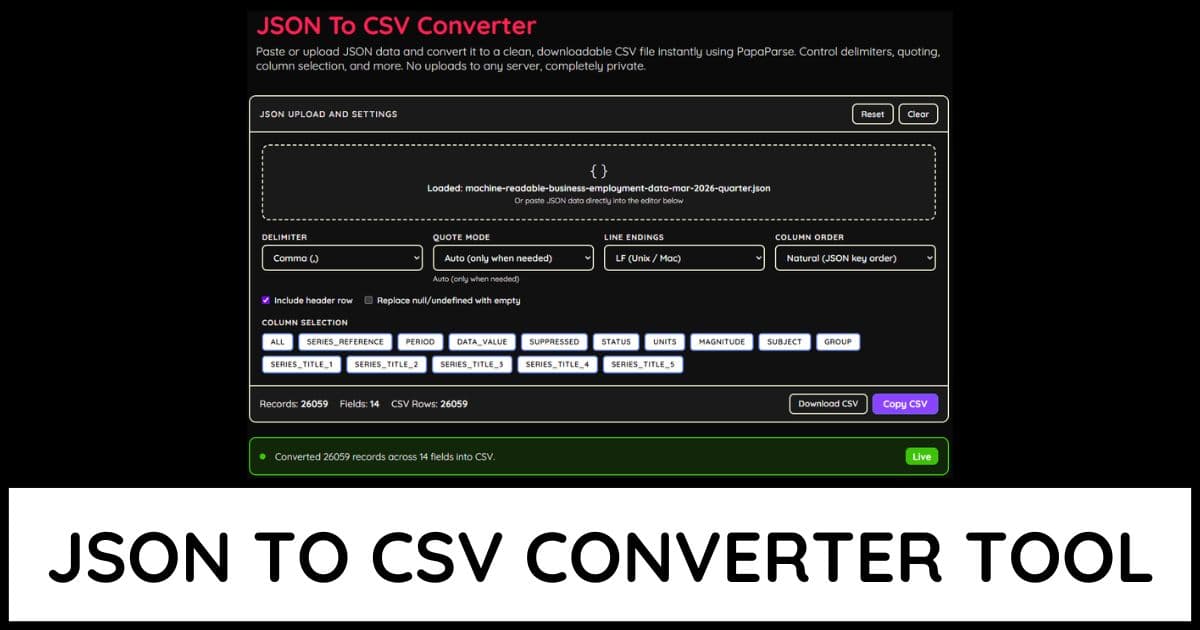
Paste or upload JSON data and convert it to a fully formatted Excel XLSX file instantly using SheetJS. Supports nested object flattening, column selection and ordering, frozen panes, header styling, and auto-fit column widths. No uploads to any server, completely private.
{ }
Drop a JSON file here or click to browse
Or paste JSON data directly into the editor below
Sheet Name
Column Selection
Ready to convert 5 records across 6 columns to Excel.Ready
5Records
6Columns
2Numeric Cols
0Hidden Cols
559 BJSON Size
How to use the JSON to Excel Converter
Drag and drop a JSON file onto the upload area, click to browse your files, or paste JSON data directly into the input editor
The tool accepts arrays of objects, single objects, indexed objects, and column-array format and converts each structure into tabular spreadsheet rows
Use Nested Objects mode to control how deep fields are handled: flatten them into dot-notation columns like address.city, stringify them as JSON text, or skip them entirely
Set a custom Sheet Name of up to 31 characters to control what the tab is labeled when the file opens in Excel or Google Sheets
Choose Bold Text header styling to make the first row stand out visually when the file is opened in a spreadsheet application
Use Freeze Panes to lock the header row, first column, or both so they stay visible while scrolling through large datasets in Excel
Select Column Order to control whether columns appear in their original JSON key order or sorted alphabetically in the output sheet
Use the Column Selection buttons to include only specific fields in the XLSX output, hiding unwanted or sensitive columns from the file
Check the Column Schema tab to inspect inferred data types, null counts, and sample values for each field before downloading the file
All processing happens locally using SheetJS. Your JSON data is never uploaded to any server and stays completely private