Plansom Review (2026): Can AI Delegate Your Tasks For You?
Plansom is an AI work simplifier from Dublin, Ireland. You state a goal and connect your work tools, and Plansom builds plans, finds work in those tools, shows your current priorities, and tracks delegated work.
Its website title is AI Project Management and Work OS for Teams. The tagline on its solution pages is Always ahead, and the footer reads Simply done.
Plansom has two main solutions. AI Priorities finds priorities in your email, Slack, and meeting transcripts and shows your top three, while AI Plan turns a goal into a plan you can share.
Plansom does not replace your email, Slack, CRM, or project tool. You keep using those tools, and Plansom draws on them to keep plans current.
Plansom has three plans. Free costs $0, Pro costs $28 per user per month, and Enterprise pricing is available on request.
Pro starts with a 14-day free trial that needs no credit card. The trial gives full access.
Anders Schonberg is the founder and CEO, and Chloe Schonberg is the co-founder and COO. Plansom is SOC 2 Ready and GDPR compliant, and customer data is not used to train the underlying AI models.
Plansom also runs an agent inside Microsoft Teams. Microsoft for Startups published a post about it on December 10, 2025, and Plansom runs its own affiliate program through PartnerStack.
Disclosure: Some of the links I share might be affiliate links. If you click on one and make a purchase, I may earn a small commission as a thank you. But don’t worry, it won’t cost you anything extra. I only recommend stuff I genuinely believe in. Your support helps me keep creating awesome content. You can read my full affiliate disclosure in my disclaimer page.
Search 1,500+ affiliate programs in the Blogsepaise Program Database and filter them by category, network and commission type, then go straight to each program's signup page. The Link Health Monitor then checks your posts for broken, redirected and untagged affiliate links.
Plansom Features
Plansom has no separate features page. Its two main features each have a landing page, AI Priorities and AI Plan, and the rest of the product is covered on its FAQ page and in the help center at docs.plansom.com.
The help center is a numbered outline with six sections. They are Results, Goals, Execution, the Plansom results platform, Integrations, and Getting Help.
The platform section has seven parts. They cover setting goals and tasks, templates, automated reporting, tracking results, working as a team, a Do It For Me section for AI Execute, and examples of AI Execute.
Plansom has six paid capabilities. They are AI Manage, AI Execute, AI Reporting, bottleneck alerts, success metrics, and integrations, and all six are on Pro.
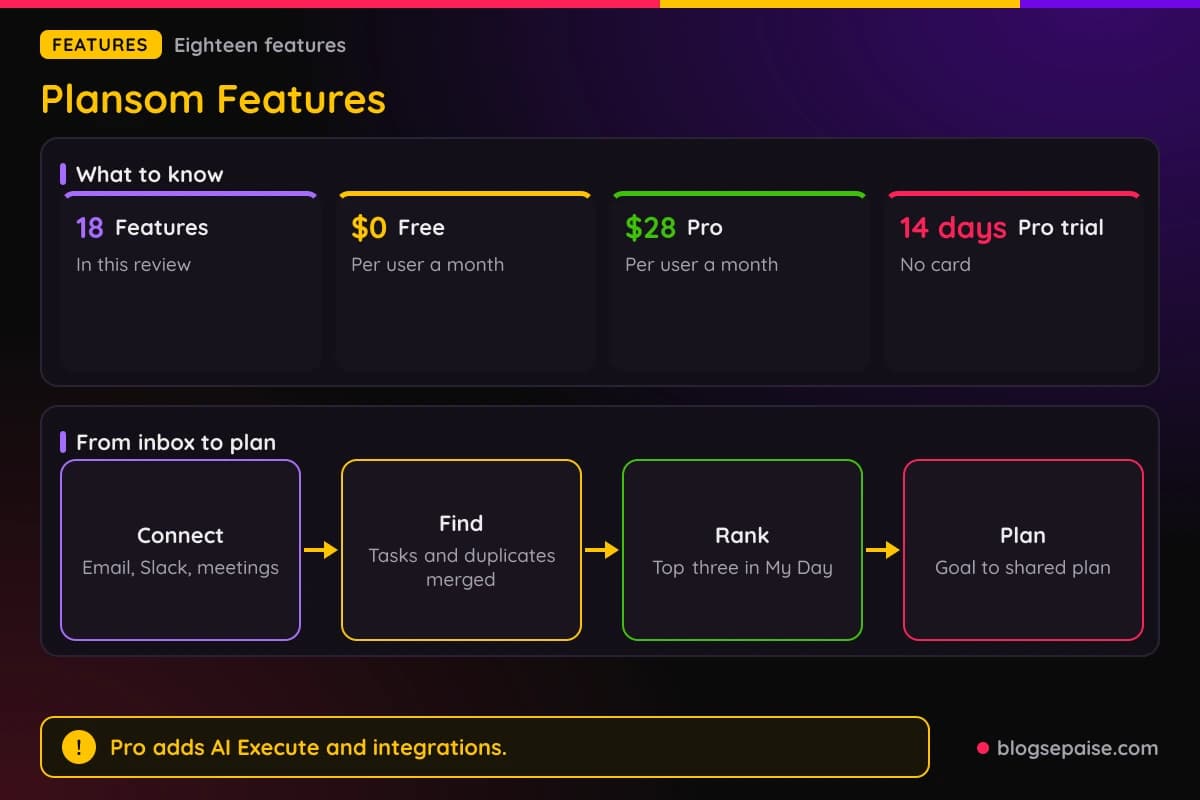
The 18 numbered features below follow the product in the order you would meet it. First come AI Priorities and AI Plan, then agents, reporting, teamwork, connectors, security, and support.
1. Connect Email, Slack, And Meetings In About Two Minutes
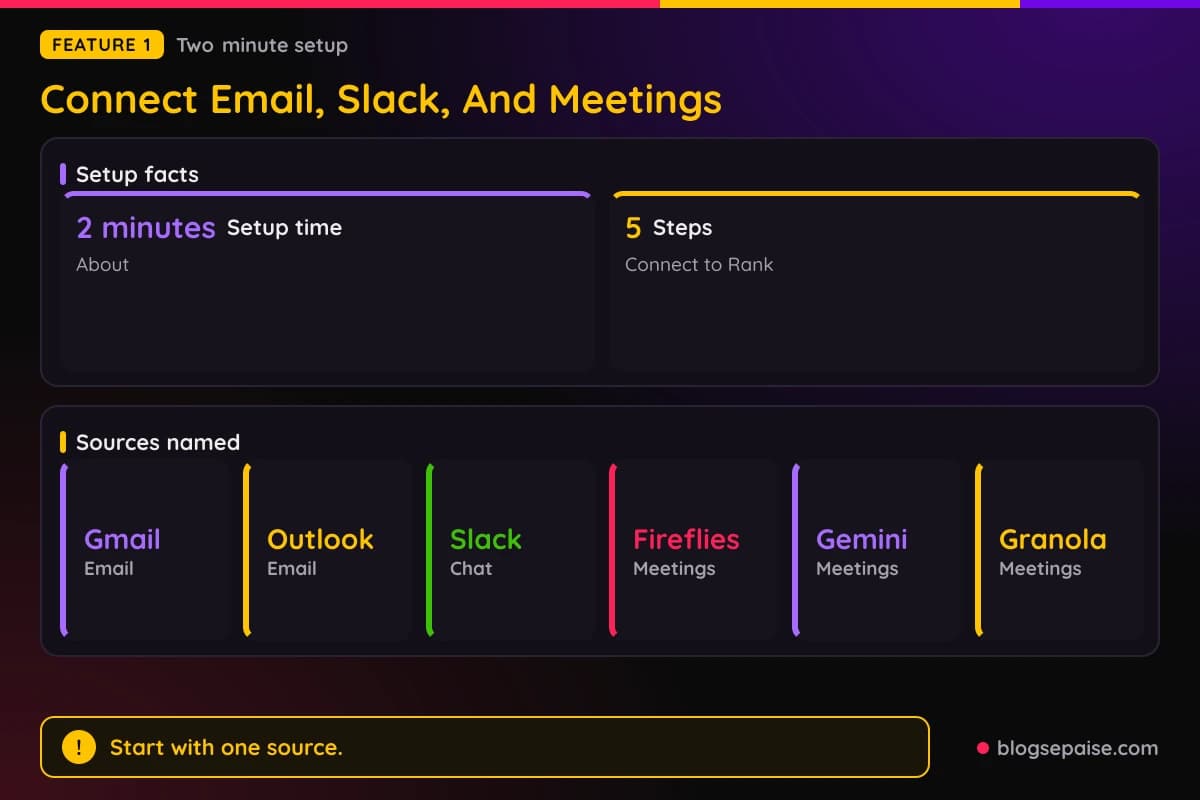
Connecting email, Slack, and your meeting transcript app takes about two minutes. You sign in with Google, Microsoft, or email, and Plansom then starts finding tasks.
The first of Plansom's five steps is Connect. You link email, Slack, and meetings once, and Plansom then reads messages, threads, and transcripts across all three.
The supported sources include Gmail, Outlook, Slack, Fireflies, Gemini, Granola, and others. Notes and CRM tools such as Notion and HubSpot also work, as do AI tools such as ChatGPT and Claude.
You do not have to connect everything at once. Start with one source and add others over time, because more connected work gives Plansom more context.
When you connect a tool, Plansom scans the source for requests, commitments, and updates. It proposes tasks, files them under related goals, and lets you review and correct them.
Plansom only accesses information from the sources you choose to connect. It uses that information to identify work and updates.
Teams do not need to change how they work. People keep their existing tools, and Plansom uses their activity so no one has to re-enter updates somewhere else.
2. Tasks Found Across Email, Slack, And Transcripts
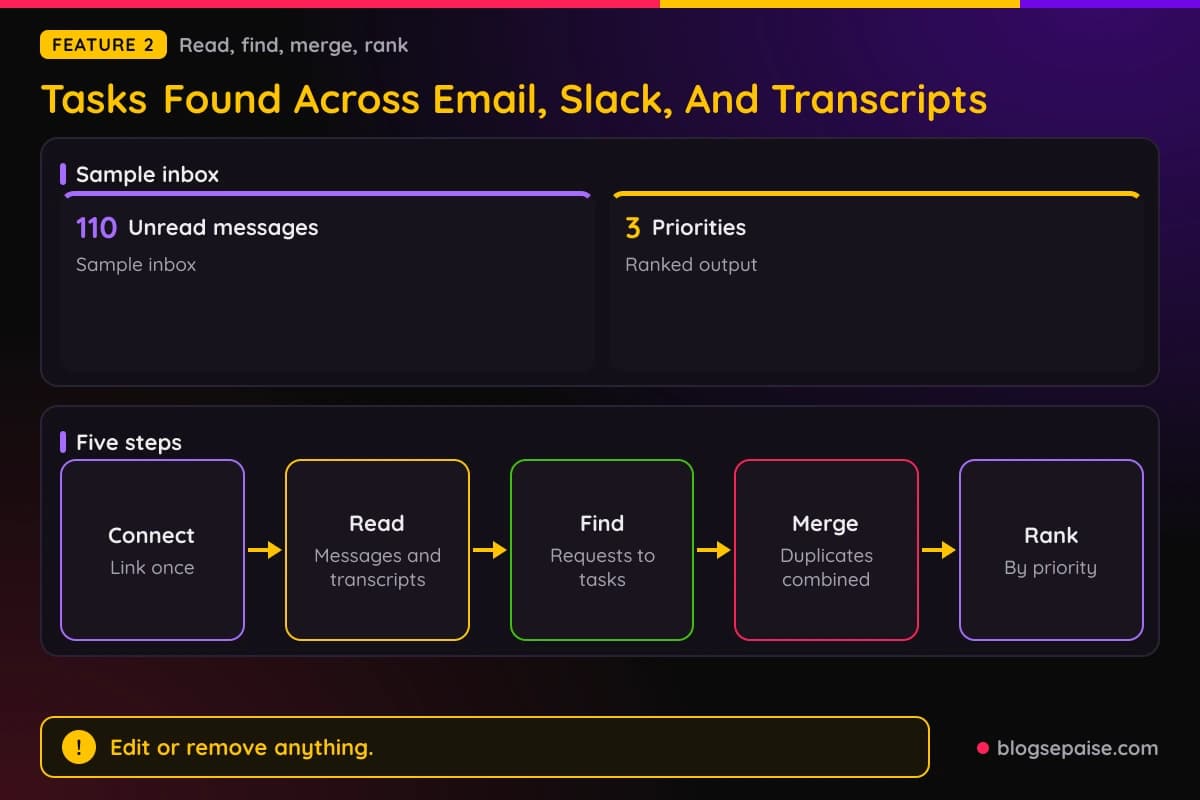
After you connect, Plansom works through Read, Find, Merge, and Rank. Find turns requests, commitments, and action points into tasks.
In an example, a request in an email becomes a send revised scope task. You own it, it is due Friday, and it is marked high priority.
In a sample inbox with 110 unread messages, Plansom picks out three ranked priorities, which are send client proposal from email, approve new contract from email, and confirm launch date from Slack.
Merge is the step that combines duplicates. A request that appears three times is captured once, and the same request from email, Slack, and a meeting becomes one task.
Plansom does not turn every conversation into a task. Plansom looks for work that needs action, not every piece of information or every decision, and you can remove suggestions that do not belong.
Plansom also decides where a new task belongs. It uses context from connected work to place the task under relevant goals and existing tasks, and you can move or edit anything misplaced.
You do not have to enter tasks by hand, but you can add, edit, reassign, or delete them.
When several people are in the same conversation, Plansom assigns the action to its owner instead of creating duplicates. Other people with access can see who owns it.
3. PlansomScore And The My Day Top Three
The Rank step orders tasks by priority and keeps the ranking current as work changes. Plansom ranks by what needs attention, not by when something arrived.
PlansomScore is Plansom's proprietary prioritization algorithm. It weighs new requests and commitments against your goals and existing work.
My Day shows three priorities. Plansom highlights the three items that most need attention now and updates the list as work changes.
One live view always shows your top three priorities. It updates when new email arrives, when Slack changes, or when a task is completed.
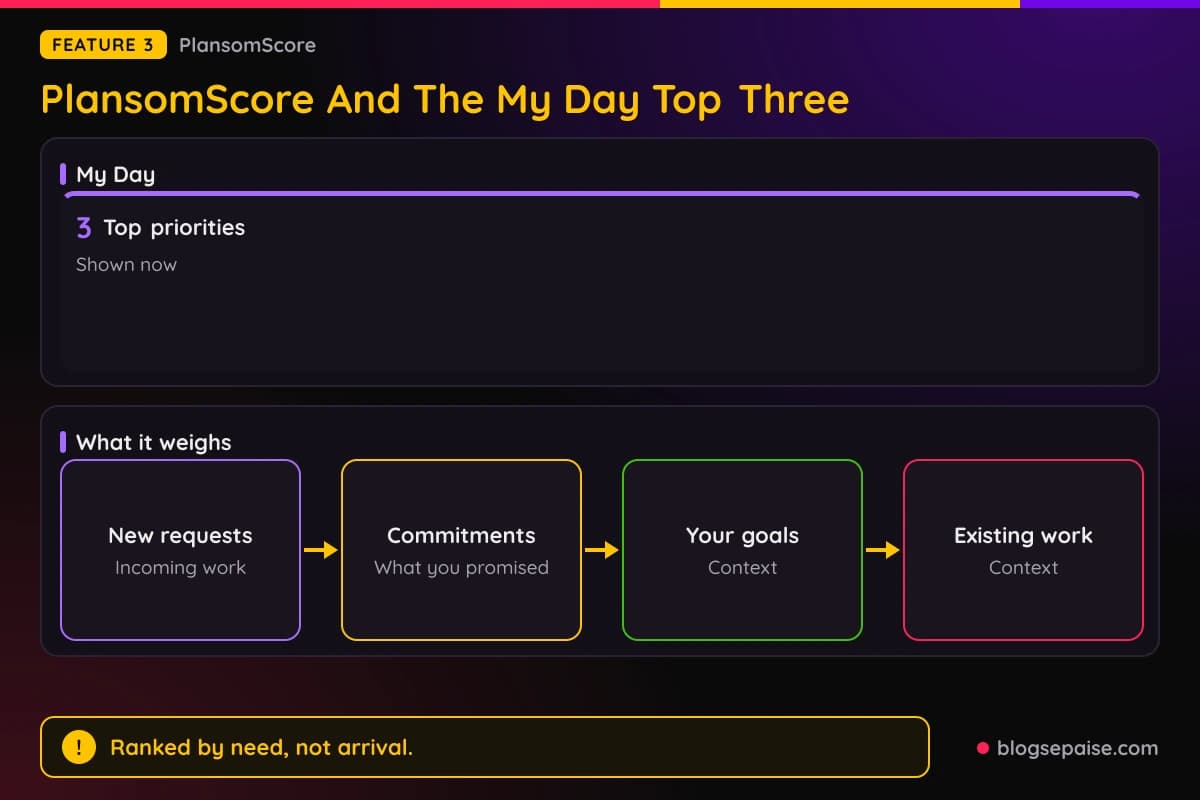
AI Priorities scores work with PlansomScore and shows the top three items in My Day. The product can draw on email, chat, and connected CRM tasks.
Plansom frames priorities around the bottleneck, defined as the single thing that slows everything else down the most.
4. Auto-Added, Auto-Delegated, And Auto-Assigned Work
Plansom has three automatic features. They are auto-added, auto-delegated, and auto-assigned.
Auto-added means new tasks from email, Slack, and meetings appear in your view. You do not need to add tasks manually or update them by hand.
Auto-delegated means work goes to the right teammate with its context. A delegated task carries its goal and context, and ownership is visible subject to access.
Auto-assigned means AI agents take on specific tasks and carry them out. Auto-assignment works once your inbox is connected.
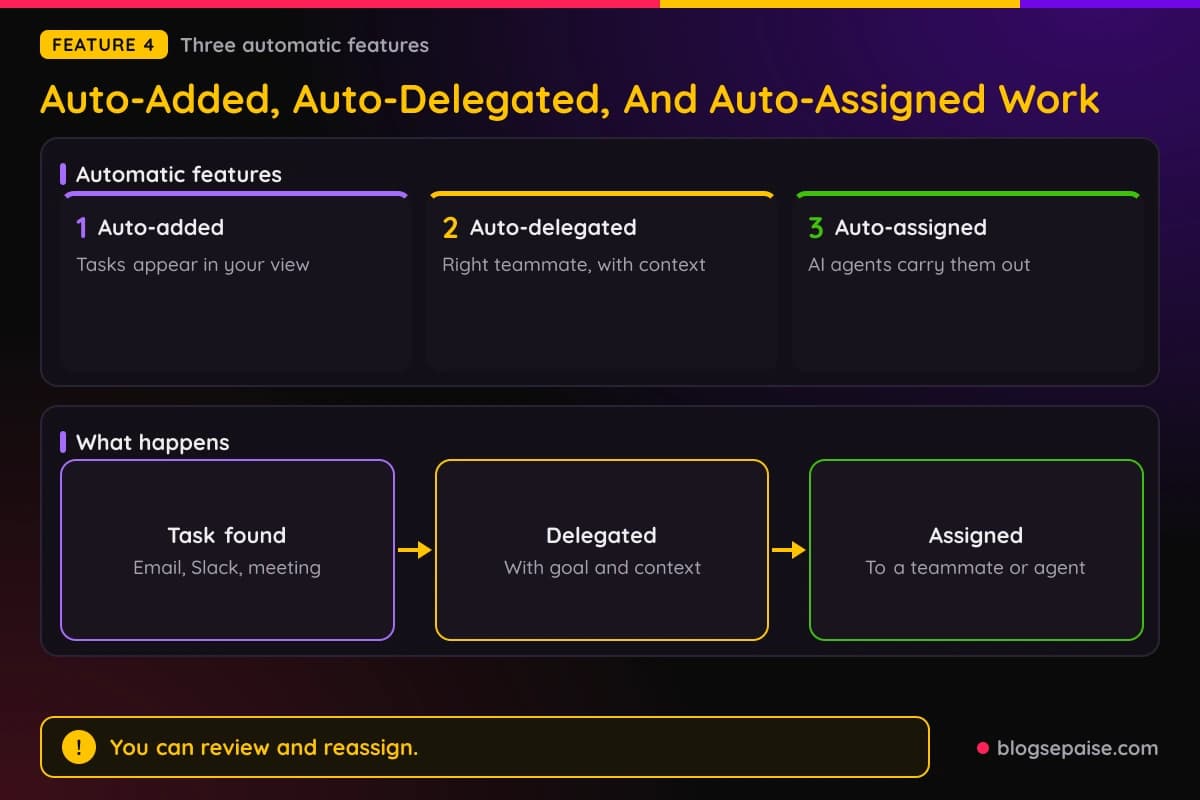
You stay in control of all three. You can review, edit, reassign, or remove anything it creates.
Delegation sends tasks to teammates or to built-in and connected AI agents. You can assign work to teammates and to an AI agent from the same plan.
5. Visibility From You To Your Clients
AI Priorities has four levels of visibility. They are you, your team, your company, and the organizations you work with.
At the first level you see your own ranked tasks. At the second level your team sees the same view, including delegated work.
At the company level you see all teams at the detail you need, without status updates. At the fourth level clients and partners get shared views limited to what each of them needs.
Team leads see who is working on what, what is complete, and what is blocked, across people and agents. They get this without asking for status updates.
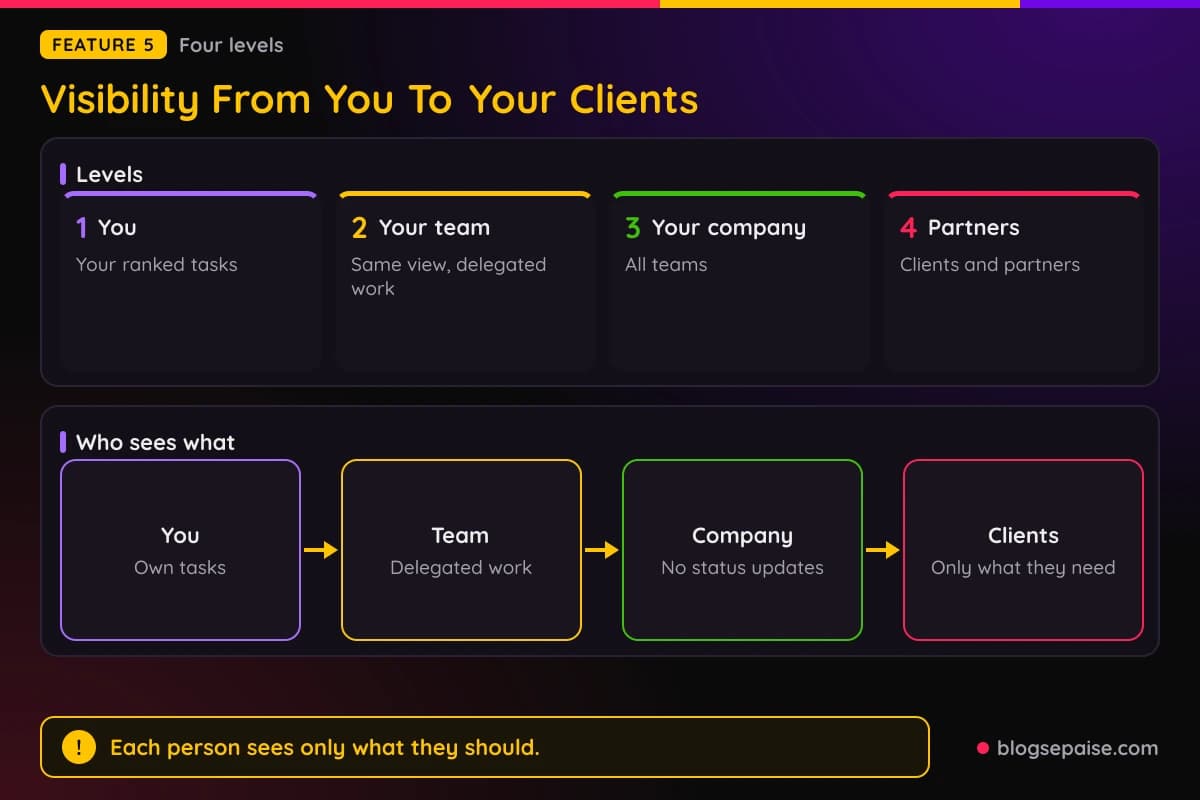
Access varies by role. Your view centers on your priorities, leads see relevant team work, and each person sees what their role requires.
You can share relevant goals and tasks with clients and partners while other work stays restricted. Each person sees only what they should.
6. Set A Goal And Sharpen It Into A SMART Objective
AI Plan starts with a single input box. You enter what you want to achieve, and AI Plan works out the steps, builds the plan, and shares it with your team.
One sentence is enough, such as Launch the MVP in Q4. The input box has a plus button and an option to upload a file.
Plansom suggests starter goals. They are Manage MVP launch, Hire sales team, Open new office, Plan annual offsite, Rebrand, and Post on LinkedIn 4x week.
Next, the algorithm asks follow-up questions until the goal is SMART, meaning specific, measurable, achievable, relevant, and time-bound. In the example, Plansom asks for a deadline of the end of Q4 and a measure of 20 paying customers.
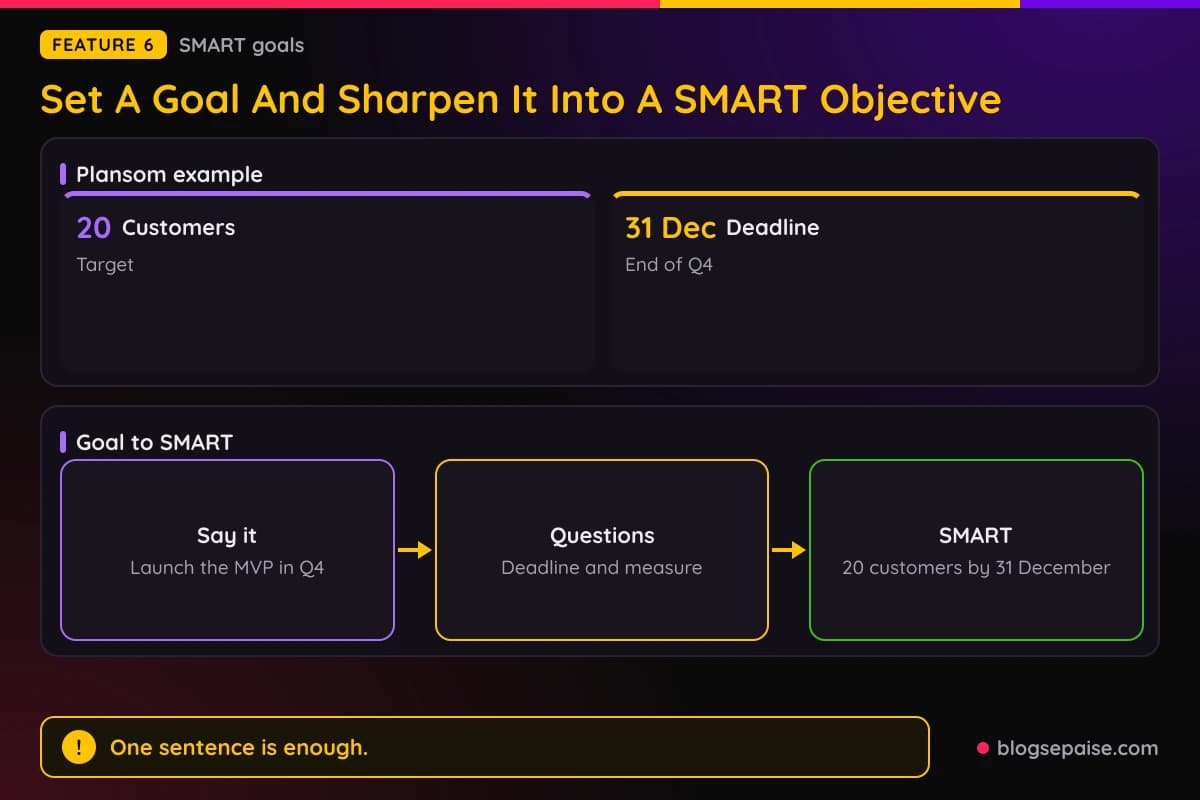
The result in that example reads Launch the MVP to 20 paying customers by 31 December. Plansom helps you write a better goal by asking questions until the objective is SMART with measurable KPIs.
You can use a built-in prompt template or type a short prompt of your own. You then answer a few clarifying questions.
Judge a goal by asking why it matters. Keep it small enough to finish in weeks or months, and write one line that describes what done looks like.
7. A Plan With Sub-Goals, Tasks, Owners, And Effort
Once the goal is sharp, AI Plan turns it into a plan. A goal becomes a plan automatically, with sub-goals, tasks, owners, effort, and progress in one view.
Plansom organizes the work in the order it needs to happen. Goals contain tasks, and each goal sits under a parent goal with no depth limit.
The example tree has a company goal called Launch the MVP in Q4. It has two sub-goals, Product ready and Go-to-market, and Product ready holds the tasks Lock the MVP scope and Run beta.
You can organize the plan by goal or by task. Owners are assigned automatically to teammates or AI agents.
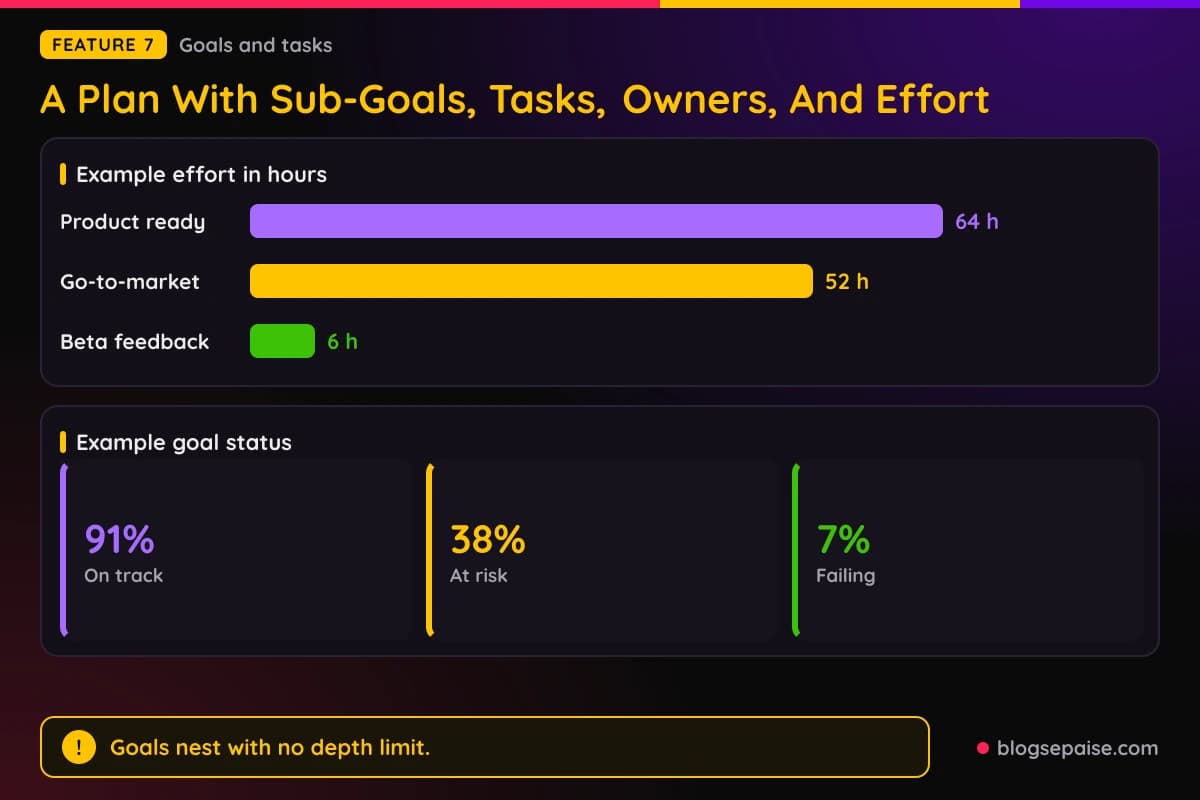
Plansom tracks hours for every goal and task. In the example, Product ready takes 64 h, Go-to-market takes 52 h, and Beta feedback takes 6 h.
Each goal also has a status that updates as work moves. The example shows On track at 91 percent, At risk at 38 percent, and Failing at 7 percent, and the whole team can see it.
You can add or delete sub-goals and tasks at any time. You do not need to draft the whole plan at once, because you can create one sub-goal, repeat for other parts, and merge the pieces under a parent goal.
You can have more than one goal. Plansom shows how tasks feed into each goal.
8. AI Agents And AI Execute
Plansom lets you assign work to an AI agent as well as a teammate. You activate an agent for suitable work and track its progress and results inside Plansom.
You do not have to build agents yourself. Built-in agents are included, and teams can also connect agents and workflows they already use.
You can run Plansom agents, custom workflows built on Plansom, or your own LLM workflows directly from the plan.
AI autopilot lets Plansom handle more planning, prioritizing, delegating, and executing. You can start hands-on and turn it on when you are ready.
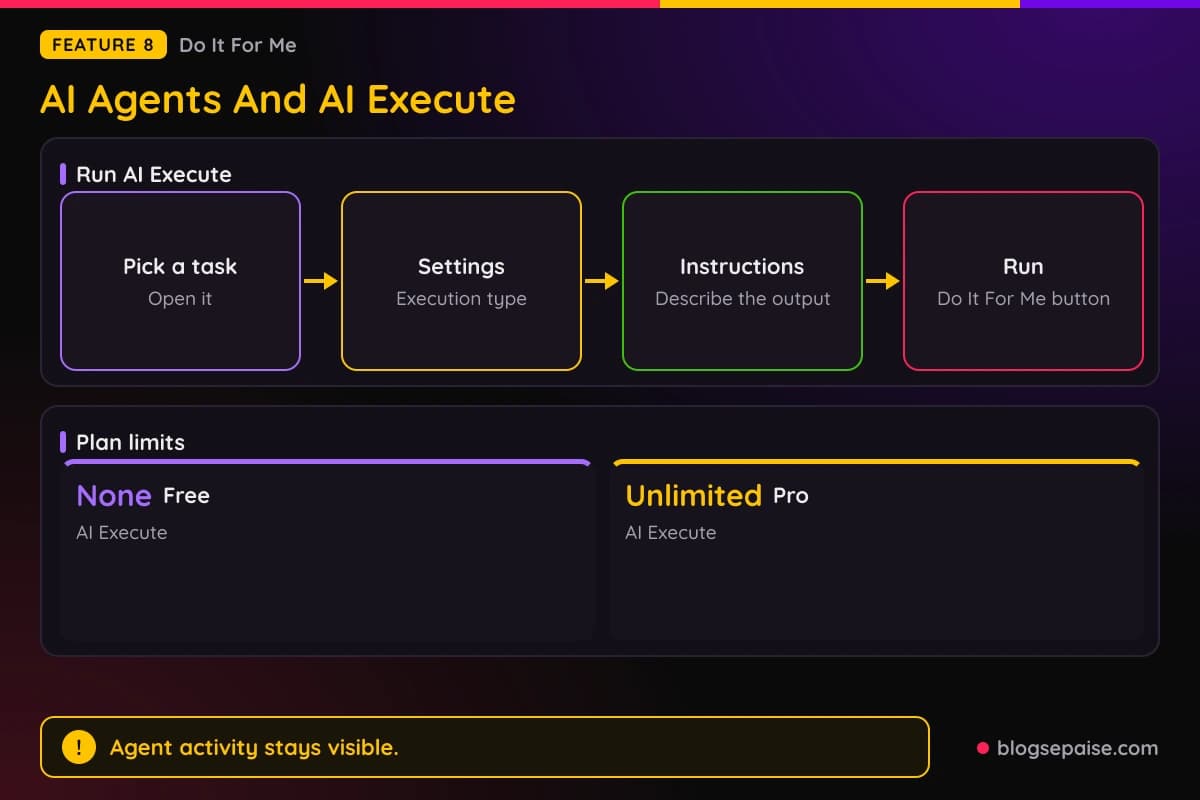
AI Execute is the feature behind the Do It For Me section of the docs. To use it, you pick a task, open it, go to Execution Settings, and set the execution type to AI Execution.
Then you write instructions that describe the output you want. If the task repeats, you can choose a recurring frequency, and clicking the Do It For Me button starts the run.
Pricing matters here. Free excludes AI Execute, and Pro includes unlimited AI Execute.
You can step in at any point. Agent activity and results stay visible so you can review and intervene.
9. The Audit Trail, Files, And Recurring Tasks
Plansom's Do It For Me section has eight guide pages. They cover how to use AI Execute, adding files, adding transactional data, describing what you want, using instructions, using the audit trail, viewing your result, and setting recurring tasks.
The audit trail is the record of each run. Every time AI Execute runs, it leaves a record that shows the instructions given, the data used, and the output produced.
To open it, you open the task that uses AI Execution and click Activity Logs. Then you review the log.
Templates and an audit trail are part of AI Plan. You can see the assigned work, the agent's activity, and its result.
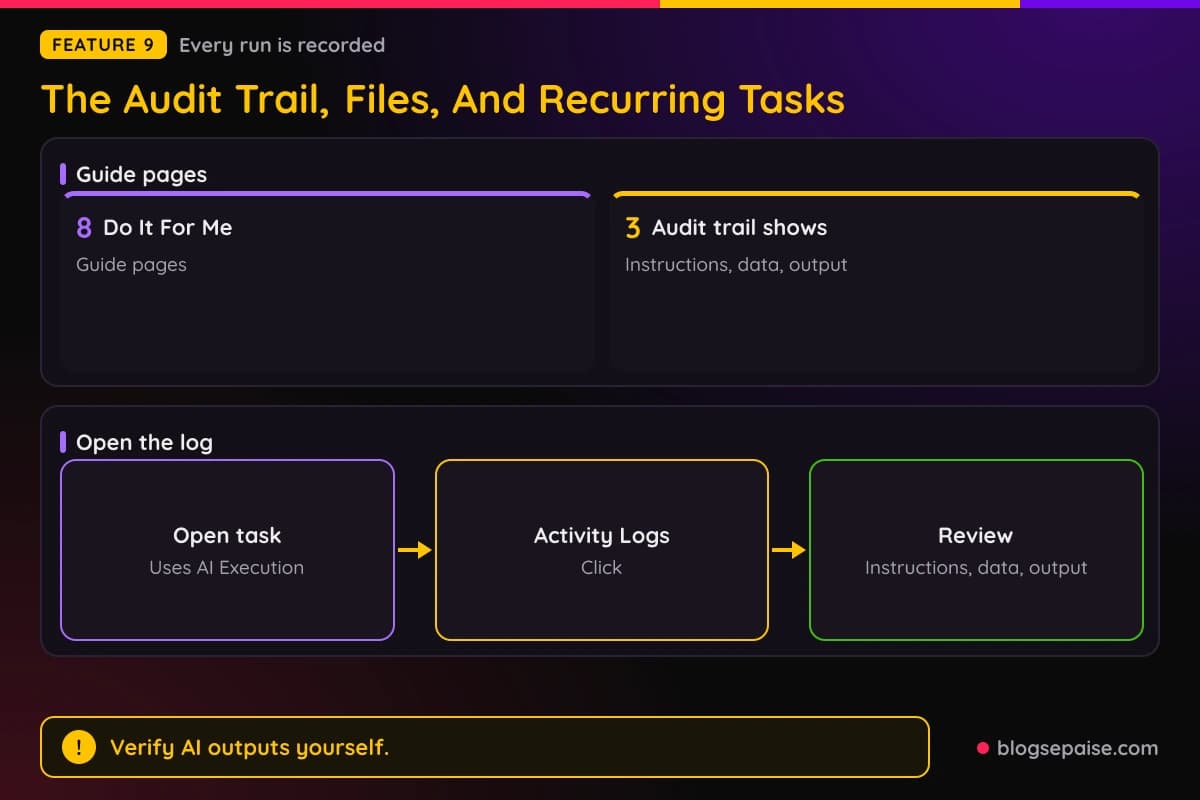
Plansom's Terms say it makes no guarantee that outputs, including AI-generated content or analytics, are accurate, complete, or reliable. The Terms put the job of checking outputs before important decisions on you.
Slack responses are AI-generated and may be inaccurate, so you should verify important outputs.
10. Templates And Three Ways To Set Goals
Plansom has three ways to set goals and tasks. You can do it manually, with AI Plan, or by recording outcomes.
Templates are a separate time saver. They let you set up goals, sub-goals, or tasks quickly instead of building them from scratch.
Templates keep structure consistent across items and cut setup time.
The templates section has three guides. They cover creating templates, using pre-built templates, and sharing templates.
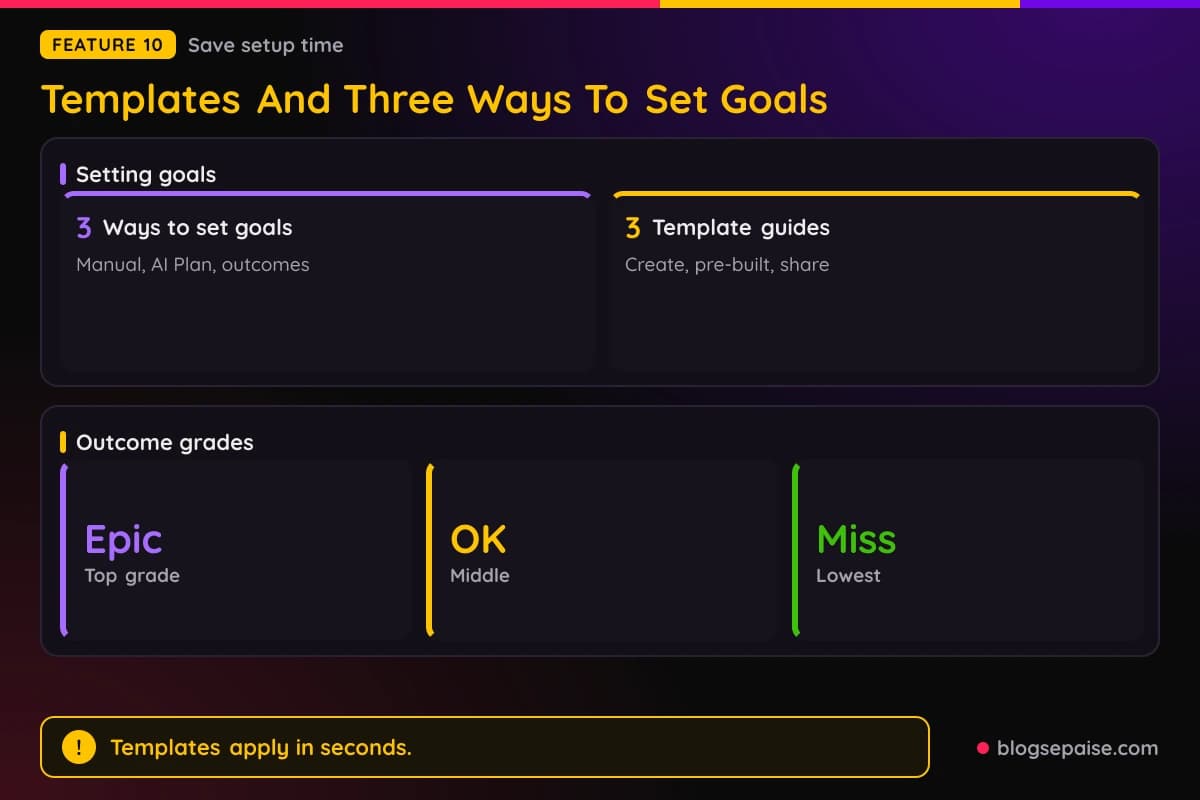
Outcome charts grade work quality as Epic, OK, or Miss.
An example instruction for AI Execute uses that scale too. It asks for a weekly performance report with Epic, OK, and Miss outcomes by goal.
11. Automated Reporting And Results Tracking
In most teams, reporting means chasing people for updates. Plansom removes that step by updating users through dashboards and threads when outcomes for goals and tasks change.
The flow has four steps. Team members update their tasks or outcomes, Plansom captures the change, updates appear in the goal thread and dashboard, and everyone gets the same live view.
The benefits are fewer interruptions, no missed updates, and a steady flow of clarity for the whole team. You can set the type and frequency of progress notifications in the AI Configuration tab under AI Manage in your account details.
Tracking is automatic. Every update to goals, sub-goals, and tasks rolls up into a live view of progress, and nobody needs to ask for status.
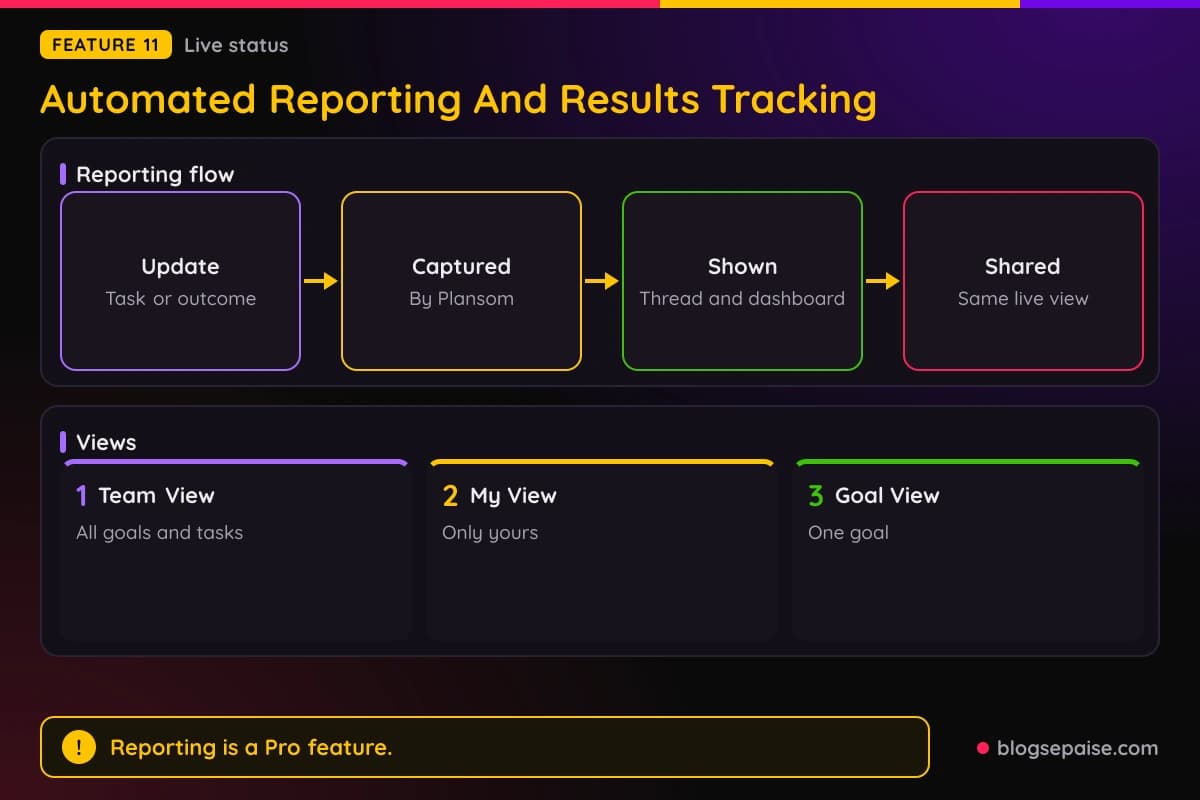
Plansom offers three views. Team View shows all goals and tasks across the team, My View shows only your own, and Goal View opens one goal with its progress bar, outcomes, and timeline.
The graphs include outcome charts, timeliness graphs, alignment indicators, and blocker flags. Blocker flags mark stuck items so they surface early.
AI Reporting, bottleneck alerts, and success metrics are Pro features. The Free plan does not include them.
12. Working As A Team
Plansom keeps goals, tasks, updates, and conversations in one place. Everyone sees the same information, knows who owns what, and stays aligned.
The teamwork section has three guides. They cover assigning goals and tasks, sharing, and messaging.
The Free plan includes sharing and delegation. You can also share a plan with your team immediately and invite people so everyone can see how their work fits the goal.
Teams do not need to change how they work. They keep their existing tools, and Plansom uses their activity.
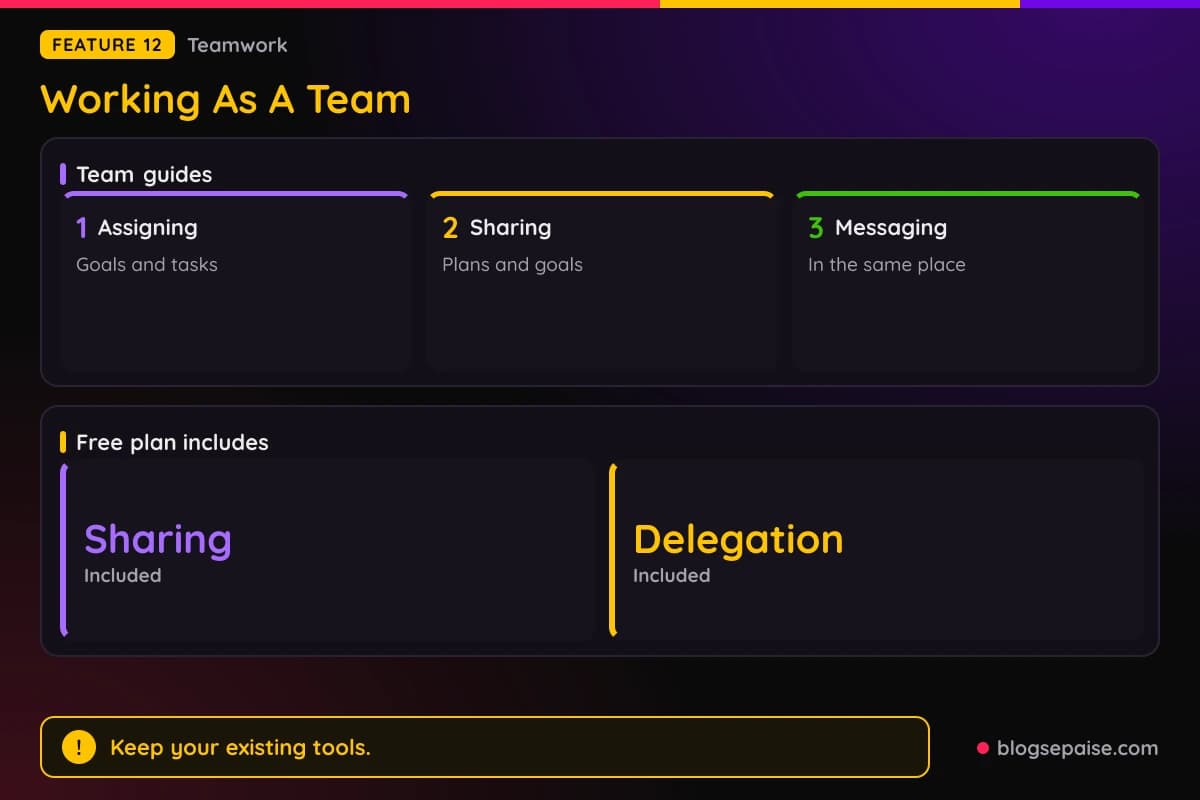
Each plan can also become a shared view with clients and partners. Relevant goals and tasks can be shared externally while other work stays restricted.
Plansom works alongside your existing tools rather than replacing them.
13. Integrations Across Email, Chat, CRM, And AI Tools
Plansom has 18 integrations. They are Zoom, Notion, Slack, Microsoft 365, Google Workspace, HubSpot, Fireflies, ChatGPT, Granola, Claude, Microsoft Copilot, Otter, GitHub, Pipedrive, Fathom, Gemini, WhatsApp Business, and Perplexity.
The help center has an Integrations section with 12 pages. They are Slack, Zoom, Fellow, Zoho, Pipedrive, Zapier, Make, Asana, ClickUp, monday.com, Jira, and Microsoft 365.
Each integration page covers how to connect the tool, what the connection does, and how agents can use it. Plansom links with the tools a team already uses to keep data and workflows in sync and reduce manual work.
The official connections are Gmail, Outlook, Slack, Notion, HubSpot, Granola, ChatGPT, and Claude, while Zoom, Fellow, Zoho, Pipedrive, Zapier, Make, Asana, ClickUp, monday.com, Jira, and Microsoft 365 are covered in the help center.
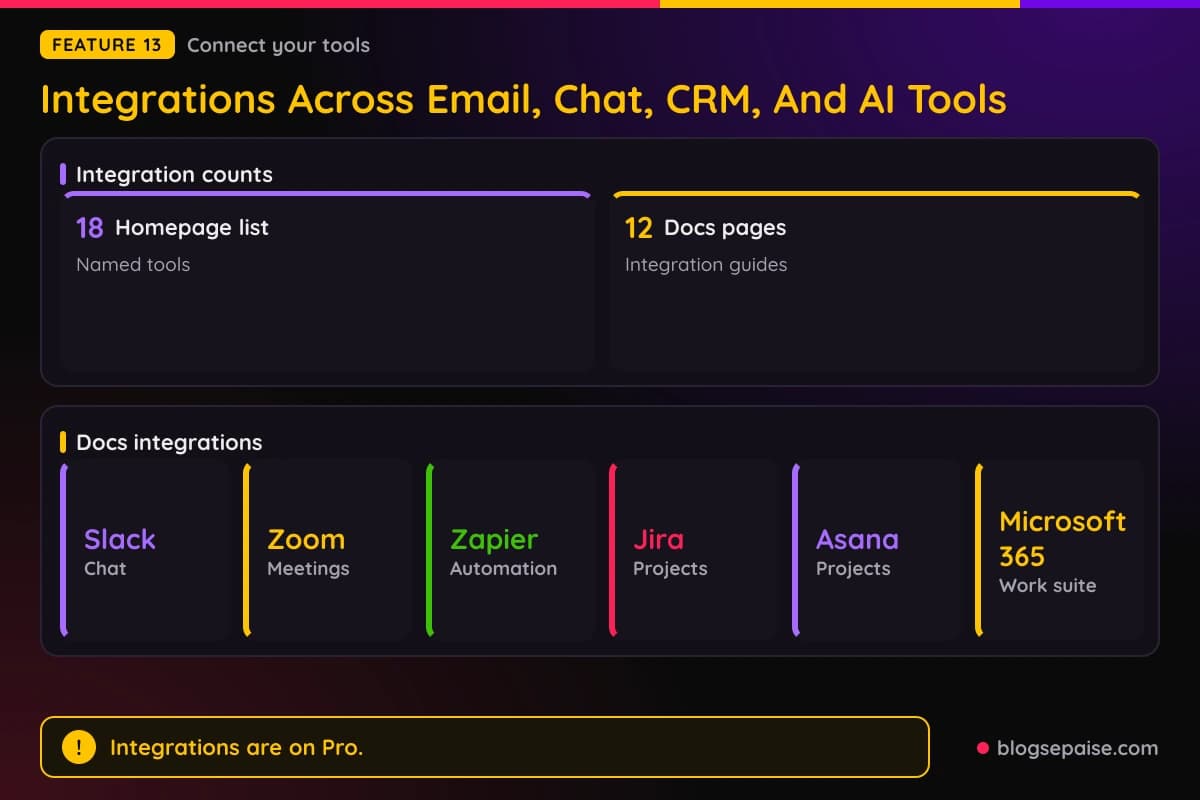
Integrations are a Pro feature. Free does not include them.
Plansom's partner kit and affiliate page both run through PartnerStack. Notion is also a connectable notes tool.
14. The Microsoft 365 Connector
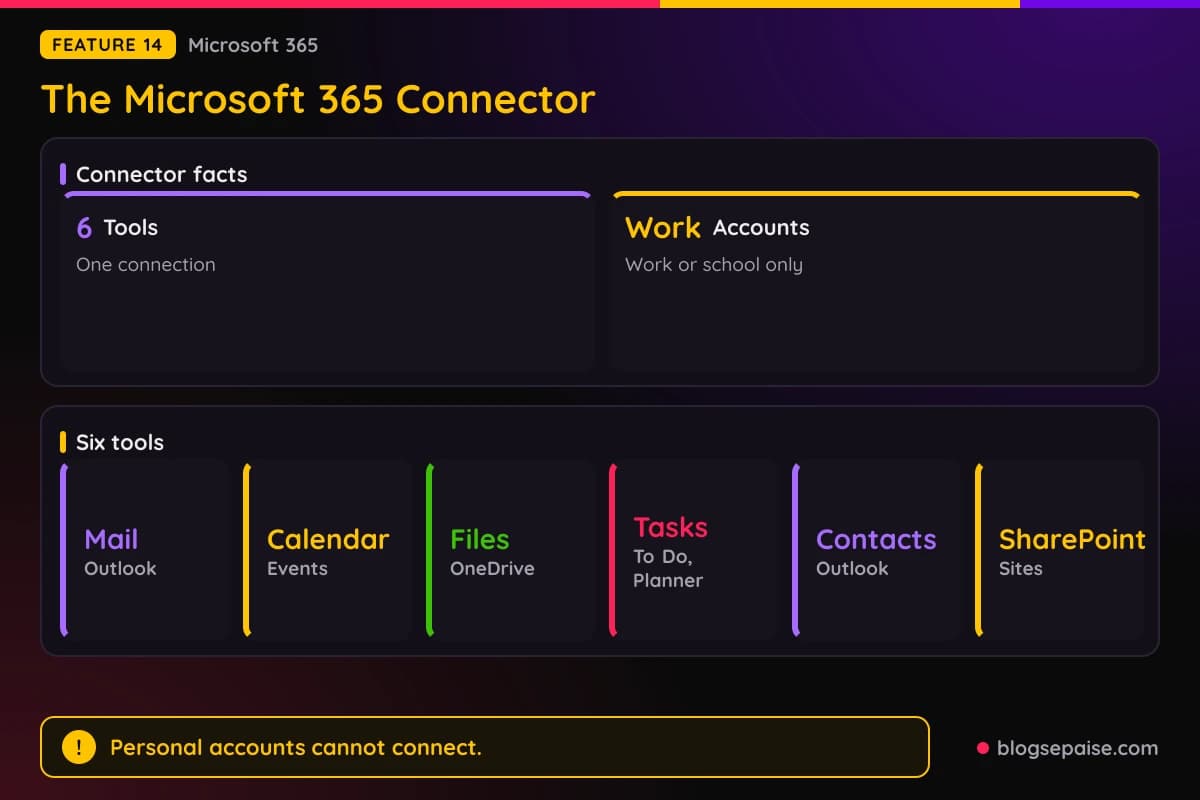
Plansom's Microsoft 365 connector lets agents work with Outlook mail, calendar, OneDrive files, To Do and Planner tasks, contacts, and SharePoint. You connect once and then choose which tools each agent gets.
The connector has six tools. Mail can read, search, draft, send, reply, forward, move, and delete Outlook email, and Calendar can view and manage events and accept or decline invitations.
Files can browse, search, upload, move, copy, delete, and share OneDrive items. Tasks manages To Do lists and Planner tasks, Contacts manages Outlook contacts, and SharePoint finds sites, reads and updates lists, and opens and uploads files in document libraries.
Only work or school Microsoft accounts work. Personal accounts such as Outlook.com or Hotmail cannot be connected.
Each team member connects their own account. The agent acts as that person, sees only what that person can access, and its actions appear as done by that person.
Before an agent creates or changes a Plansom goal or task, it shows a draft and asks for confirmation. Changes made in Microsoft 365, such as sending an email, happen immediately, so be specific in your requests.
Some companies need a one-time admin approval. If Microsoft shows Need admin approval, an admin approves Plansom once, and admins can remove access later in the Microsoft Entra admin center.
For Word or PDF files, the agent reads only plain text, so you paste the needed text into the chat. Disconnecting stops Plansom from using your Microsoft account and does not delete existing Plansom goals or tasks.
15. Slack And Zapier Connectors
Plansom's Slack connector lets agents search and reference your Slack conversations and post updates back to Slack. You use it from the agent chat inside Plansom.
The Slack connector has four uses. They are searching your workspace, reading channel history, posting updates to Slack, and turning Slack content into goals or tasks.
Connecting takes five steps. You log in, open Account Details, go to the Integrations tab or Connectors in the sidebar, click Connect next to Slack, and approve it on the Slack screen.
The Zapier connector links Plansom agents to the apps in your Zapier account, such as Google Sheets, Gmail, and Slack. Agents can look up information, take actions in those apps, and turn results into Plansom goals and tasks.
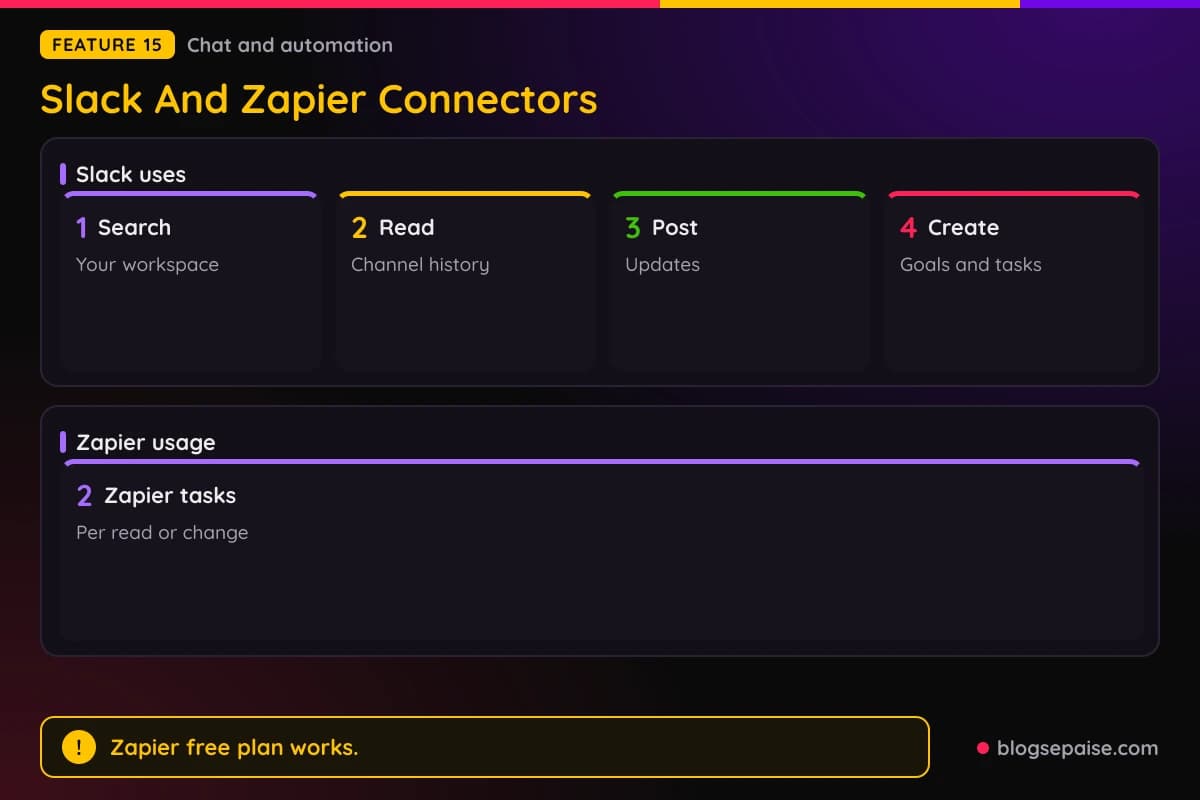
A Zapier account is required, and the free plan works. Zapier measures usage in tasks, and each read or change an agent makes in an app uses 2 tasks.
Finding, setting up, and checking apps uses no Zapier tasks. When tasks run out, the agent cannot act in apps until they reset or you upgrade.
Example requests for Zapier include reading a spreadsheet row, adding a row with set field values, and creating a Plansom goal and task from spreadsheet data.
16. The Plansom Agent For Microsoft Teams
Plansom has an agent for Microsoft Teams. The agent helps leaders set goals, assign ownership, and track progress without leaving Teams.
Microsoft published its post about the agent on December 10, 2025. Plansom and Microsoft are working to make delegation simpler, faster, and smarter.
The agent has four interactive features. They are AI Coach, Goal Progress, Daily Updates, and Bottlenecks, which appear as adaptive cards in Teams.
Microsoft says leaders can define SMART goals in minutes, with automation supporting follow-through and real-time updates keeping teams aligned.
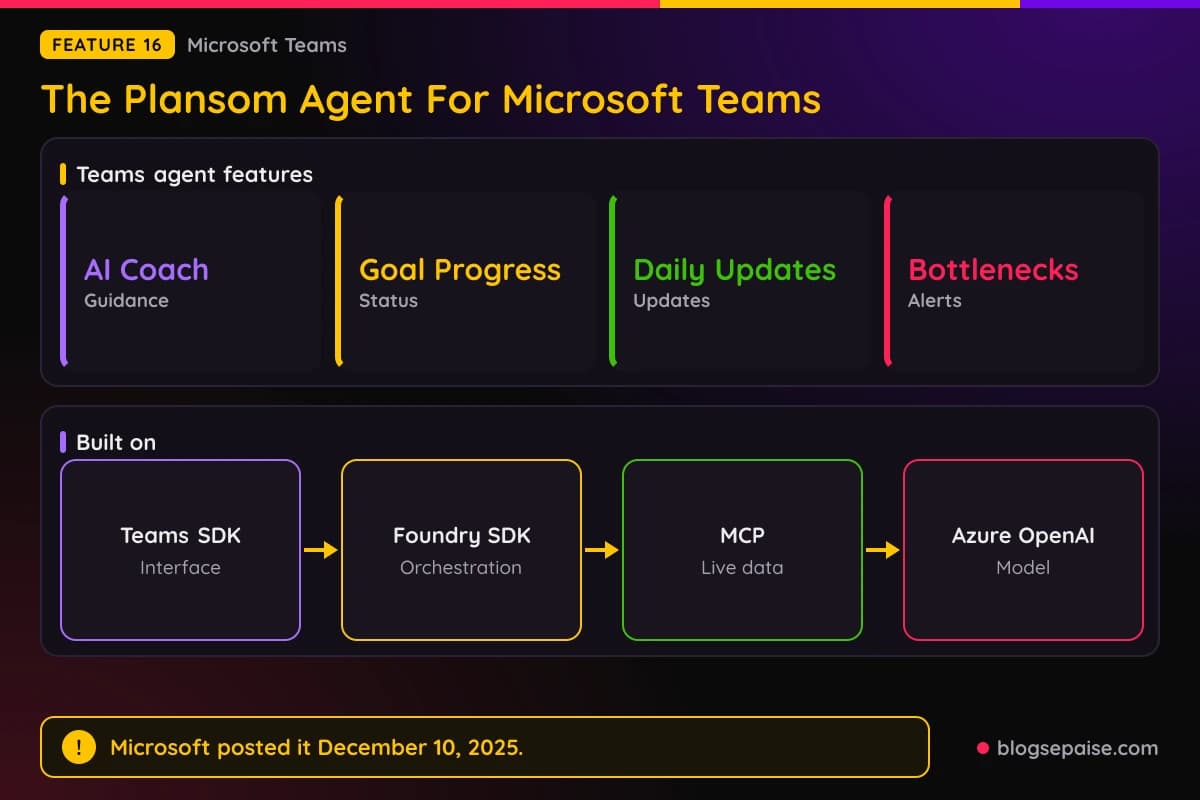
The Teams SDK provides the interface, the Microsoft Foundry SDK orchestrates responses, and the agent runs on Microsoft Azure OpenAI.
Model Context Protocol powers its context awareness by interpreting user intent and retrieving live data. It connects securely to Azure Database for PostgreSQL and uses Microsoft Entra ID for background authentication.
Sherry List, CTO of Microsoft for Startups, called it a strong example of how startups use Azure's AI stack to meet customers where they work. Anders Schonberg said that Plansom makes delegation easy.
17. Privacy, Security, And Data Handling
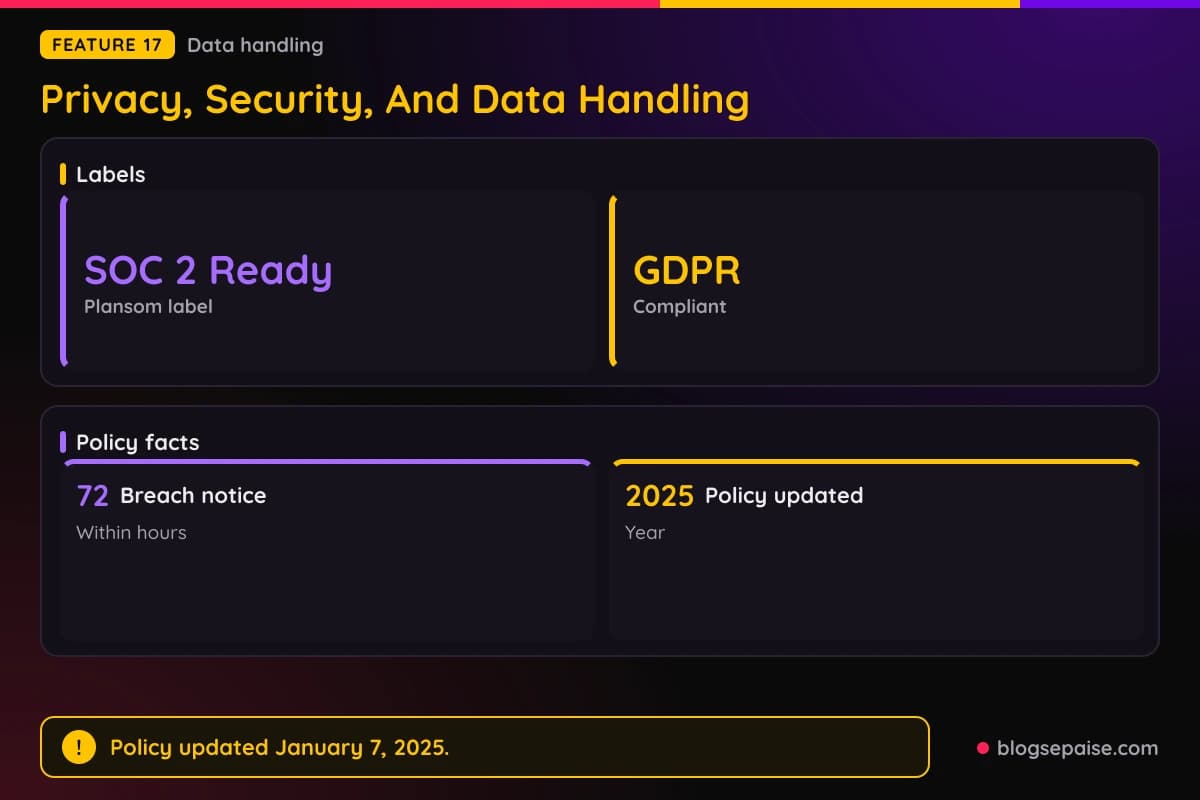
Plansom carries two compliance statuses, SOC 2 Ready and GDPR compliant.
Customer data is not used to train the underlying AI models.
Plansom's Privacy Policy was last updated on January 7, 2025. It says Plansom collects account details such as name, email, and address fields, plus user-generated content such as goals, tasks, usage statistics, and outcomes.
The policy says Plansom uses aggregated and anonymized data for AI-driven recommendations and clustering. Plansom's Terms say it may use aggregated, anonymized data for its own purposes.
The policy cites industry-standard measures, including encryption and access controls. If data leaves the EEA, Plansom uses protective measures meant to comply with GDPR.
You can access and update personal data through account settings and opt out of marketing. You can also ask for portability, restriction of processing, and deletion, with California residents covered under CCPA.
The Privacy Policy says Plansom will tell users within 72 hours of becoming aware of a breach that could put their rights and freedoms at risk. Data is shared with unnamed third-party providers for analytics, customer support, and payment processing.
Under the Terms, you keep ownership of your data and the outputs derived from it. You give Plansom a limited license to process it to provide and improve the services.
18. AI Ambassadors And Support
Plansom offers AI Ambassadors, who are real people assigned to help you from setup through ongoing success. They support users who want guidance even with automation.
You can expect four things. They are a custom setup with templates pre-set for your team, a personalized walkthrough video, on-demand help by email or inside the platform, and hands-on help with things like connecting Zapier.
To reach an Ambassador from inside Plansom, you click the profile icon and then Contact Us. You choose Help Request, Product Suggestion, or Billing and Account Support, write the message, and submit it.
An Ambassador is assigned automatically and contacts you at your registered email address.
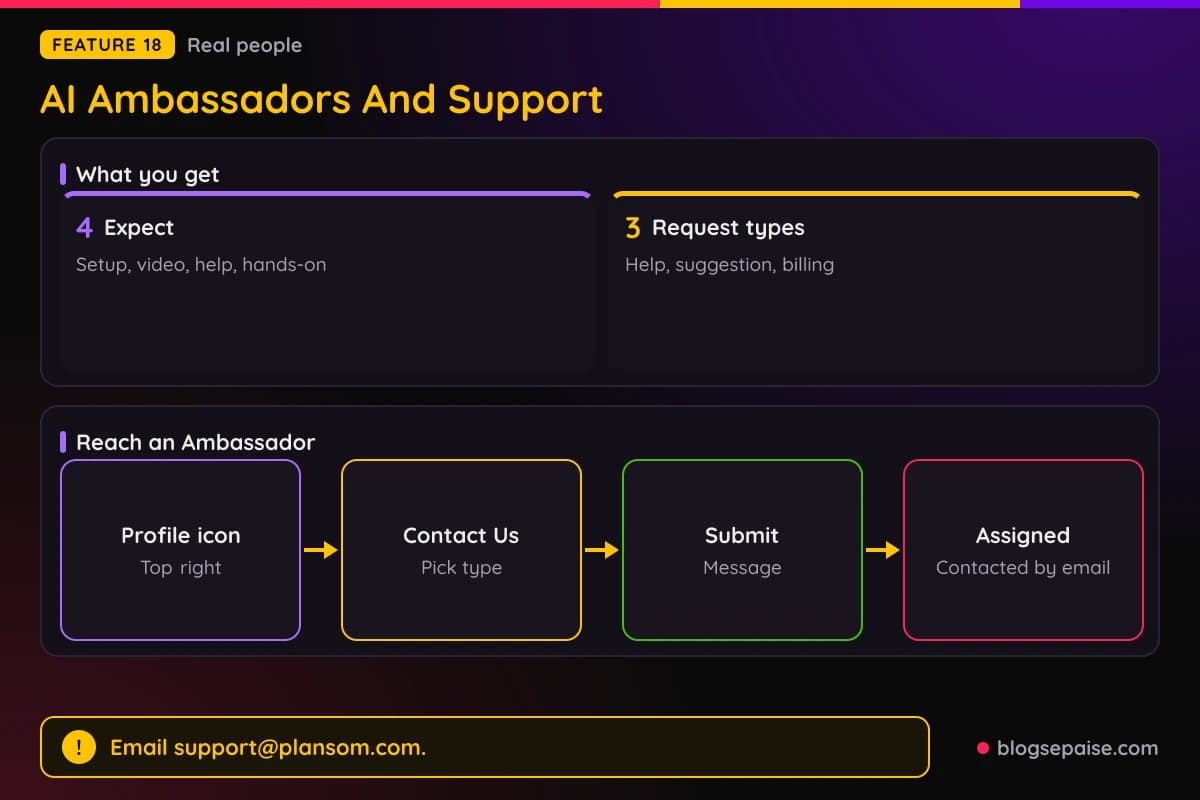
Plansom's support email is support@plansom.com, and its phone number is +353 1 526 2724. Its address is 6th Floor, South Bank House, Barrow Street, Dublin D04 TR29.
Plansom also has a support form for tool connections, AI Plan, My Day and Priorities, AI agents, and account and billing. It offers a session application for a one-to-one session with an AI productivity expert, and a partner form for reseller, co-sell, referral, affiliate, and content creator partners.
Plansom Pricing Plans
Plansom has three plans. Free costs $0, Pro costs $28 per user per month, and Enterprise is priced on request.
The Free plan gives full access, free forever, with limited AI functionality. It includes sharing and delegation, 5 goals, 100 tasks, and 1 AI Plan per month.
Free does not include AI Manage, AI Execute, AI Reporting, bottleneck alerts, success metrics, or integrations.
Pro includes everything in Free plus AI Manage, unlimited AI Execute, unlimited AI Reporting, bottleneck alerts, success metrics, and integrations. The Pro pricing card shows the same 5 goals, 100 tasks, and 1 AI Plan per month as Free.
The AI Plan page shows Free with one AI Plan per month and Pro with unlimited AI Plans, which conflicts with that card.
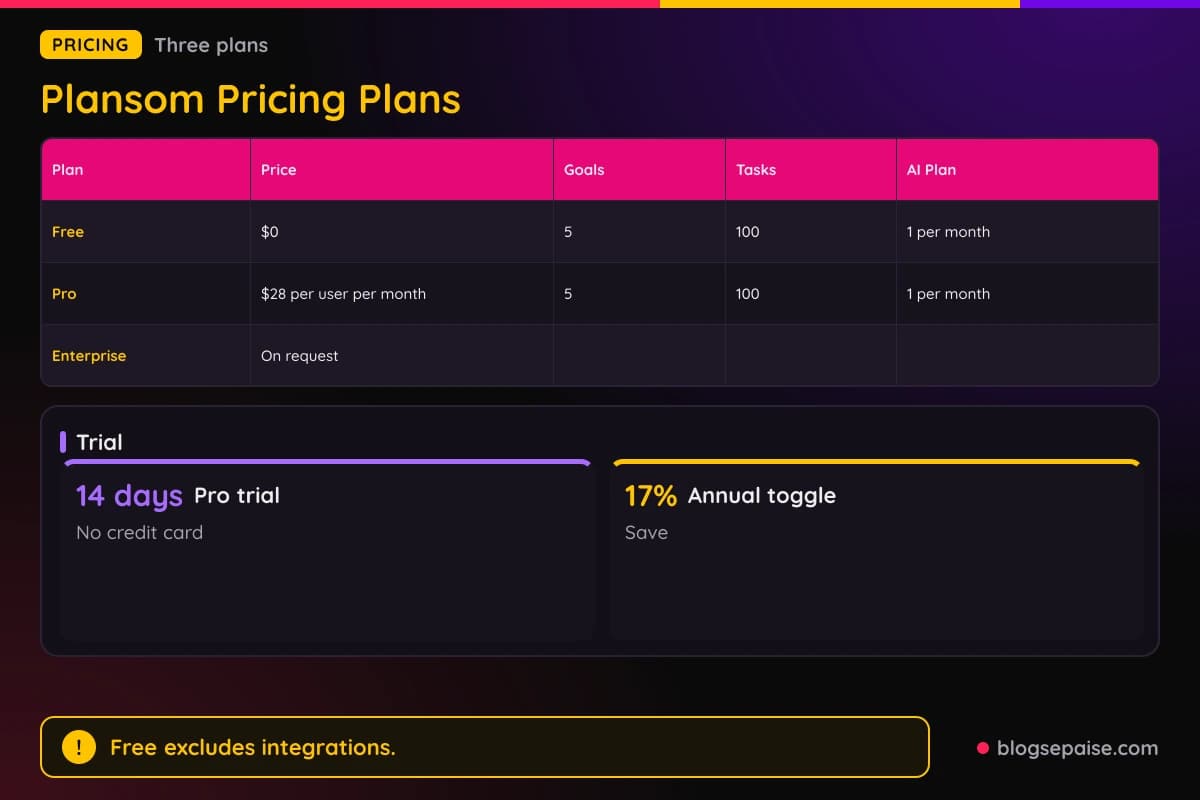
Pricing has a monthly and annual toggle with a Save 17% badge. Pro costs $28 per user per month or $280 per user per year, about 17 percent less than monthly.
Pro starts with a 14-day free trial. The trial gives full access with no credit card required.
Enterprise pricing is available on request, including enterprise, agency, and partner pricing. You reach it through the Contact sales link.
Plansom's Terms say plans, features, and pricing may change over time, and subscriptions renew automatically until you cancel. Fee changes take effect at the start of your next term with reasonable notice.
On a monthly plan, cancellation takes effect at the end of the current billing period, with no refunds for partial months. On an annual plan, the full year is charged upfront, cancellation takes effect at the end of the 12-month term, and unused portions are generally not refunded.
Payments are generally non-refundable under the Terms. EU and UK consumers may have a 14-day cooling-off right on the first purchase, which may be lost if they start using paid features in that period.
Plansom gives pro-rated refunds if it ends your subscription without cause, or if you leave because of a material change or discontinuation. If a payment fails, access may be suspended or set to read-only.
Plansom's affiliate program pays a 20 percent recurring commission on each referred customer for their first 12 months. It also offers a 20 percent discount code for your audience, up to 30 percent for invited elite partners, and payouts through PartnerStack once your balance reaches €50.
Who Is Plansom Best Suited For
Plansom is built for teams. Its website title is AI Project Management and Work OS for Teams.
The Teams agent is for leaders. It helps leaders set goals, assign ownership, and track progress without leaving Teams.
Team leads see who is working on what, what is complete, and what is blocked, across people and agents. They get that view without requesting status updates.
Plansom suits founders, managers, and knowledge workers. Such people need it because requests, decisions, and tasks arrive across many places.
People who start with a single idea can use AI Plan. AI Plan helps when you are unsure how to structure a plan and can turn a rough idea into a clear roadmap.
Teams that work with clients and partners fit the shared views. Plansom's visibility levels include organizations you work with, limited to what each needs.
Microsoft 365 teams have a direct path. Plansom has a Microsoft 365 connector and an agent inside Teams.
Plansom can be used alongside a project tool. ChatGPT and Claude can plan and act, but Plansom keeps a shared view of goals, tasks, owners, and priorities.
Who Plansom Is Not For
The Free plan is limited. It includes 5 goals, 100 tasks, and 1 AI Plan per month, and it does not include AI Manage, AI Execute, AI Reporting, bottleneck alerts, success metrics, or integrations.
Integrations are the heart of AI Priorities. Since integrations are only on Pro, you need Pro to connect the tools Plansom reads.
The Microsoft 365 connector works only with work or school accounts. Personal accounts such as Outlook.com or Hotmail cannot be connected.
Plansom's agent reads only plain text from Word or PDF files in the Microsoft 365 connector. You paste the needed text into the chat.
Plansom's Terms say it makes no guarantee that AI outputs are accurate, complete, or reliable. You are responsible for verifying outputs before relying on them.
Plansom is SOC 2 Ready. The Privacy Policy says Plansom uses aggregated and anonymized data for AI-driven recommendations, while customer data is not used to train the underlying models.
Plansom Alternatives
The table below compares Plansom with Asana, ClickUp, and monday.com on free option, entry paid price, and AI notes. Plansom can be used alongside a project tool, so these are related tools rather than direct copies.
Asana's Personal plan is free for 2 users with unlimited tasks and projects. Starter costs $10.99 per user per month billed annually or $13.49 billed monthly, and Advanced costs $24.99 annually or $30.49 monthly.
Asana's Enterprise plan is custom priced. Asana AI is available on Starter, Advanced, and Enterprise, and Asana does not offer refunds.
ClickUp has a Free Forever plan. Core costs $9 and Business costs $17 per user per month billed yearly, Enterprise is custom, and Max costs $100.
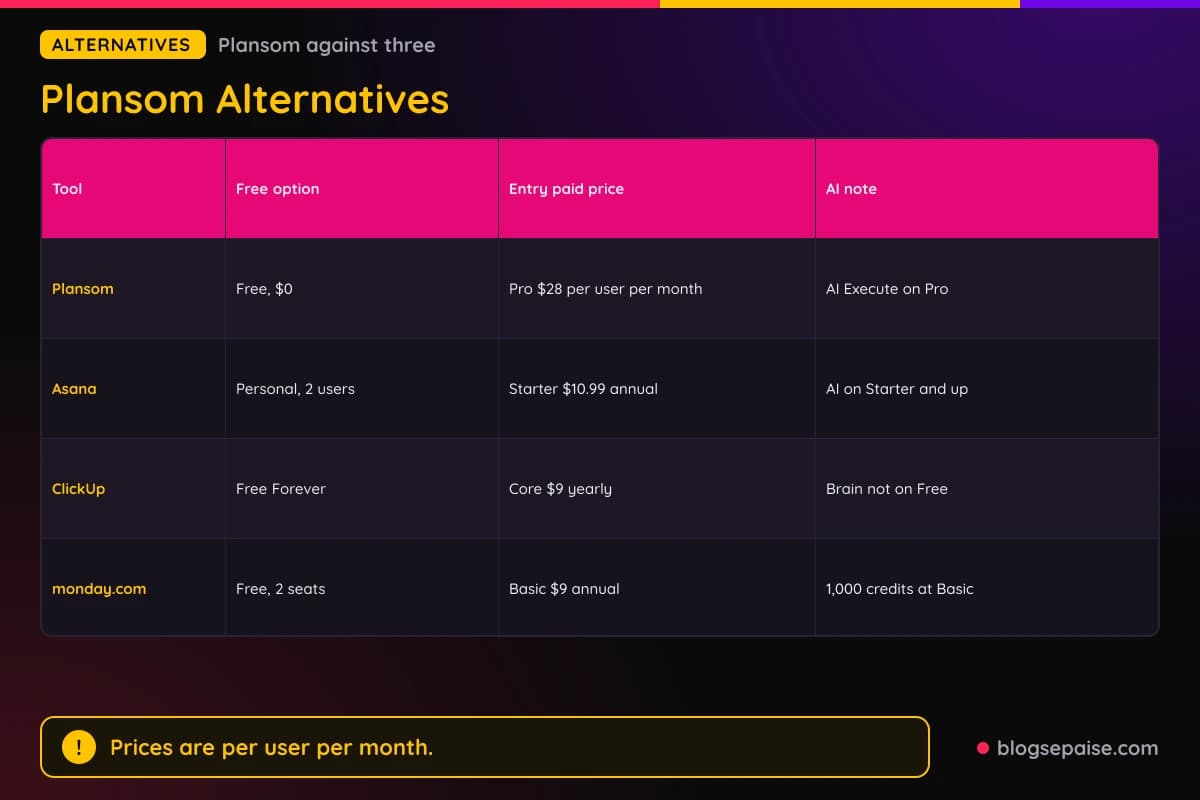
ClickUp's Free plan does not include its Brain AI. Core includes a Brain trial and 1,000 pooled credits per user per month, and Business includes 1,500 pooled credits per user per month.
monday.com has a free plan for up to 2 seats with 3 boards and 3 Docs. Its Basic plan costs $9, Standard costs $12, and Pro costs $19 per seat per month billed annually, and Enterprise is a custom quote.
monday.com's AI credits start at Basic with 1,000 credits per month, and Pro includes 3,000. It has a 14-day free trial of Pro, and plans start from 3 users.
Plansom costs $28 per user per month on Pro, which is higher than the entry paid tiers of ClickUp and monday.com. Plansom's own difference is its starting point, since it starts from your goal and incoming work across tools and then assigns, ranks, and updates it.
Plansom's pricing is simpler than the tools above because it has one paid tier before Enterprise. Asana, ClickUp, and monday.com each have several paid tiers.
Our software reviews hub covers more tools, and the Affiliate Program Database lists programs you can join, including Plansom's own.
Plansom Use Cases
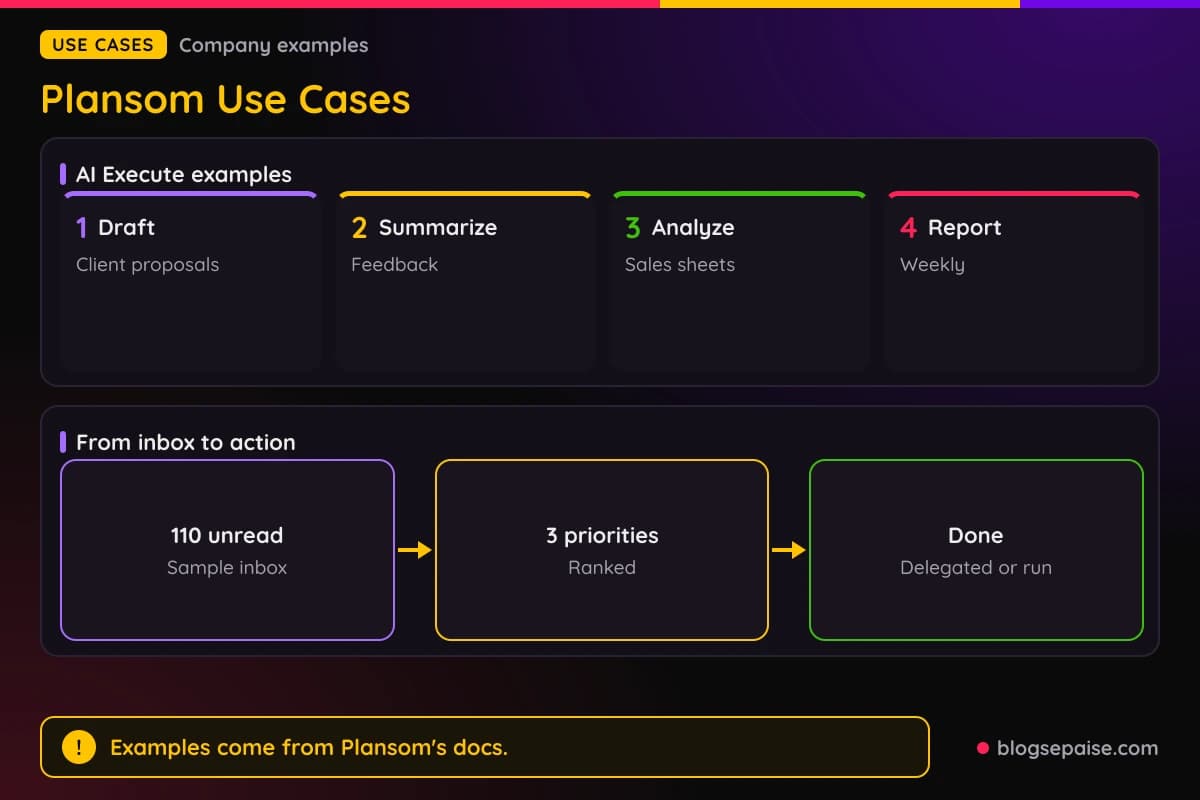
AI Execute has six example instructions. They cover drafting documents, summarizing feedback, data analysis, creating reports, meeting follow-ups, and routine updates.
For drafting, the instruction is Draft a client proposal using the attached notes and template. For summarizing, it is Summarize customer feedback into 3 key themes with one supporting quote each.
For data analysis, an example is Analyze the attached sales spreadsheet and create a table of totals by region and month. For reports, an example is a weekly performance report with Epic, OK, and Miss outcomes by goal.
For meeting follow-ups, the example turns a transcript into concise meeting notes with action items. For routine updates, it checks support tickets from Zendesk by webhook and lists unresolved issues by priority.
AI Plan has starter goals. They are Manage MVP launch, Hire sales team, Open new office, Plan annual offsite, Rebrand, and Post on LinkedIn 4x week.
AI Priorities handles the inbox. In Plansom's example, 110 unread messages become three ranked priorities that include a client proposal due Friday, a contract approval with one day left, and a launch date to confirm today.
Slack use cases include summarizing what was discussed in a channel over a period and creating tasks from action items in a thread. Zapier use cases include reading and adding spreadsheet rows.
Microsoft 365 use cases include creating Plansom tasks from emails. Team leads can use the Teams agent to track goal progress and bottlenecks without leaving Teams.
Final Thoughts On Plansom
Plansom is an AI work simplifier that turns a goal into a plan and your inbox into a ranked list. Its two main features are AI Priorities and AI Plan.
AI Priorities connects email, Slack, and meetings in about two minutes and surfaces your top three priorities. AI Plan turns a one-sentence goal into a SMART objective and a shared plan with sub-goals, tasks, owners, effort, and progress.
Plansom adds agents, AI Execute with an audit trail, automated reporting, templates, and connectors for Microsoft 365, Slack, and Zapier. The Free plan covers 5 goals, 100 tasks, and 1 AI Plan per month, and Pro costs $28 per user per month after a 14-day trial.
The limits are plain. Free leaves out integrations and the AI features that do the most work, and Plansom's Terms say you must verify AI output yourself.
The 14-day Pro trial needs no card, so you can test the inbox flow with your own email, Slack, and meetings.
You can browse more tools on our software reviews hub, and our Affiliate Program Database lists programs you can join, including Plansom's own through PartnerStack.
Plansom FAQ
1. What Is Plansom?
Plansom is an AI work simplifier. You state a goal and connect your work tools, and it builds plans, finds work in those tools, shows your priorities, and tracks delegated work.
2. How Much Does Plansom Cost?
Free costs $0, and Pro costs $28 per user per month or $280 per user per year. Enterprise pricing is on request.
3. Does Plansom Have A Free Plan?
Yes. The Free plan includes sharing and delegation, 5 goals, 100 tasks, and 1 AI Plan per month, with limited AI functionality.
4. Does Plansom Have A Free Trial?
Yes. Pro has a 14-day free trial with full access, and no credit card is required.
5. What Does Plansom AI Priorities Do?
AI Priorities finds priorities in your email, Slack, and meeting transcripts and shows your top three. It merges duplicates and ranks tasks with PlansomScore.
6. What Does Plansom AI Plan Do?
AI Plan turns a goal into a plan you can share. It asks questions until the goal is SMART, then builds sub-goals, tasks, owners, and effort.
7. Do I Have To Create Tasks Myself In Plansom?
No. Plansom creates tasks from your connected communications and meetings, and you can also add, edit, reassign, or remove them.
8. What Is PlansomScore?
PlansomScore is Plansom's proprietary prioritization algorithm. It weighs new requests and commitments against your goals and existing work.
9. Which Tools Does Plansom Connect To?
Plansom connects to Gmail, Outlook, Slack, Notion, HubSpot, Granola, ChatGPT, and Claude. Its help center also has pages for Zoom, Fellow, Zoho, Pipedrive, Zapier, Make, Asana, ClickUp, monday.com, Jira, and Microsoft 365.
10. Does Plansom Replace Email, Slack, Or My Project Tool?
No. You keep using those tools, and Plansom draws on them to keep plans current.
11. Is My Data Used To Train AI Models By Plansom?
Customer data is not used to train the underlying AI models. The Privacy Policy adds that it uses aggregated and anonymized data for AI-driven recommendations and clustering.
12. Is Plansom SOC 2 Certified?
Plansom is SOC 2 Ready and GDPR compliant.
13. Does Plansom Offer Refunds?
Plansom's Terms say payments are generally non-refundable. EU and UK consumers may have a 14-day cooling-off right on the first purchase.
14. Does Plansom Work With Microsoft Teams?
Yes. Plansom has an agent for Microsoft Teams with AI Coach, Goal Progress, Daily Updates, and Bottlenecks, built on Microsoft Foundry SDKs.
15. Does Plansom Have An Affiliate Program?
Yes. Plansom pays a 20 percent recurring commission for each referred customer's first 12 months, with payouts through PartnerStack once your balance reaches €50.
16. How Do I Contact Plansom Support?
Email support@plansom.com or use Contact Us inside the platform, where an AI Ambassador is assigned to your request.