Why Your Bounce Rate Is High And How To Fix It
You check Google Analytics and the bounce rate says 72%. Your stomach drops, because you wrote those posts for readers who buy through your links.
A high bounce rate is a signal, not a verdict. It tells you that many visits ended with very little happening, and it never tells you why.
If you keep asking why is my bounce rate high, the answer is rarely one thing. Eight steps below take you from reading the number correctly to fixing six common causes and then measuring the result.
The six causes are slow speed, poor mobile design, search intent mismatch, intrusive pop-ups, weak internal linking, and clutter. They run from the one that hits the most pages to the ones that need judgment.
Affiliate bloggers feel this more than most. Your readers arrive from search with one question, land on a page full of links, and leave the moment something feels off.
You will also see what counts as normal, a worked example with invented numbers, common mistakes, and a short FAQ. The free Bounce Rate Diagnosis Quiz can then point you to your likeliest cause.
Disclosure: Some of the links I share might be affiliate links. If you click on one and make a purchase, I may earn a small commission as a thank you. But don’t worry, it won’t cost you anything extra. I only recommend stuff I genuinely believe in. Your support helps me keep creating awesome content. You can read my full affiliate disclosure in my disclaimer page.
If you want to save a lot of hours searching for high-paying affiliate programs, check out our exclusive list of 2500+ affiliate programs. You’ll find all the information about the programs inside the list. This list is perfect for affiliate bloggers and influencers.
What A High Bounce Rate Really Tells You
Bounce rate counts the visits where the reader did nothing you would call interest. They landed, looked around, and left.
Think of it as a fever. A fever says something is wrong but never says what, so you check the likely causes one at a time.
For an affiliate site the cost is direct. A reader who leaves in three seconds never sees your comparison, your honest pros and cons, or your link.
Bounce rate in GA4 is kinder than the older version of Analytics. A reader who stays on the page for more than 10 seconds counts as engaged, even if they never click anything.
That change is why so much old advice no longer fits. Tips written for the older single-page definition talk about a different number.
So the first job is to read the number the way GA4 reads it. Step 1 starts there.
Context decides what a number means. A recipe post and a pricing page should not bounce at the same rate.
A quick answer post may show a high rate and still do its job. The trouble starts when a page built to lead readers deeper sends them away instead.
Pages that earn commissions deserve the closest look. If a post is meant to lead to a link click and readers leave first, the post is leaking money.
After that, Steps 2 to 7 cover one cause each with its fix, and Step 8 shows how to measure the result.
Step 1: Read Your Bounce Rate Correctly In GA4
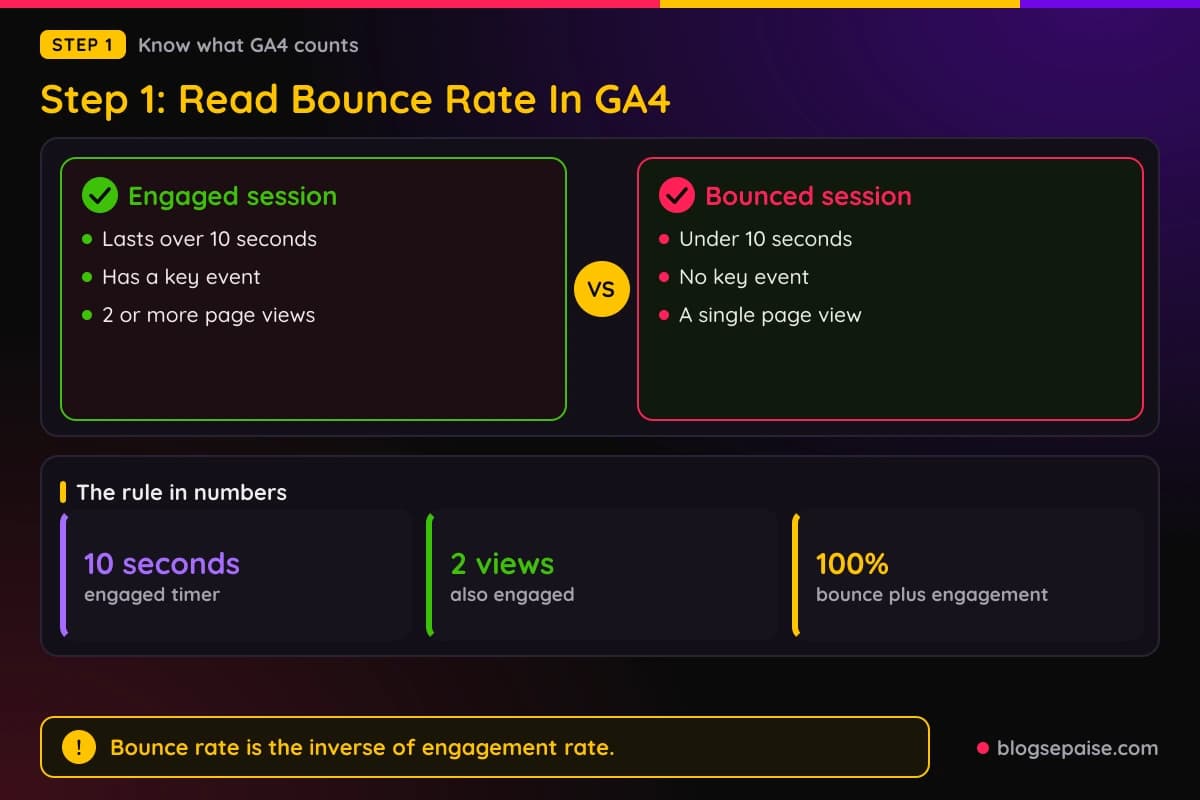
Bounce rate in GA4 is the percentage of sessions that were not engaged. It is the inverse of engagement rate, so the two numbers always add up to 100%.
A session counts as engaged when any one of three things happens. It lasts longer than 10 seconds, it has a key event, or it has 2 or more page views.
A session that meets none of the three is a bounce. A reader who lands, reads for 8 seconds, triggers no key event, and leaves after one page is a bounce.
Key events are the actions you mark as important, such as a click on an affiliate link or a newsletter signup. If you have marked none, only time and page views can save a session.
Google lets you change the timer for web data streams. Open your web data stream in Admin, choose Configure tag settings, open Adjust session timeout, and set the engaged-session timer.
Do not change that timer just to make the number look better. Pick a setting and keep it, or your before and after comparisons mean nothing.
Now find the number. Open the report you use for page performance and make sure bounce rate is a column, or build an exploration that includes it.
Write down the definitions before you start fixing things. When you know a bounce means under 10 seconds, no key event, and one page view, the fixes make more sense.
Also check your date range. Pick at least 28 days so one viral day or one dead week does not distort the page.
Last, find the five landing pages with the most sessions and the highest bounce rate. Those pages are your starting list, because a fix there moves the whole average.
Look at it for each landing page, not for the whole site. A site average hides the five posts that drag everything down.
Then split by device. Mobile and desktop often tell very different stories, and the fix for each is different.
Then split by traffic source. Organic search, social, and email visitors act differently, so compare like with like.
Check your sample size too. A page with 12 sessions and a 75% bounce rate is noise, so wait until a page has a few hundred sessions before you judge it.
If your tracking is not set up well, start with our Google Analytics set-up guide. A tag installed twice can double count page views and hide a real problem.
With the number read correctly, you need a target to compare it against. Next comes what counts as normal.
What Counts As A Normal Bounce Rate
Google has not published an official benchmark for a good bounce rate. Every number you see comes from studies that used different sites, time periods, and industry definitions.
Cross-industry medians for GA4 sit in the mid 40s. Databox reported 44.04% for September 2024, and AgencyAnalytics reported 45.9% for December 2024.
Ecommerce benchmarks run a little lower in some studies. Databox reported 38.61%, AgencyAnalytics reported 45.35%, and Siege Media reported 45.6%.
Blogs are harder to pin down. GA4-era studies rarely break out blogs, and older tables list blog and content sites at 70% to 90%, which may reflect the older single-page definition.
Device changes the picture as well. Siege Media's data implies a bounce rate of 44.7% on desktop and 51.2% on mobile.
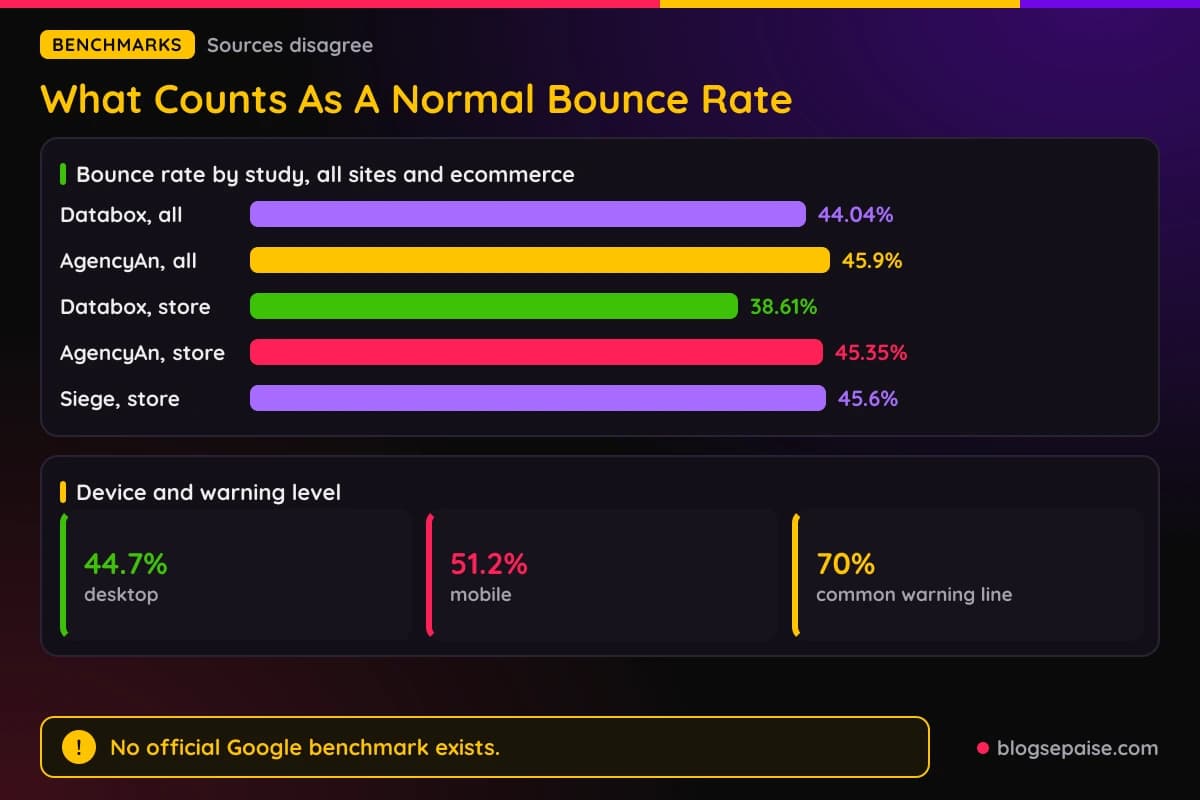
So the sources disagree, and that is a fact you should plan around. A store sits roughly between 38% and 46% in the studies above, while blog figures vary so much that your own history is a better yardstick.
Some sources treat anything above 70% as a warning sign. That is a rough alarm bell and not a rule.
Treat each benchmark as a rough range and not a target. Studies count different sites, so two good sources can disagree by several points.
If your rate sits near the medians above and your affiliate clicks are healthy, you may have nothing to fix. A calm number with weak clicks is a different problem from a loud number with strong clicks.
Write your own baseline down today. In three months it will be worth more than any chart from an outside study.
Compare each page with similar pages on your own site. Then compare each month with the month before.
Intent matters here too. A shopper on a product page came to act, while a reader on a blog post often came for one answer and may leave happy.
That is why the steps below focus on causes you can check, and not on hitting a magic number. Start with speed, since it touches every page at once.
Step 2: Fix Slow Load Speed First
Speed comes first because it hits every page at once. A slow page loses readers before they see a single word you wrote.
Google's Core Web Vitals give you three targets. Largest Contentful Paint should be 2.5 seconds or less, Interaction to Next Paint 200 milliseconds or less, and Cumulative Layout Shift 0.1 or less.
Those targets are measured at the 75th percentile of page loads, separately for mobile and desktop. A page passes when all three metrics meet their targets.
Largest Contentful Paint is the one to watch first. It measures loading, so it marks when the main content shows up.
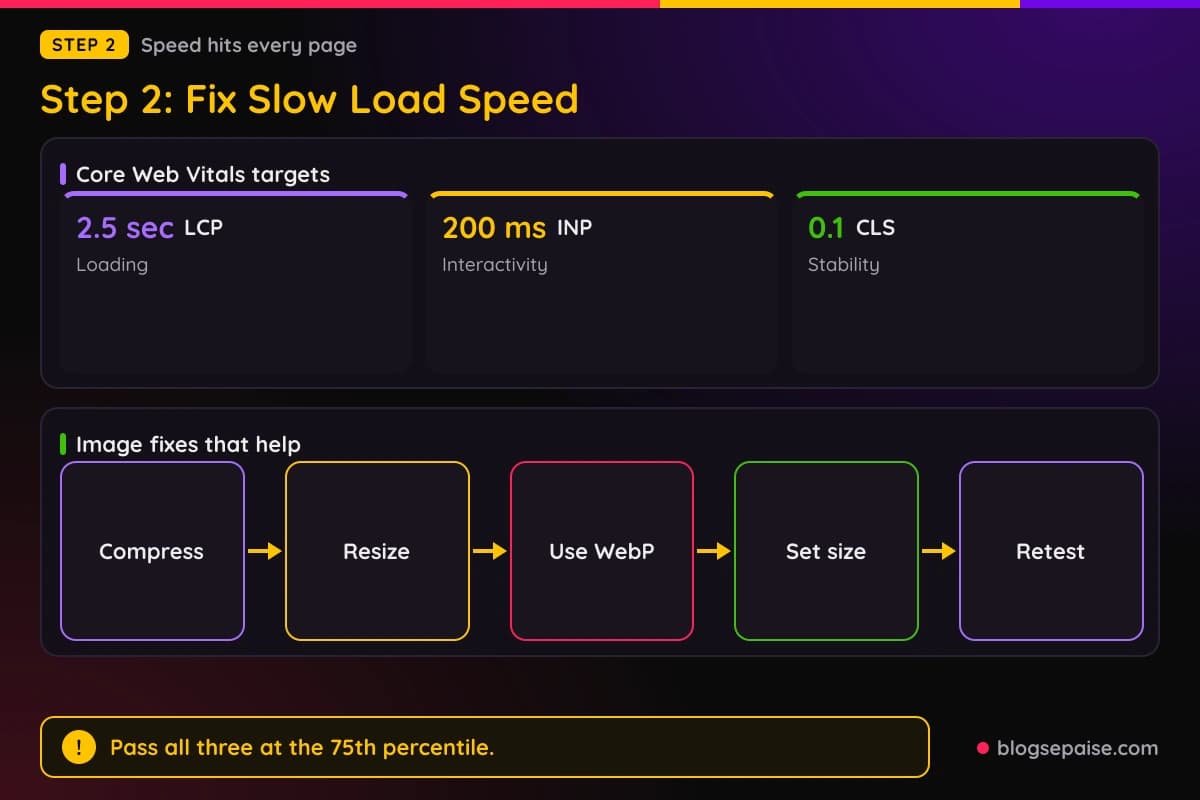
Large images are a common cause of a slow load on review pages, because every product shot adds weight. Compress and resize each image before you upload it.
Our image compression tool works on JPEG, PNG, and WebP files right in your browser. Use WebP where you can, and set a width and height so the browser reserves the space.
Reserved space also protects your layout shift score. Layout shift happens when a banner or a late image pushes the text down.
Lazy loading helps with images below the first screen. Load the top image right away, and let the rest wait until the reader scrolls near them.
Caching and a content delivery network also help when your readers live far from your server. Many hosts offer both with a simple setting.
Be careful with video embeds. A video player can add a lot of weight, so load it only when the reader taps play, or place it lower on the page.
Readers who tap the wrong link because the page jumped do not stay long. Fix the jump and you fix the exit.
Next, cut script weight. Every chat widget, social feed, and extra tracking script adds loading time, so remove the ones you do not use.
Hosting matters as well. If the server itself is slow, read our cloud hosting providers guide before you spend hours on small tweaks.
Test your slowest, highest-traffic landing pages first. PageSpeed Insights shows Core Web Vitals field data when a page has enough visits.
Fix a template once and every post that uses it improves. That makes theme and plugin cleanup worth more than polishing one article.
Recheck bounce rate after two weeks, not two days. Step 8 covers how to measure it properly.
Step 3: Repair The Mobile Experience
Next, check mobile, because many of your readers are on phones. Look at the device split in your own GA4 to see how many.
In the Siege Media data, mobile bounce was 51.2% against 44.7% on desktop. A gap of a few points is normal, while a gap of 20 points is a flag.
Open your top 5 posts on your own phone. Read them the way a stranger would, with a thumb and a slow connection.
Check text size first. Body text that needs a pinch to read sends people away, so use a readable size and short lines.
Tap targets come next. Affiliate buttons and links packed close together cause mis-taps, so give every button room.
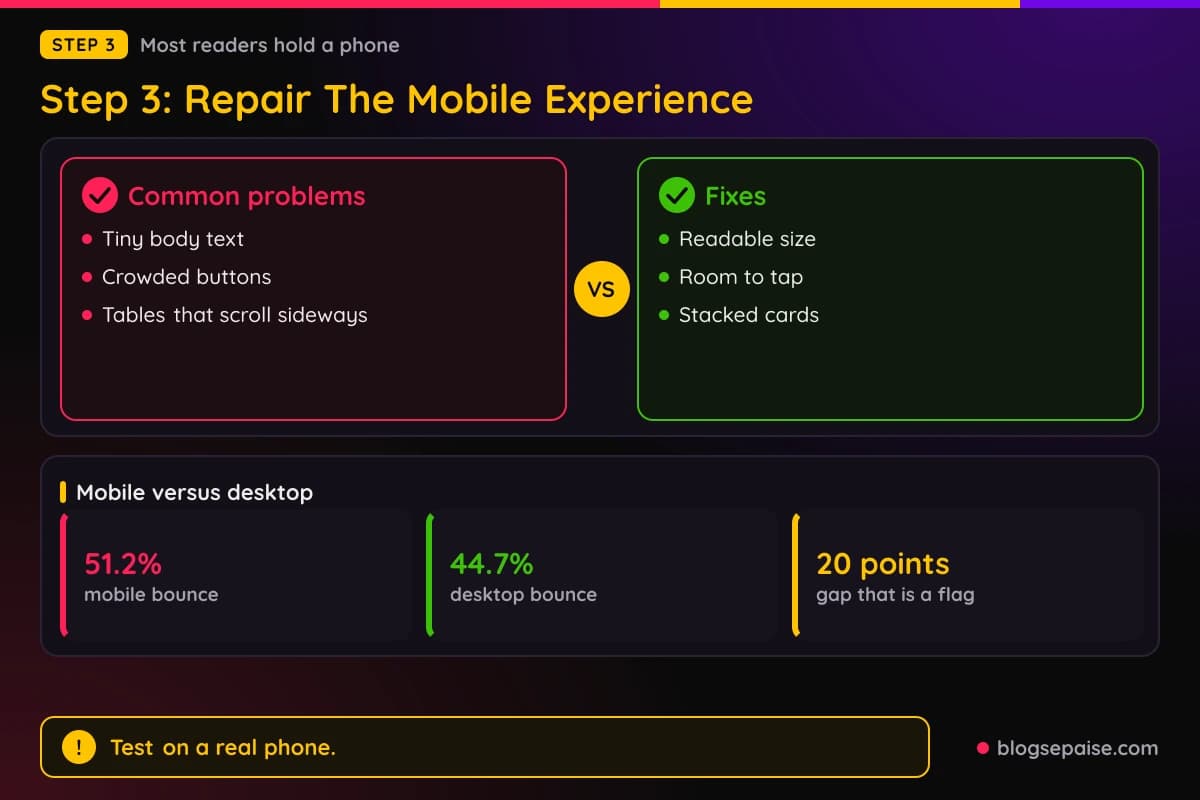
Wide tables are the classic mobile failure on review sites. A comparison table that scrolls sideways hides your best content, so rebuild it as stacked cards or short paragraphs.
Watch for sticky elements. A sticky header, a sticky ad, and a cookie bar together can eat half of a phone screen.
Check forms and buttons too. A button that needs two taps, or a form that covers the keyboard, creates exits you never see in a report.
Thumb reach matters on large phones. Put your main buttons where a thumb lands easily, not in the far top corner.
Do a quick test every time you publish a new template. Mobile problems come back when a plugin updates or a new block gets added.
Make sure the first screen shows the answer, not a logo and a menu. Phone readers decide in seconds.
Keep images responsive. Do not send a 2,000 pixel photo to a 400 pixel screen, which also slows the page you fixed in Step 2.
Test with your browser's device mode, then check on one real phone. An emulator misses real touch trouble.
Also check where your affiliate links go. If the merchant page works badly on phones, your click loses value even when your own page is perfect.
After you make changes, look at mobile bounce rate on its own. Mixing it with desktop hides the result.
If mobile and desktop match closely, move on to the next cause.
Step 4: Match The Page To Search Intent
Search intent mismatch means the page does not give the reader what the query promised. Speed fixes can never cure it.
Picture a reader who typed best standing desk under $400 and lands on a long history of desks. That reader is gone in seconds.
Affiliate bloggers cause this in two ways. The title promises a list while the body tells a story, or the post is a single review when the searcher wants a comparison.
Open Google and search your page's main keyword. Look at the top results and note the format, such as list, review, how-to, or comparison.
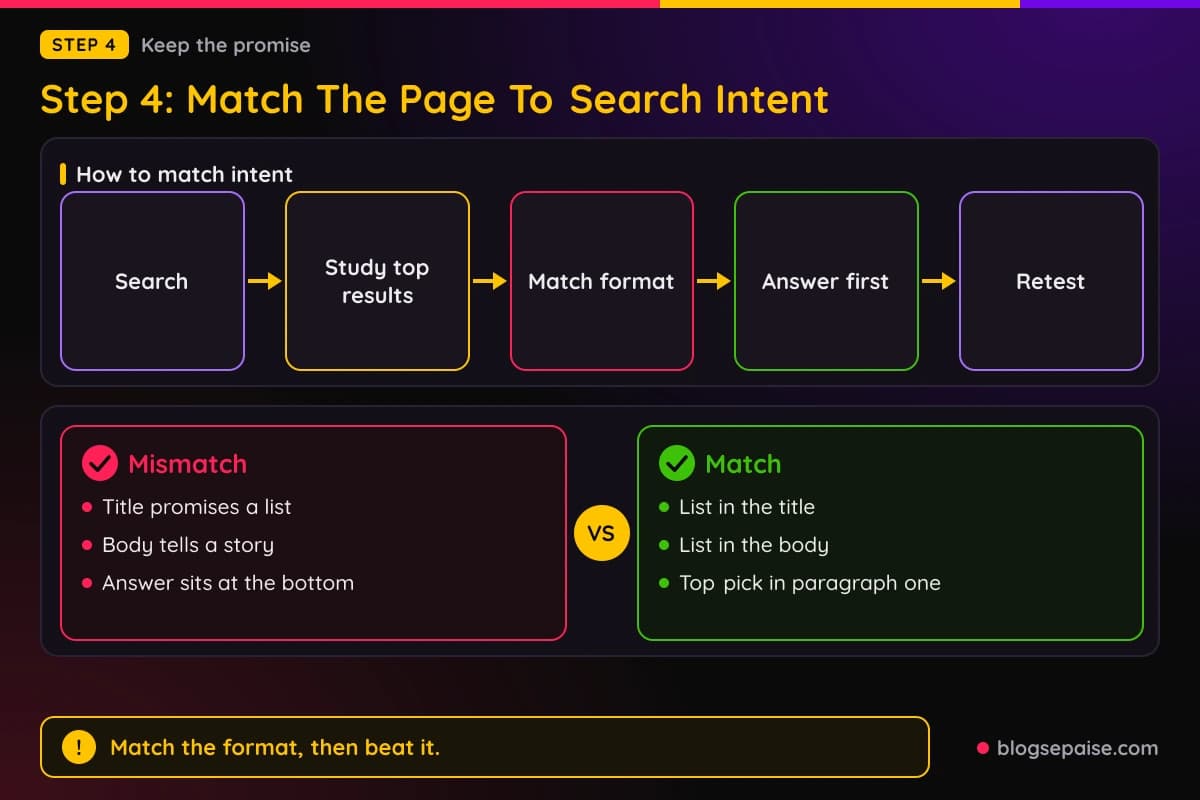
If every top result is a list and yours is a story, you found the mismatch. Match the format first, then beat them on quality.
Check the queries that bring people to the page in Search Console. Queries that surprise you show what readers think the page is.
Put the answer in the first screen. If the title says best budget desks, name your top pick in the first paragraph.
Words in headings tell readers what to expect. Use the same words people type, so the reader sees their question in the first screen.
Watch for the opposite problem as well. A post written for people ready to buy will bounce if the searcher only wants to learn.
If the page cannot match the intent, change the target keyword instead of forcing it. A new keyword often fits the post better than a rewrite.
Titles and meta descriptions set the promise. A clickbait title raises clicks and bounces together, so keep the promise honest, and test titles with our headline analyzer.
Pick the right content type for the keyword. Our guide to informational and commercial content helps you match the page to the reader.
Do not open with 400 words of preamble. Readers scroll for the answer, so give it, then explain.
Add a short table of contents on long posts so readers can jump to their part. A reader who finds their part stays.
Rewriting a title or an intro is cheap, and it often takes less time than speed work. Allow a few weeks afterward, since queries and rankings shift slowly.
Step 5: Remove Intrusive Pop-Ups
Pop-ups that block the page cause fast exits. A reader who sees a full-screen box before reading a word often just leaves.
Google's guidance says not to obscure the entire page with interstitials, and not to send users to a separate page for their input. It recommends banners that take up only a small fraction of the screen.
That guidance covers all promotional dialogs, including app install prompts. Mandatory ones, such as age gates, are exempt.
Cookie notices may be required where you have readers, so keep yours small. Our GDPR cookie notice builder can help you set up a short one.
Newsletter prompts fit in a small container too. Google notes that small banners can carry sign-up prompts like newsletters.
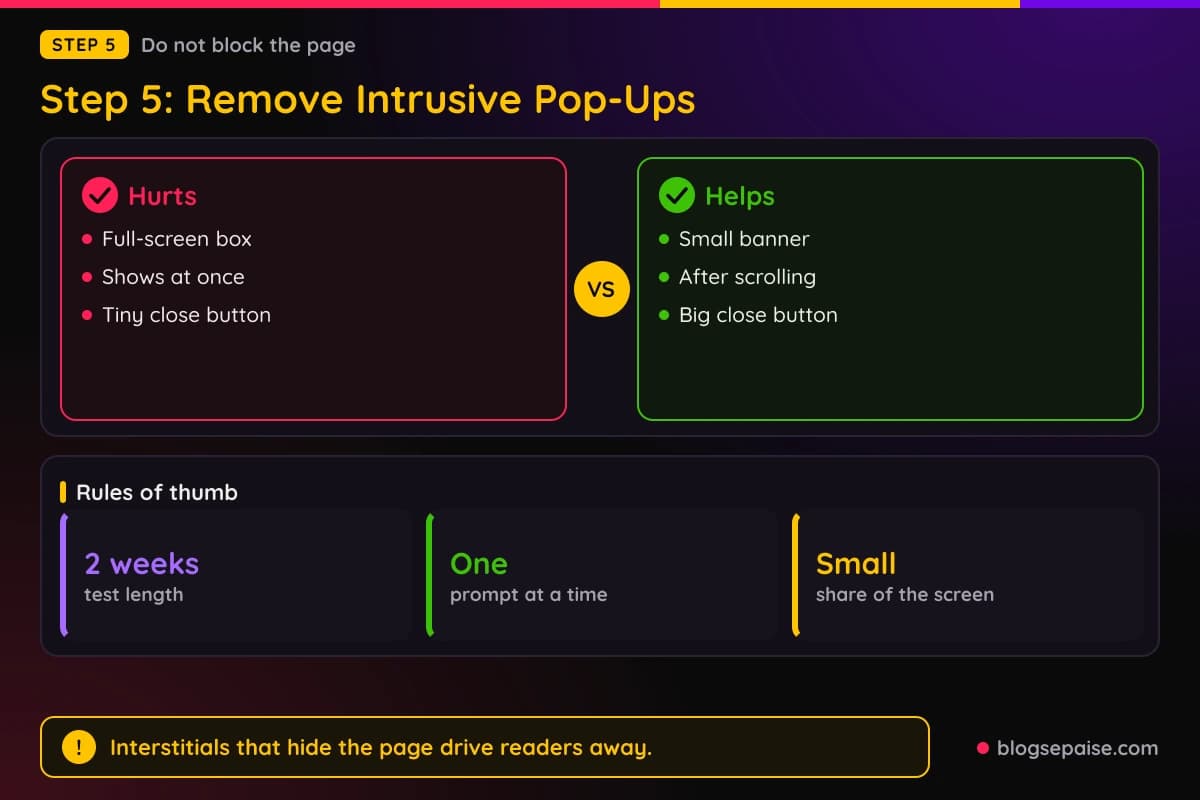
Timing matters. Trigger a prompt after the reader has scrolled or finished reading, not at 0 seconds.
Never stack prompts. A cookie bar, a newsletter box, a chat bubble, and a discount banner on one screen is a wall.
Mobile needs extra care. A box that is polite on a laptop can cover a whole phone screen.
Review every tool that can show a pop-up, including your theme, email plugin, ad network, and chat widget. Many sites run three at once without knowing it.
Open your own site in a private window to see what new visitors see. You are used to your pop-ups, but a stranger sees them fresh.
Make the close button big and easy to find. Tiny close buttons make readers angry, and angry readers leave.
Pop-ups also cover your content and your links. A box over your review hides the very thing you want readers to see.
Test the change instead of guessing. Our A/B test calculator tells you if a difference is real.
Compare pages with and without the pop-up for 2 weeks. Keep everything else the same during the test.
You may lose a few email signups when you remove a pop-up. Weigh that against affiliate clicks per visitor, and replace it with an inline form after the content.
Inline forms in the middle and at the end of a post ask politely. Readers who want your list will find them.
Step 6: Strengthen Internal Linking
Internal links lower bounce rate in GA4 by design. A session with 2 or more page views counts as engaged, so a second click rescues the session.
Many affiliate posts are dead ends. The reader gets the answer and finds no next step except the exit.
Place links where the reader's next question appears. If a section mentions image compression, link to your guide on it at that sentence.
Use descriptive anchor text, not click here. The reader should know where the link goes before they click.
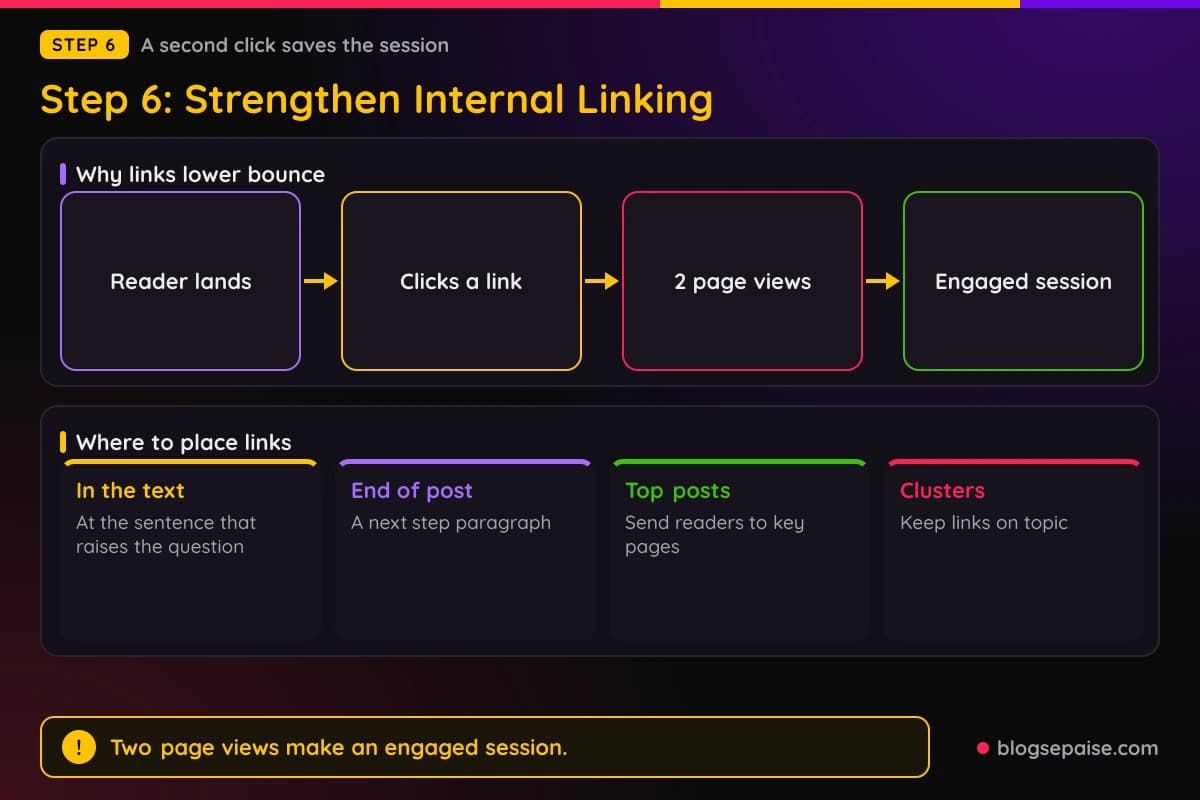
Add a next step paragraph at the end of every post. Point to one or two related posts, the way this article points to the quiz.
Related post blocks help, and links inside the text work alongside them. Use both.
Keep links on topic. Building content clusters gives readers a natural path from one post to the next.
Update old posts when you publish new ones. Add a link from older posts to the new post, so readers keep moving.
Check for broken internal links. A link that leads to an error page ends the session and teaches the reader to stop clicking.
Use the end of a section for a link when it solves the reader's next question. A link at the right moment feels like help and not a pitch.
Find the gaps with our internal link opportunity finder. It shows posts that should link to each other and do not.
Link from your high-traffic posts to the pages you want readers to see. Your top posts are your best source of second clicks.
A few useful links beat twenty random ones. Too many links also add the clutter you will fix in Step 7.
Affiliate links need thought here. A click that leaves your site can still end the session as a bounce unless you have marked it as a key event.
Marking affiliate link clicks as key events is honest, because that click is the outcome you want. Just keep the setup the same when you compare before and after.
Then watch views per session along with bounce rate. If both improve, your links are doing their job.
Step 7: Clean Up Cluttered Design
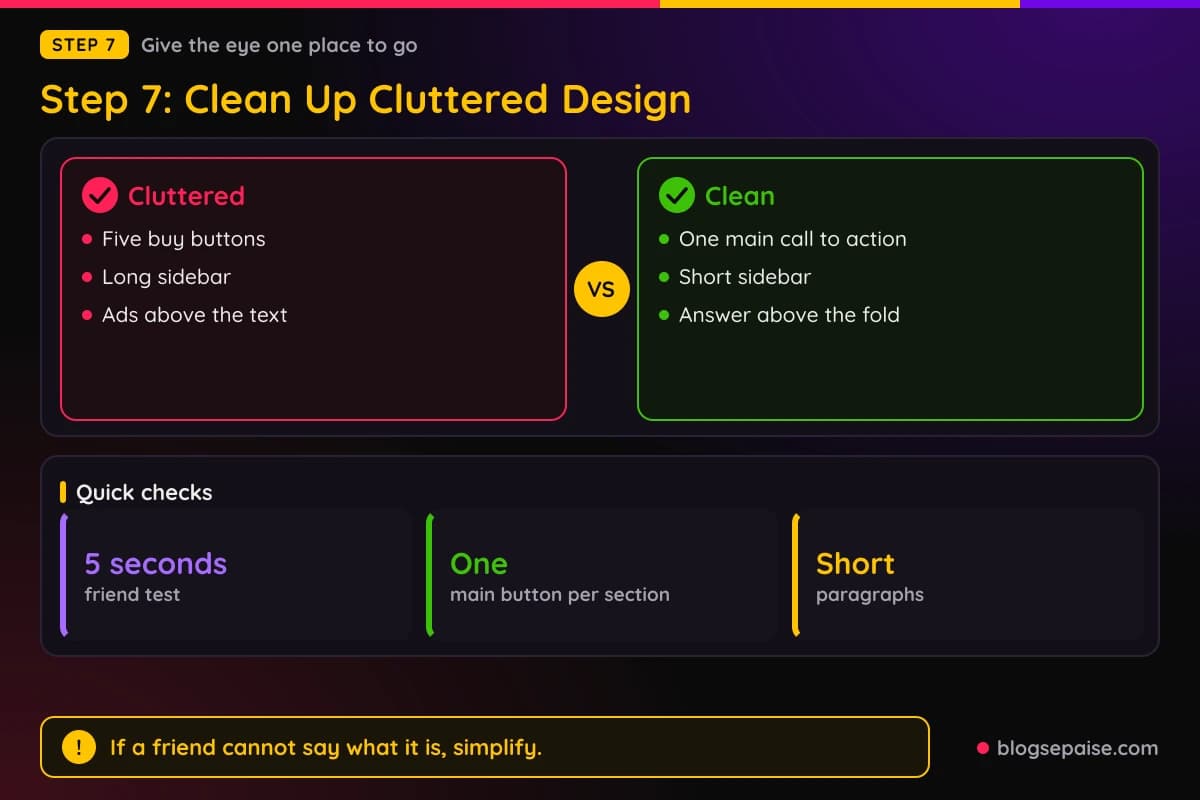
Clutter makes readers unsure where to look. Too many ads, banners, boxes, and links on one screen push people to leave.
Affiliate pages tend to pile up buttons, badges, coupons, and widgets. Each item competes with the one thing the reader came for.
Start with the first screen. A clean headline, a short intro, and one clear next step beat three banners.
Keep one main call to action per section. Five buy buttons in a row look desperate and confuse people.
Use white space and short paragraphs. Walls of text drive readers away as fast as busy layouts do.
Check contrast and readability with our color contrast checker. Light gray text on white is hard to read, especially on a phone.
Trim the sidebar. A long sidebar adds noise on desktop and drops below the content on mobile.
Look at your site with a stranger's eyes. Scroll the page at normal speed and note every spot where you felt lost.
Do not remove useful items just to look minimal. Keep the disclosure, the table of contents, and the links that help the reader decide.
Make changes to one template at a time. A single clean template can help dozens of posts at once.
If you run display ads, limit them. Ads above the content push the words down, hurt speed, and cause layout shift.
Use clear headings and a table of contents so readers can scan. Scanning is how most people read online.
Stick with one or two fonts. More than that makes a page feel messy.
Choose images that carry information, such as charts and product shots, not stock photos that only fill space.
Run a 5-second test. Show a friend the page for 5 seconds, then ask what it is about, and simplify if they cannot say.
Our guides to a high converting homepage and affiliate landing page optimization show clean layouts in action.
Step 8: Check If The Fix Worked
Change one thing at a time. If you fix speed, pop-ups, and design in one afternoon, you cannot tell which fix worked.
Write down your baseline first. Note the bounce rate, engagement rate, and views per session for the page, and for mobile on its own.
Then wait. Two weeks is a practical minimum for a small site, since fewer sessions mean noisier numbers.
Compare periods of the same length, and make sure both include the same weekdays. Weekends often behave differently from weekdays.
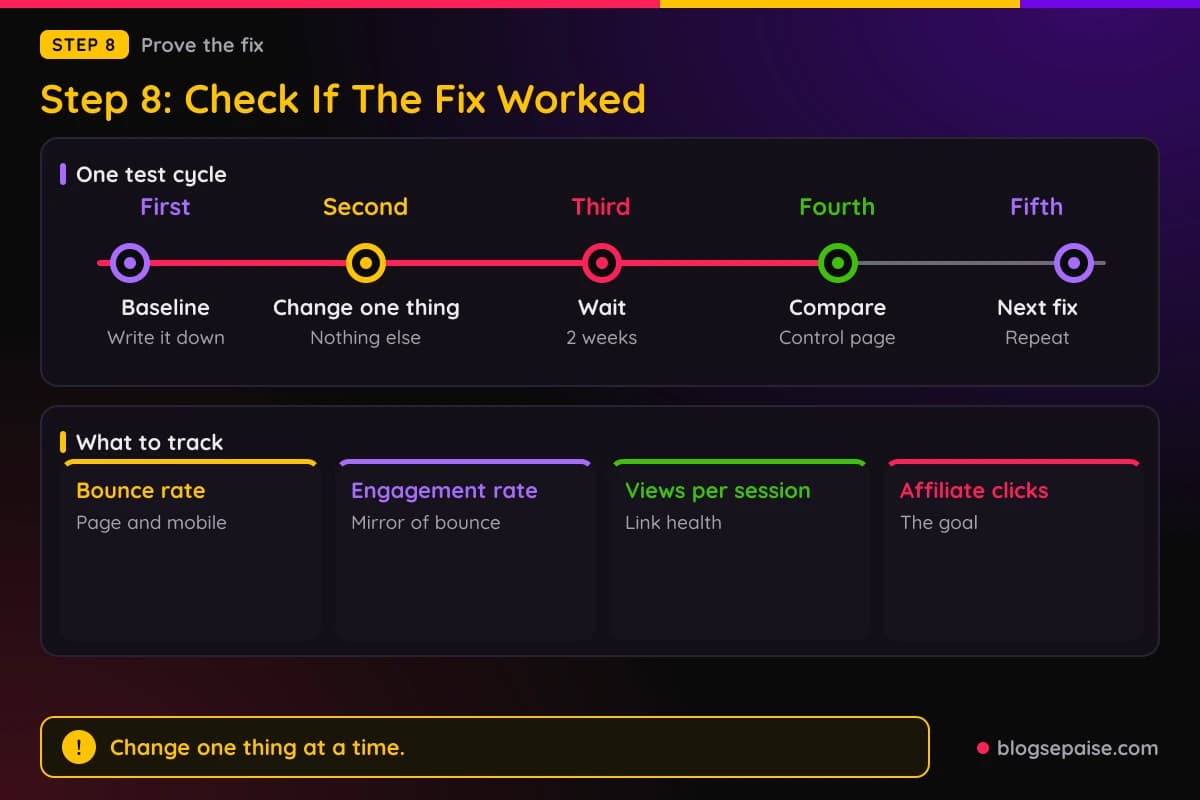
Use a control page as well. Pick a similar page you did not change, and if both pages moved the same way, the cause was not your fix.
Keep a change log in a simple spreadsheet with the date, the page, and the change. Memory fails fast when you test six things in six weeks.
Remember that engagement rate mirrors bounce rate. When one goes up, the other goes down by the same amount.
Small sites should be patient. With few sessions, one odd day can swing the rate, so rely on trends more than single days.
If the number does not move, check that the change really went live. Cached pages sometimes keep showing the old version for days.
If the number gets worse, undo the change and note it in your log. A failed test still teaches you something about your readers.
Track what you actually care about too. Lower bounce that does not lift affiliate link clicks is a vanity win, so watch the numbers in our affiliate dashboard metrics guide.
Which fix comes first? Start where your splits point: if mobile is far worse than desktop, begin with Steps 3 and 2, and if one page is the problem, begin with Step 4.
If the whole site is slow, speed comes first. If a fix takes under an hour, such as pop-up timing or a missing internal link, just do it.
Not sure where to start? The Bounce Rate Diagnosis Quiz asks eight quick questions and points to likely causes.
Review the numbers once a month after that. Our data driven optimization guide shows how to turn that review into a habit.
A Worked Example: Dana Fixes Her Standing Desk Reviews
Dana runs a small blog that reviews standing desks. The numbers below are invented to show the process, so they are not real results.
Her GA4 shows a 68% bounce rate across the blog. Mobile sits at 74% and desktop at 55%.
Her slowest post loads its main image in 4.6 seconds on mobile. The target is 2.5 seconds or less.
In week 1 she compresses and resizes her images. The main image now loads in 2.3 seconds, and bounce rate falls to 61%.
In week 2 she turns a wide comparison table into stacked cards and gives buttons more room. Bounce rate falls to 56%.
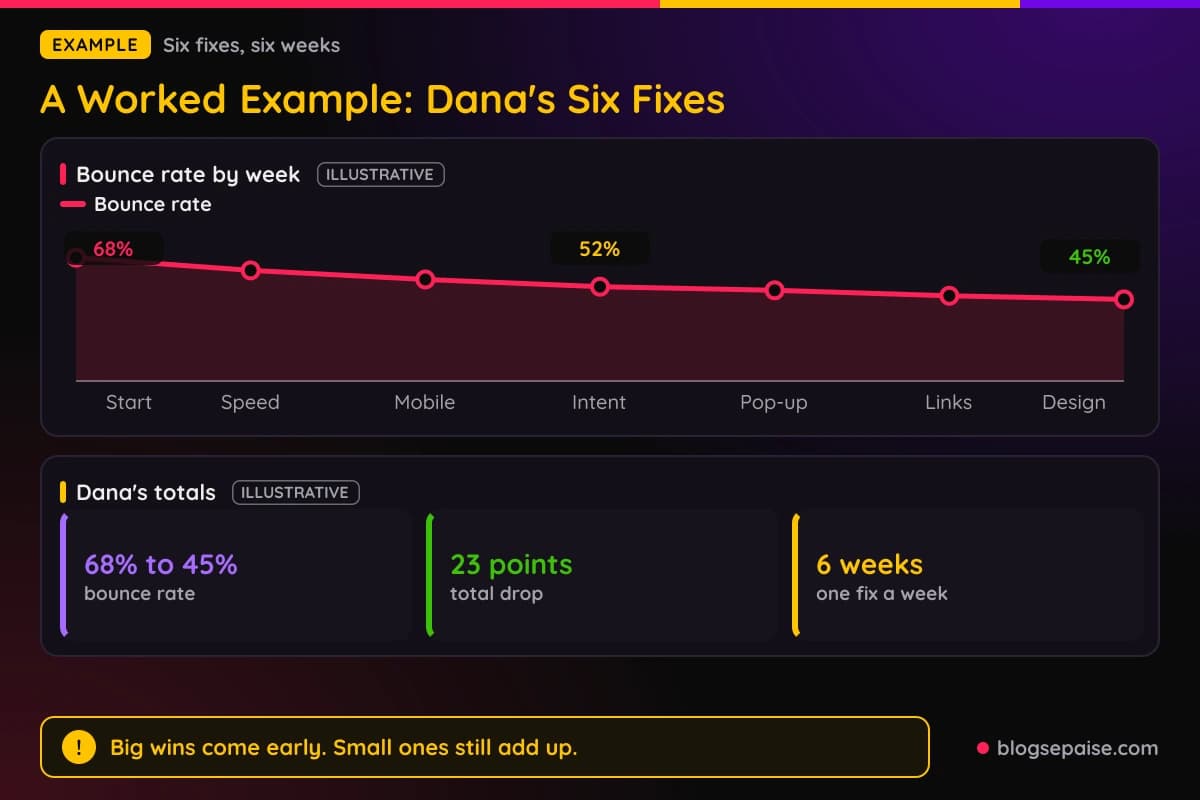
In week 3 she rewrites the title and intro of her best under $400 post so the top pick shows in the first paragraph. Bounce rate falls to 52%.
In week 4 she delays the newsletter pop-up until the reader reaches the end of the post. Bounce rate falls to 50%.
In week 5 she adds related post links inside the text and a next step paragraph to her top posts. Bounce rate falls to 47%.
In week 6 she removes two sidebar widgets and cuts a stack of buy buttons down to one per section. Bounce rate falls to 45%.
Her total drop is 23 points in 6 weeks. Speed gave the biggest drop at 7 points, and the last two fixes gave only 2 points each.
She changed one thing per week and kept a change log. She also watched a similar post she left alone, so she could tell her fixes from normal ups and downs.
Her real numbers would differ, and yours will too. Treat the shape as the lesson, with big wins early and small wins that still add up.
Notice that she did not chase zero. She stopped when readers were engaging and her affiliate link clicks were rising.
Common Mistakes When Fixing A High Bounce Rate
Judging the whole site by one average is the first mistake. Look at landing pages, devices, and sources instead.
Comparing GA4 numbers with old benchmarks is the second. Older tables use a single-page definition, so the numbers do not match.
Fixing five things at once makes it impossible to learn anything. Change one thing and wait.
Marking every click as a key event to shrink the number is a trap. The score improves while readers stay just as lost.
Ignoring mobile is costly. If you only test on a laptop, you miss the visits that bounce most.
Judging a page on a tiny sample leads to wrong moves. A handful of sessions can swing the rate by tens of points.
Removing your affiliate disclosure to clean up the page is a bad trade. Keep it clear and near your links, as our legal disclosures guide explains.
Adding more pop-ups to win back email signups often backfires. Readers who leave never join your list anyway.
Stopping after one fix is the last mistake. Bounce rate improves in small steps, and the work pays off when you repeat it.
Final Thoughts
A high bounce rate is a question, not a failure. Read it correctly in GA4, split it by page, device, and source, and the question gets much smaller.
Then fix the causes in order. Speed, mobile, intent, pop-ups, internal links, and design cover most of what drives readers away from affiliate pages.
Change one thing, wait two weeks, and compare with a control page. Slow and steady wins here.
When you are ready for a second opinion on your own site, take the Bounce Rate Diagnosis Quiz. It takes a few minutes and points you to the step to start with.
Frequently Asked Questions
1. Why is my bounce rate high?
The usual causes are slow speed, poor mobile design, search intent mismatch, intrusive pop-ups, weak internal linking, and clutter. Check them in that order, starting with your busiest pages.
2. What is bounce rate in GA4?
It is the percentage of sessions that were not engaged, and it is the inverse of engagement rate. A session is engaged if it lasts longer than 10 seconds, has a key event, or has 2 or more page views.
3. What is a good bounce rate in GA4?
Google publishes no official benchmark. Cross-industry medians in recent studies sit around 44% to 46%, and ecommerce studies range from 38.61% to 45.6%.
4. Is a 70% bounce rate bad for a blog?
Some sources treat 70% as a warning sign, while older tables list blogs at 70% to 90%. Compare the page with similar pages on your own site before you decide.
5. Can I change the 10 second timer in GA4?
Yes, for web data streams. Open the stream, choose Configure tag settings, open Adjust session timeout, and set the engaged-session timer, then keep it fixed so your comparisons stay fair.
6. Does a single page visit count as a bounce in GA4?
Not always. If the reader stays longer than 10 seconds or triggers a key event, the session counts as engaged even with one page view.
7. How long does it take to see a change after a fix?
Two weeks is a practical minimum for a small site. Compare equal periods and use a similar page you did not change as a control.
8. Does a high bounce rate hurt affiliate sales?
A reader who leaves in seconds never sees your links, so fewer clicks follow. Fixing the cause usually helps clicks too, which is why you should track both.
9. Which fix should I start with?
Start where your data points. Speed helps the whole site, mobile fixes help when phones bounce far more than desktops, and an intent rewrite helps when a single page is the problem.