Affiliate Marketing On Pinterest: 8 Setup Steps For Beginners
Pinterest lets you publish Pins that link to a web page, and its own rules say you can use affiliate links in moderation.
That makes setup the real work. A clean account, a claimed website, and a clear disclosure habit all come before your first Pin.
Eight setup steps follow, in the order you would do them. Each fact comes from Pinterest's help pages and policies, the FTC, Amazon's Associates pages, or the tool makers named in the text.
Our guide on affiliate links on Pinterest covers the link rules in depth. Here the focus is setup and the weekly workflow.
Pinterest changes its menus and features over time, so check the matching help page if a button has moved.
Disclosure: Some of the links I share might be affiliate links. If you click on one and make a purchase, I may earn a small commission as a thank you. But don’t worry, it won’t cost you anything extra. I only recommend stuff I genuinely believe in. Your support helps me keep creating awesome content. You can read my full affiliate disclosure in my disclaimer page.
If you want to save a lot of hours searching for high-paying affiliate programs, check out our exclusive list of 2500+ affiliate programs. You’ll find all the information about the programs inside the list. This list is perfect for affiliate bloggers and influencers.
What Pinterest Says About Affiliate Content
Start with the rulebook, because it shapes every later step. Pinterest's Commercial and Branded Content Guidelines include a section called Affiliate Links.
The first rule is about accounts. Pinterest says you should operate only one Pinterest account in general, and it should be your authentic presence on the platform.
Next comes quality. Pinterest says affiliate content should be original and add unique value for Pinners.
Pinterest also asks for openness. You should be open about the commercial nature of your content and your links.
Pinterest says some URL shorteners are not supported on the platform. If a Pin's link is blocked, you can edit it.
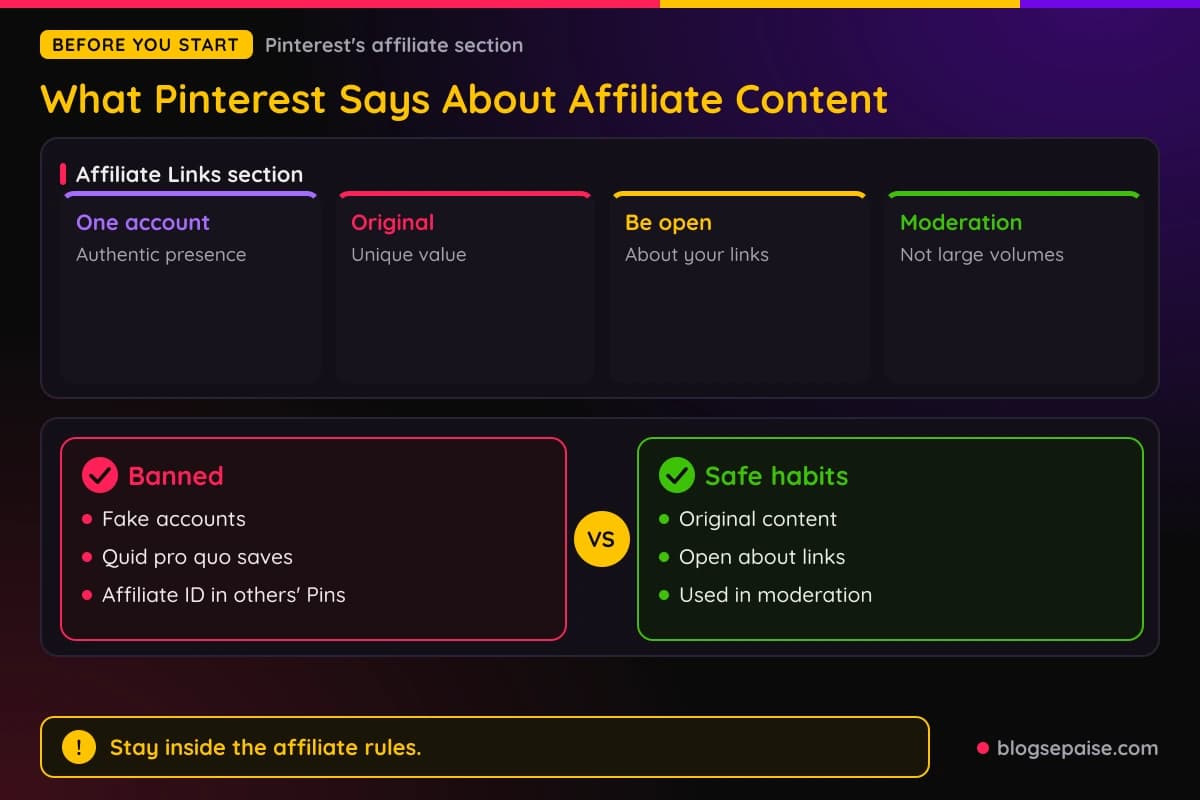
Manipulation is off limits. Pinterest says not to try to manipulate its algorithms or Pinner traffic.
Its examples include fake accounts that create or save your affiliate links. They also include asking other users to save your affiliate Pins in a quid pro quo.
A third example is asking other users to create Pins with links that include your affiliate identifier.
Volume matters too. Pinterest says creating affiliate Pins repetitively or in large volumes is spam, and it tells creators to use affiliate links in moderation.
The spam section of Pinterest's Community Guidelines backs that up. One rule says not to create or save content that is repetitive, deceptive, or irrelevant in an attempt to make money.
Another rule covers the sites you link to. Pinterest says not to link to websites that are unsafe, deceptive, untrustworthy, unoriginal, or that facilitate or encourage spam.
Pinterest adds that websites should have original content that adds unique value for Pinners.
The spam section also has a no surprises principle. Pinners should be able to reasonably anticipate where your link will take them.
Links with excessive or deceptive redirection may be blocked. So may shortener services that are abused for spam.
Automation gets a rule of its own. Pinterest says not to use automation that has not been explicitly approved by Pinterest, including unauthorized services that perform actions on your behalf.
Pinterest says it may remove, limit, or block the distribution of content or accounts that violate its paid partnership, commercial content, affiliate, or contest guidelines.
Every step below is built to stay inside those lines. Keep this list nearby as you work.
Step 1: Check Your Program Allows Pinterest
Pinterest's rules are half of the picture. The affiliate program you join has its own terms, and those can be stricter.
Amazon shows how this works. Its Operating Agreement says the program lets you monetize your Site, which includes social media user-generated content as well as websites and software applications.
Amazon's Associates Central help page on accepted sites lists the social networks it takes. They are Facebook, Instagram, Twitter, YouTube, TikTok, and Twitch.tv.
Pinterest is not on that list. The same page says Facebook pages must be open groups or fan pages, not personal pages.
Amazon asks you to list the exact URL of your specific social media page. It says not to list only the network's main domain, such as facebook.com or instagram.com.
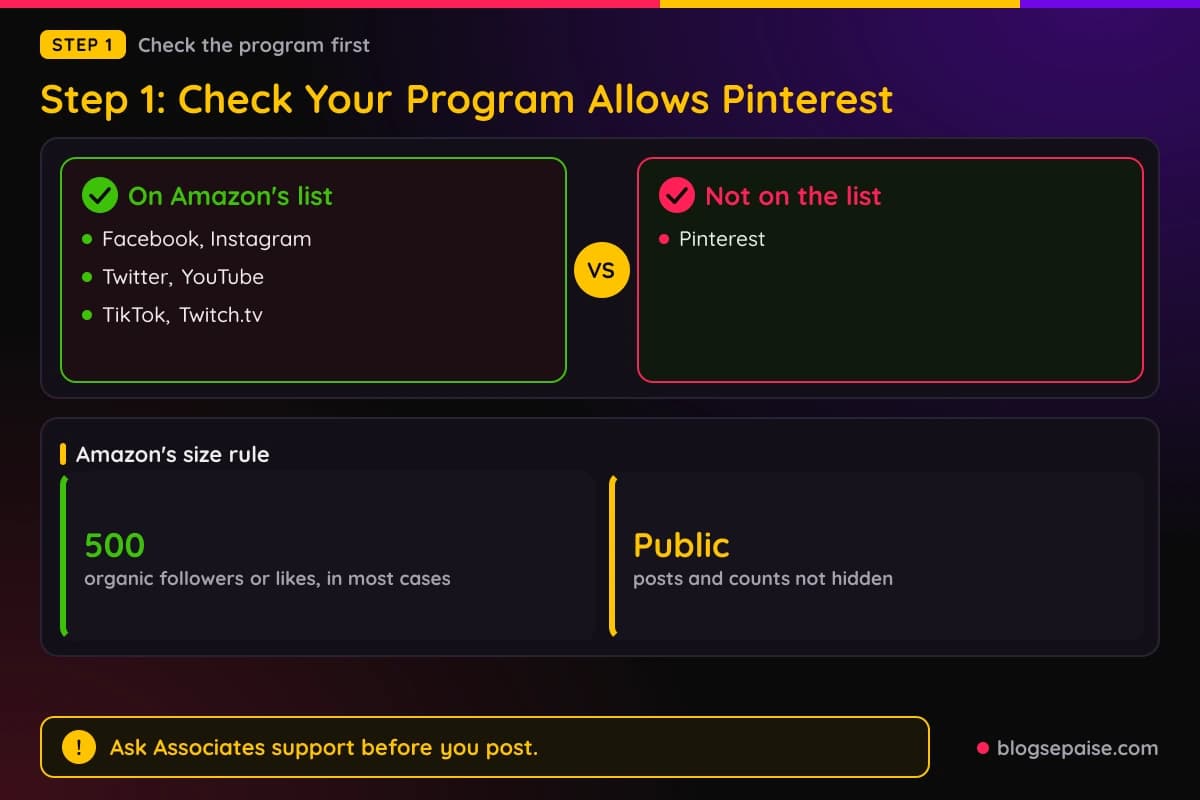
Amazon sets size rules for the networks it lists. The page or group must be established, with a substantial number of organic followers or likes, which in most cases means at least 500.
It must also be public. Amazon says you cannot apply with a page where your posts, or your follower or subscriber counts, are hidden from non-followers.
Amazon's participation requirements add a link rule. They say you may not display links formatted with your Associates tag on a site that is not your site.
Amazon's program documents do not mention Pinterest at all. Because the answer affects your account, ask Associates support before you post tagged Amazon links on Pinterest.
Amazon also bans link shortening that makes it unclear you are linking to an Amazon site. Pinterest, for its part, says some URL shorteners are not supported.
Both rules point the same way. Use plain, recognizable links, and test every link after you publish.
Other programs write their own rules. Read the terms of each one before you pin a link.
If the terms are silent on Pinterest, ask the program manager in writing. Keep the reply with your records.
Pinterest also says products you tag must follow its Merchant Guidelines and Affiliate Guidelines.
If you are still choosing programs, see our guide on how to get approved for affiliate programs.
Step 2: Create A Pinterest Business Account
A business account is the base for everything else. Pinterest says it gives you analytics for your Pins through Pinterest Business Hub and Pinterest Analytics.
It also lets you run ads, including Idea ads, video ads, carousels, collections ads, and product catalogs. You can skip the ads and still use the account.
You have two paths. You can create a new business account, or you can convert a personal account.
For a new account, Pinterest says the email address cannot already belong to an existing Pinterest account. You can only create a new business account from a desktop device.
If you are setting up access to a company or client ad account, Pinterest recommends using your professional email and your own name, not your business name.
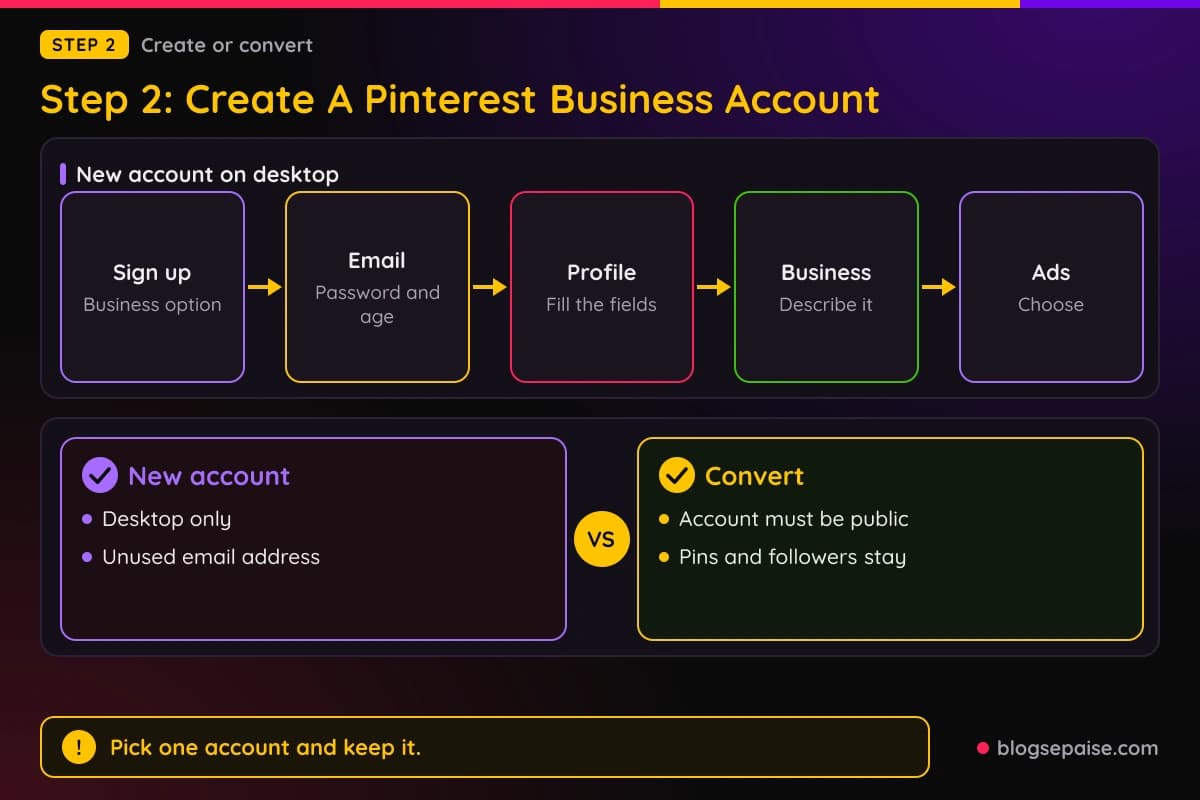
The steps start at pinterest.com. Log out of any Pinterest account first, click Sign up at the top right, and choose the option to create a business account.
Enter your email, create a password, and enter your age. Then click Create account.
Next you complete the profile fields and click Next. After that, fill in the fields that describe your business and click Next again.
Pinterest then asks if you want to run ads. Choose, click Next, and then pick where to start or click the X to go to your new account.
Creating an account means you accept Pinterest's Business Terms of Service and Privacy Policy.
Converting is the better route if you already have a personal account. Business accounts are public, so Pinterest says to switch a private personal account to public first.
If your personal account is linked to another Pinterest account, unlink them before converting. Pinterest says your Pins and followers stay the same after conversion.
On desktop, log in, click the more options icon at the bottom left, and select Settings. Then select Account management on the left.
Find the option to convert and click Convert account. Click it again to confirm, then work through the same profile and business questions as a new account.
In the mobile app, tap your profile picture at the bottom right and then your profile photo at the top left. Tap Account management, then Convert to a business account, then Convert account.
The app asks for your profile name and then your website URL. You can tap Skip this step on the website, then choose how to describe your business.
Pinterest says you can switch back to a personal account at any time. It also says you can no longer link a personal account to a business account, though earlier links stay connected unless you unlink them.
That ties back to the one account rule in the affiliate guidelines. Pick one account, make it a business account, and keep it as your real presence.
Step 3: Claim Your Website
Claiming connects your website to your Pinterest account. Pinterest says it gives you insight into how often your content is shared on Pinterest.
Pins saved from your site link back to your profile, so people can find more information about you. Your profile picture shows with the Pin, and viewers see an option to follow you.
Pinterest sets some requirements. You must own the domain, subdomain, or subpath, and you must be able to edit the website's source code.
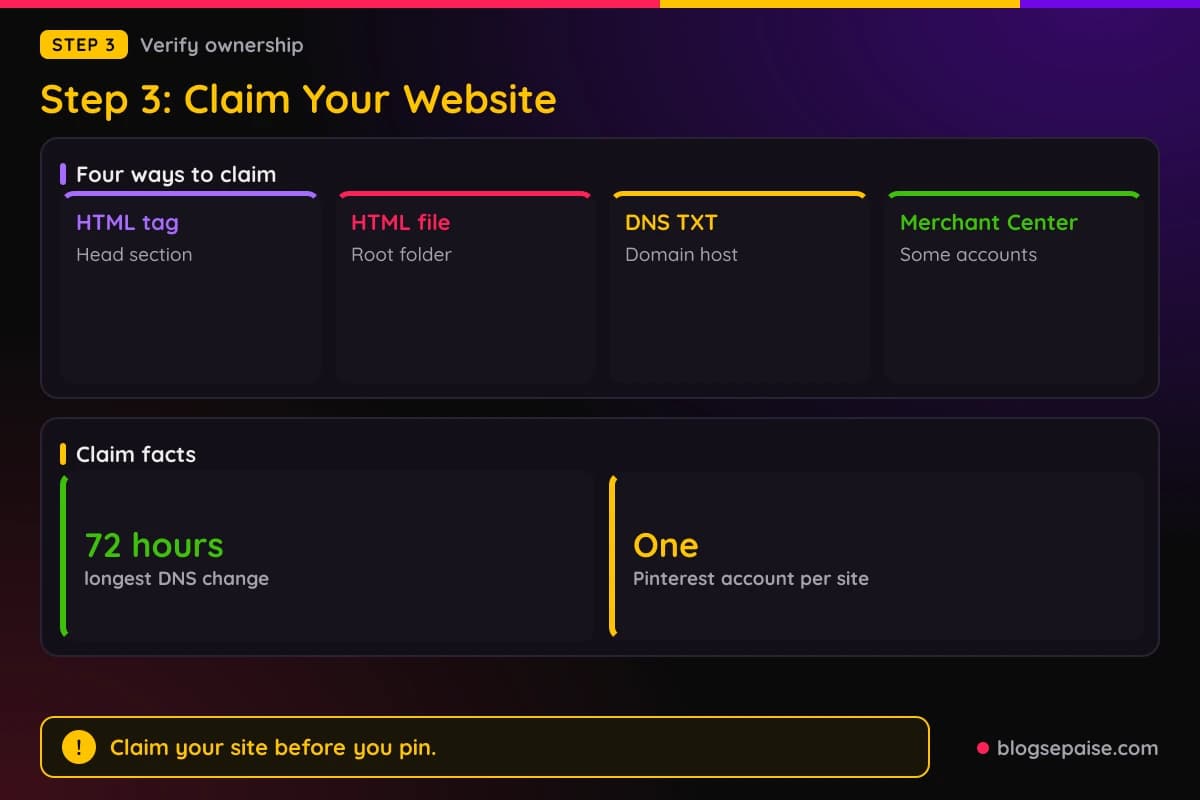
A website can be claimed by only one Pinterest account. Most social accounts and marketplace stores, such as Etsy, eBay, and Amazon, cannot be claimed.
Pinterest does not require a business account to claim a site, but it recommends one.
Each claimed website counts as a separate domain, unless two domains route to the same place. Keep that in mind if your blog uses a subdomain.
You have four methods. They are Google Merchant Center, an HTML tag, an HTML file, and a DNS TXT record.
All four start in the same place. Open the menu at the top right of your business account, select Settings, then Link to Pinterest, and click Claim next to Websites.
For the HTML tag, copy the tag and click Continue. Then add it to the head section of your index.html file, before the body section.
The exact steps depend on your web host. Return to Pinterest, enter your website URL, and click Verify.
For the HTML file, click Download under Upload HTML file and click Continue. Upload the file to the root folder of your web server, because a subfolder will not work.
Then enter your URL back in Pinterest and click Verify.
For the DNS TXT record, copy the record and paste it into your domain host's DNS records. If your host requires it, enter @ in the Host field.
Pinterest says DNS changes can take up to 72 hours to take effect. Then return, enter your URL, and click Verify.
The Google Merchant Center method is available only to some accounts. It asks for your Merchant Center ID and a login with the linked Google email.
Pinterest checks automatically for the tag, file, or record after you verify. You can remove the tag, file, or record once the site is claimed.
Pinterest also lists website-specific help for hosts and platforms such as Shopify, Squarespace, WordPress, Wix, and GoDaddy.
To check your claimed sites, go to Settings and then Claimed accounts. Claimed websites appear under Websites.
The same page has an Unclaim button. Pinterest says Pins linked to an unclaimed site no longer connect to your account.
After claiming, Pinterest suggests adding a link to your website on your profile. It also points you to Pin analytics, which Step 8 covers.
Step 4: Turn On Rich Pins
Rich Pins pull information from your website automatically. Pinterest says you can spot one by the extra details shown above and below the image when you open the Pin.
They update on their own when the original page changes. There are three types: recipe, article, and product.
Article Pins show the headline, description, and author of a blog post or news article. Pinterest says listicles and image-heavy pages do not qualify.
Product Pins show current price, availability, and product details. Pinterest says they appear only if the item is in stock, the price is accurate, the data was updated recently, and you meet its merchant guidelines.
Recipe Pins show a title, serving size, cook time, ratings, diet labels, and ingredients. Recipes need Schema.org or h-recipe markup, and ratings require Schema.org.
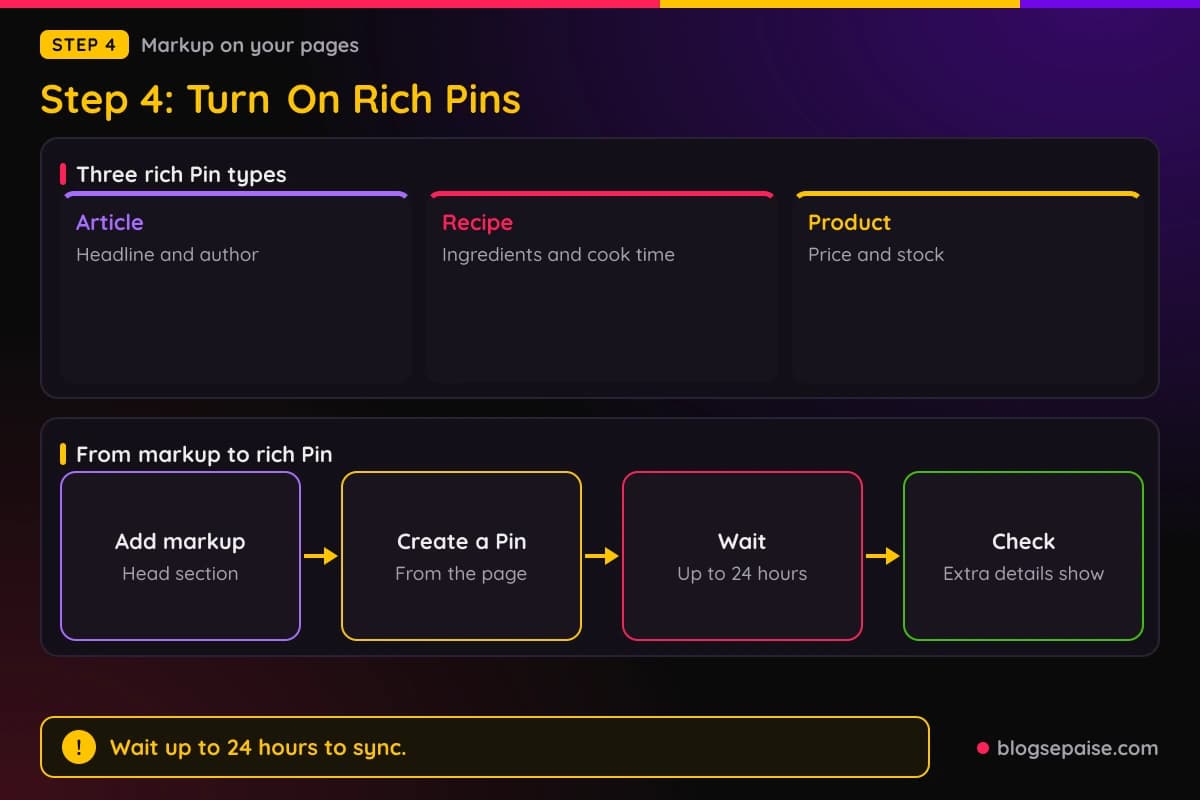
For article Pins, add Open Graph or Schema.org markup to the head section of each page you want enabled. Include a title, description, and type.
For products, the markup should include the name, URL, price, currency, and availability. Pinterest says you can also create product Pins through catalogs.
Next, create a new Pin from the page. Pinterest says content from pages with the correct tags appears as rich Pins, and existing Pins that link to those pages can convert too.
Allow up to 24 hours for the content to sync. Sites hosted on Etsy, Teachers Pay Teachers, or eBay do not need markup.
Pinterest's rich Pins help page does not name a validation tool. To check your setup, open a Pin that links to a page with the markup after 24 hours and confirm the extra information appears.
Recipe ratings show only on iOS and Android, according to Pinterest. Check those on a phone.
Pinterest warns that manual edits to a Pin overwrite the synced metadata. Edit the page instead of the Pin when you can.
You can switch rich Pins off for one page. Add a meta tag named pinterest-rich-pin with its content set to false in that page's header, and remove it to turn them back on.
Step 5: Build Boards And Pick Keywords
Boards organize your Pins. Pinterest says to give boards clear, descriptive titles to help with search, and its example is a board called Easy no-bake dinners.
Relevance counts too. Pinterest's paid partnership guidance says to post relevant content to relevant boards.
On desktop, click the square plus icon in the left navigation bar and select Board. Enter a name, and Pinterest may suggest one based on your activity.
You can edit the suggested name before creating the board. Pinterest also offers a switch called Keep this board secret and lets you add collaborators.
Click Create to finish. To find your boards later, click the board icon in the left sidebar.
In the mobile app, tap the plus icon and then Board. Enter a name, turn on Make this board secret if you want privacy, and tap Create at the top right.
You can also create a board while saving a Pin. On desktop, hover over a Pin in your home feed, click the down chevron next to the suggested board name, and click Create board.
Pinterest's board setup steps do not cover sections, board covers, board descriptions, or limits on board counts. Check its other help pages for those.
Pinterest does say boards need good keywords. In its performance guidance, it recommends updating older Pins with relevant keywords in titles, descriptions, board titles, board descriptions, and URLs.
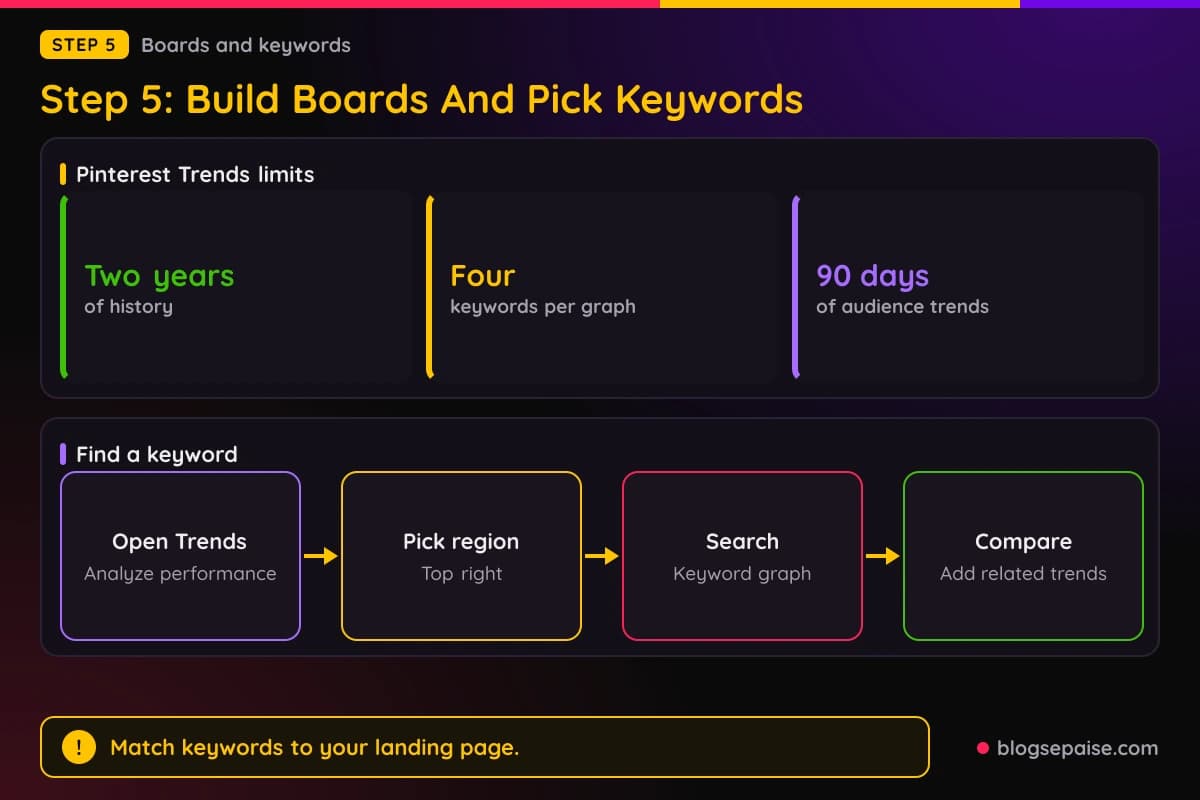
To pick keywords, use Pinterest Trends. It is a tool in business accounts that shows historical data, up to the last two years, on top search, save, and shopping trends across regions and countries.
Open it from the hamburger icon at the top left, under Analyze performance. Pinterest says viewing it requires a desktop or mobile browser.
Pick a region at the top right, because it applies to most data on the page. Search trends lists popular keywords and marks which trends are seasonal.
It also shows weekly, monthly, and yearly change for each trend. Click a keyword to see its graph.
Pinterest explains how to read the graphs. Each trend's search volume is a ratio of its searches to all searches on Pinterest in the same period.
On each plot, the highest point is set to 100 and the lowest to 0. The other points are proportional.
You can compare up to four keywords on one graph. Add more from Related trends.
Moments covers seasonal and cultural events, such as holidays and key shopping periods. It shows how interest builds, peaks, and declines, and each phase has its own guidance page.
Shopping trends has filters for top vertical, age, gender, and ranked by. Each product category shows performance history, related searches, and related products.
For your own audience, Pinterest shows trends among your engaged users and followers over the past 90 days. It updates daily and does not appear if your audience is too small.
Pinterest also points to its search bar and creator hub for rising and seasonal topics. It says relevant Pins can keep resurfacing seasonally.
Use the data as a guide to topics. Then match each keyword to the page you plan to link, as Pinterest asks.
Our Pinterest pin title generator can help you draft titles once you have a keyword list.
Step 6: Create Your First Pins
Pinterest describes a Pin as a visual bookmark that people save and click to learn more. You can upload images or videos from your computer or phone.
On desktop, click Create at the top left. Business account holders select the hamburger icon and then Create Pin under Create.
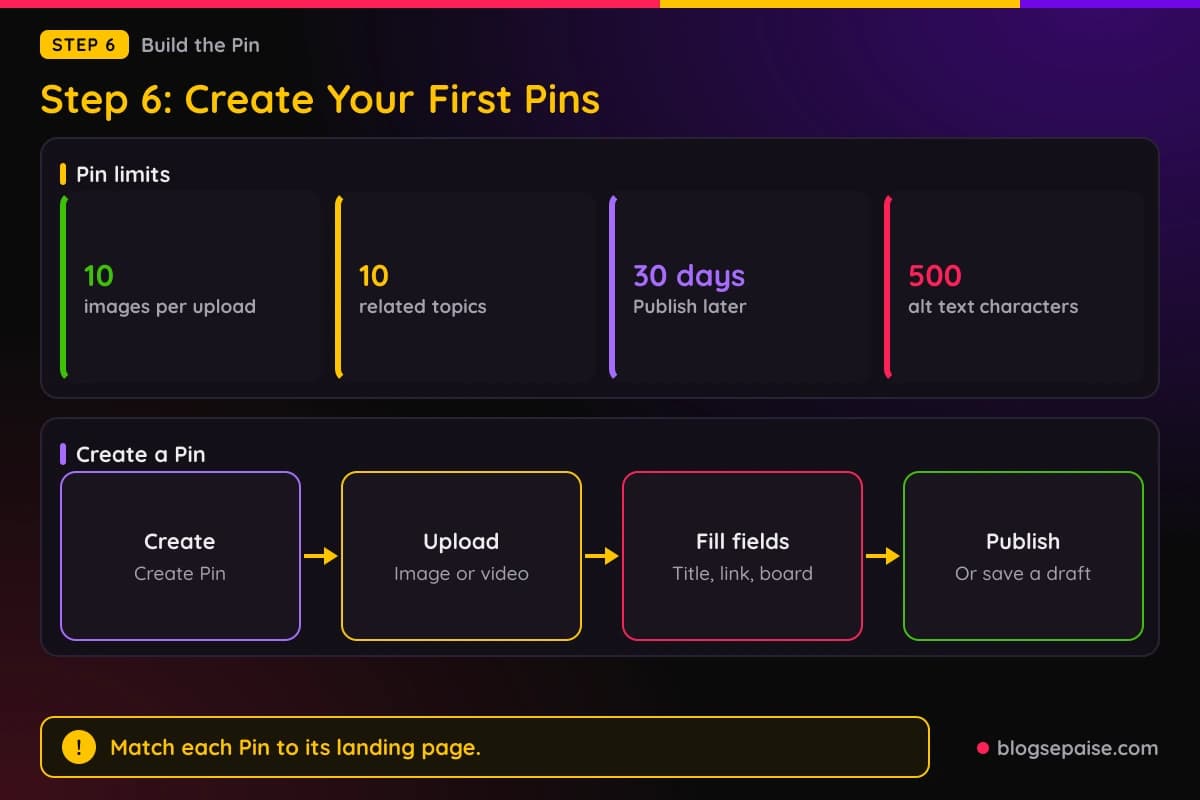
Click the arrow circle up icon to choose an image, or drag and drop one into the upload window. You can select up to 10 images, and each creates a separate Pin.
Then fill in the fields. Pinterest lists Title, Description, Link, Board, and Tag related topics.
The link is optional, and Pinterest says creators often link to a blog, website, or affiliated site. You can tag up to 10 related topics.
Pick a board from the drop-down, or click Create board. On mobile, Pinterest notes that descriptions can include hashtags.
Business accounts get a Publish later option. Pinterest says you can schedule a Pin up to 30 days in advance.
There is also a Mark as AI-Modified toggle for content made completely or partly with AI, or that includes an AI-generated person. Under More options, you can turn comments and shopping recommendations on or off.
Click the pencil icon at the top right if you want to add text or change the aspect ratio. Then click Done and Publish.
Alt text lives under More options. Pinterest allows up to 500 characters, and it is read aloud only to people using screen reader technology.
Describe what people can see in the Pin, so users who cannot see the image get the same information. Pinterest says alt text works on standard Pins and video Pins.
In the mobile app, tap the add icon and then Pin. Select an image, tap Continue, and fill in the fields.
The app also has Tag products. You can tag products already on Pinterest or link to a product page or retail site.
Pinterest's guide to creating Pins says you can add up to five product tags per Pin. Its product tagging page says up to 24.
Pinterest's pages disagree on the number, so check the limit in the editor when you tag. Pinterest also says products must comply with its Merchant Guidelines and Affiliate Guidelines.
After you publish, you can edit the title, board, and some other details. Pinterest says you cannot change the image, video, or audio.
Drafts help with batching. Pinterest says drafts expire 30 days after you first store them, and desktop holds up to 50 drafts that you can publish together.
Drafts cannot be edited across devices. A Pin started on a phone must be finished on that phone.
Pinterest's performance advice covers the look of your Pins. It recommends sharp, high-quality images and videos in a 2:3 aspect ratio, with videos 15 to 60 seconds long.
It also recommends vertical formats, because Pinterest says most users are on mobile. Make sure each Pin's images, text, and keywords match its landing page.
Eligible creators can connect an Amazon Storefront to Pinterest. Pinterest says that requires a business account, participation in the Amazon Influencer Program that follows Amazon's policies, and a Storefront.
Once linked, an Amazon filter appears when you tag products, and affiliate links are applied automatically. Pinterest says Pins with those affiliate links automatically include an affiliate link disclosure.
To link on desktop, open Settings, click Link to Pinterest, select Link next to Amazon Storefront, and follow the prompts. If you have several Storefronts, Pinterest links the one that matches your account's location.
You cannot choose which Storefront gets linked. Unlinking uses the same Settings page.
Auto-sync can post eligible Pins to your Storefront. Eligible Pins must be from the past year and include an Amazon link or a tagged Amazon product.
Sync only goes from Pinterest to Amazon. You can choose to have synced Pins saved as drafts or published directly.
Pinterest is also testing content promotion, where brands you have an affiliate or creator relationship with can promote your eligible Pins. Only brands with an existing relationship can do it.
Pinterest says to mention brands in titles and descriptions, keep creating shoppable content, and keep your content brand safe. You can opt out in Settings under Content permissions.
Step 7: Disclose Every Affiliate Link
Set your disclosure habit before your first Pin. Three sets of rules apply: Pinterest's, the FTC's, and your program's.
Pinterest says all paid partnerships must disclose the commercial nature of their content. It accepts a clear disclosure such as #ad, or its paid partnership label tool.
For creators in the EEA, Pinterest says commercial content must include a clear disclosure of its commercial or promotional purpose. It adds that you must use any available functionality, such as a hashtag or a label.
Pinterest also says commercial content must not be deceptive or misleading. That covers surreptitious techniques, subliminal messages, fake claims, and secretly conveying messages to influence people.
The FTC's Disclosures 101 guide sets the bar for what clear means. It says to disclose any financial, employment, personal, or family relationship with a brand.
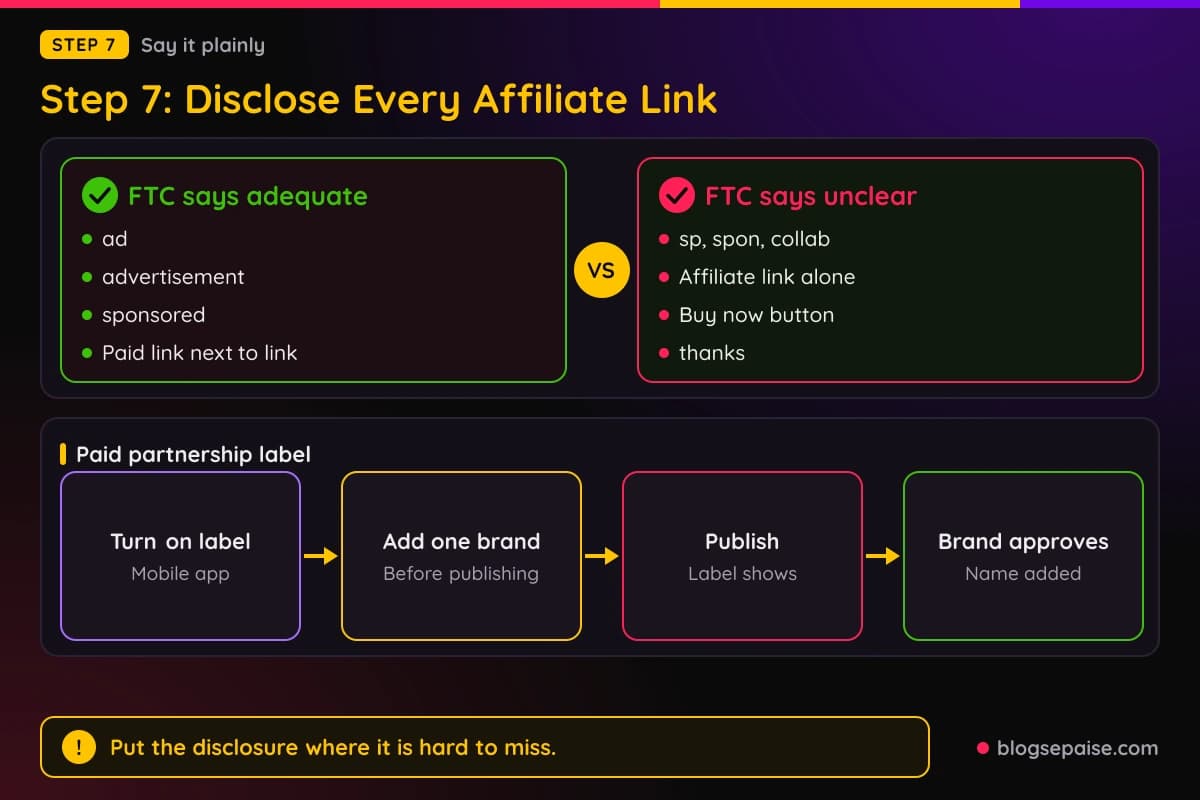
The FTC says to place the disclosure so it is hard to miss, with the endorsement message itself. It warns that an About Me page, a profile page, the end of a post, or a MORE link is likely to be missed.
The FTC also says not to mix the disclosure into a group of hashtags or links. Use simple, clear language, such as ad, advertisement, or sponsored.
It says vague terms like sp, spon, or collab do not work. Stand-alone words like thanks or ambassador are not disclosures either.
For affiliate links, the FTC's questions and answers suggest a statement like I get commissions for purchases made through links in this post. Disclosures should sit close to the recommendation.
The FTC says affiliate link by itself is not adequate, because consumers may not understand that you are paid. A buy now button is not adequate either.
Paid link right next to an affiliate link should be an adequate disclosure, the FTC says. Commissionable link is probably not a clear disclosure.
On hashtags, the FTC says #ad, Ad:, and ad at the beginning of a post are probably all equal. It warns that consumers may miss the word ad at the end of a combined hashtag.
Placement matters on social posts. The FTC says a disclosure in the middle or at the end of a post is easier to miss, and one in the comments is not clear and conspicuous.
On Pinterest, that points to the start of your description. The FTC also notes that tags, likes, pins, and similar actions can count as endorsements.
The FTC warns that a platform's disclosure tool is no guarantee. It says it is always best to add your own disclosure even if a platform offers one.
Pinterest's paid partnership label is that kind of tool. It covers content a creator makes with a brand they have a material connection with.
The partnership must already exist outside Pinterest.
The label tool is available only in the Pinterest mobile app, not on desktop. You can tag only one brand per Pin.
In the app, tap the plus icon, select Pin, and add your media and details. Next to Advanced settings, tap the forward arrow and turn on Add paid partnership label.
Tap Add a brand partner, search for the brand, and select it. Tap Add, then Add again on the Approval needed pop-up, and tap Create.
The label must be added before you publish. Pinterest says it cannot be added to a Pin after publishing, so you would need a new Pin.
After publishing, the label appears right away without the brand's name. The brand gets a notification email and can approve or decline.
If the brand approves, its name is added to the label. If it declines, the label is removed and you cannot tag that brand again on the same Pin.
Pinterest says you are not notified if a brand later removes a tag it approved. A label removed by a brand does not take the Pin down.
Either side can remove the tag at any time, and a removed tag cannot be added again. If the brand is not on Pinterest, the label can still show without a name.
Pinterest says brands can approve tags only from desktop at this time.
Promotion has limits. Creators cannot promote Pins that carry a paid partnership, and only the brand partner can run them as Idea ads with paid partnership.
Pinterest also says Pins with affiliate links are not eligible for Idea ads with paid partnerships.
Pinterest's guidelines treat affiliate links in their own section, which asks you to be open about the commercial nature of your content and links. When in doubt, add a plain disclosure to the description too.
Amazon's Operating Agreement requires you to clearly and prominently state As an Amazon Associate I earn from qualifying purchases.
For social media user-generated content, Amazon says the statement must be associated with your account.
Amazon's disclosure guidance also asks for a clear, conspicuous disclosure on each affiliate link. Its examples include paid link, #ad, and #CommissionsEarned.
Amazon adds that the disclosure must be in the same medium as the recommendation, and that you should follow each social platform's guidelines.
The FTC holds you responsible for your disclosures. Its guide says to know the Endorsement Guides and not to rely on others to do it for you.
Build a template once and reuse it. Our affiliate disclosure generator and legal disclosures page can help you draft the wording.
Step 8: Track Results And Set A Weekly Workflow
Analytics tells you what to repeat. You need a business account, and Pinterest says analytics may be limited for accounts below a certain age.
On the web, click the hamburger icon at the top left and select Overview under Analytics. In the app, tap your profile picture, tap the chart bar icon at the top left, and select Analytics.
Pinterest defines the metrics. Impressions are how many times your Pins were on screen, and saves are how many times people saved your Pin to a board.
Pin clicks are clicks that open your Pin in closeup. Outbound clicks are actions that take people to a destination off Pinterest.
Outbound click rate is clicks to the Pin's destination URL divided by impressions. Pinterest says outbound clicks are measured from the date the link was added.
Engagements include saves, Pin clicks, outbound clicks, and carousel card swipes. Engagement rate is engagements divided by impressions, and save rate is saves divided by impressions.
Total audience is the number of people who have seen or engaged with your Pins. Engaged audience is the number who have engaged.
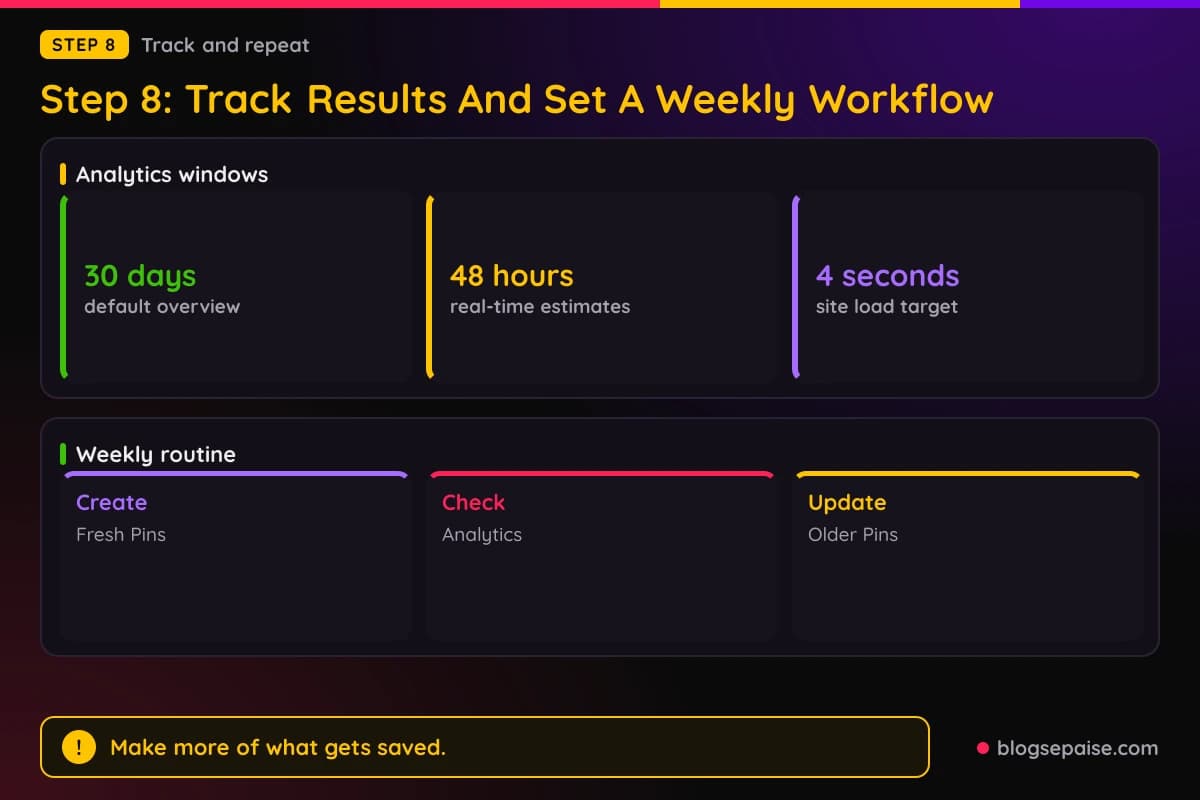
The overview defaults to the last 30 days. Custom ranges go back up to a year and a half.
Real-time estimates include the last 48 hours. Pinterest says they are estimates and may decrease later.
Top Pins and boards sort by impressions by default. You can sort by engagements, Pin clicks, outbound clicks, or saves instead.
Filters include content type, Pin format, device, age, gender, and source. On web, Export downloads a CSV of your filtered data.
Check Include saved Pins to see stats for Pins you saved that do not link to your claimed domains. Pinterest also says to claim your website to access analytics for Pins published from it and Pins others create from it.
Pinterest lists steps if performance slips. Let Pinterestbot read your site, confirm your domain or host is not blocking it, and check that all links work.
Pinterest also says to make sure each Pin's images, text, and keywords match the landing page. It says to test your site speed and ensure your domain loads in under 4 seconds.
For posting rhythm, Pinterest says to aim to create original content weekly. Its basics guide says to create new original Pins at least once a week.
Pinterest warns against saving the same Pins repeatedly or re-uploading existing content. It says that can get you flagged for spam and temporarily blocked from creating Pins.
Pinterest says there is no set engagement window for Pins. A Pin can gain engagement hours, days, months, or years after publishing.
Pinterest says to review analytics to see what gets saved most, and make more of it.
Scheduling limits depend on the source. Pinterest's Pin creation help says business accounts can schedule up to 30 days ahead, while its performance page says you can schedule up to two weeks in advance.
A post on the Tailwind blog about Pinterest's native scheduler also says 30 days.
It adds that you can have up to 10 Pins scheduled. Check the scheduler in your own account.
Pinterest's spam rules bar automation it has not approved. Tailwind describes itself as a Pinterest-approved partner that Pinterest specifically vetted.
That is Tailwind's own description, so confirm a tool's status with Pinterest before you give it access.
Pinterest's basics guide also says you can schedule Pin uploads with a scheduling tool.
Write a weekly routine on paper. Create fresh Pins, check analytics, and update older Pins with better keywords.
If impressions fall, read our guide on why Pinterest impressions dropped.
Final Thoughts
Affiliate marketing on Pinterest rewards a careful setup. Pinterest asks for one authentic account, original content, openness about your links, and moderation.
Check your program's terms first, since Amazon's accepted list does not include Pinterest. Then build a business account, claim your site, and turn on rich Pins.
Create boards with clear titles, pick keywords with Pinterest Trends, and publish Pins that match their landing pages. Disclose every affiliate link in plain words near the start of the Pin.
Finally, check analytics and keep a weekly routine. Rules and menus change, so confirm details in Pinterest's help pages and your program's terms before you act.
Frequently Asked Questions
1. Can you do affiliate marketing on Pinterest?
Pinterest's Commercial and Branded Content Guidelines have an Affiliate Links section. It asks for original content, openness about your links, and moderation.
2. Do I need a Pinterest business account?
Pinterest does not require one to claim a website, but it recommends one. Analytics and scheduling are business account features.
3. Can I use Amazon affiliate links on Pinterest?
Amazon's accepted social network list names Facebook, Instagram, Twitter, YouTube, TikTok, and Twitch.tv, and Pinterest is not on it.
Ask Associates support before you post. Step 6 covers the Storefront route for eligible creators.
4. Do I have to disclose affiliate links on Pinterest?
Pinterest asks creators to be open about the commercial nature of their content and links. The FTC says to disclose any financial relationship with a brand, in a place that is hard to miss.
5. How long does it take to claim my website?
Pinterest checks automatically after you verify. If you use the DNS TXT record method, Pinterest says changes can take up to 72 hours to take effect.
6. How often should I post new Pins?
Pinterest says to aim to create original content weekly. Its basics guide says to create new original Pins at least once a week.
7. Can I schedule Pins?
Business accounts get a Publish later option, and Pinterest says you can schedule up to 30 days in advance. Pinterest's performance page says up to two weeks, so check your own account.
8. Can I run ads on Pins that have affiliate links?
Pinterest says Pins with affiliate links are not eligible for Idea ads with paid partnerships. It also says creators cannot promote Pins that carry a paid partnership.