Blog Posts Not Indexed By Google? Fix It In 9 Steps
When blog posts are not indexed by Google, the cause usually sits at a stage you can see in Search Console. Google's Search Console Help says a new site or page may take a week or so to be crawled and indexed, and it adds that Google does not guarantee every page makes it into the index.
Nine steps follow. You read your status in Search Console, confirm Google can reach the post, remove noindex, fix robots.txt blocks, sort out canonicals, add internal links, keep a sitemap current, request indexing the right way, and judge the quality of the post.
Our guide to an SEO workflow from draft to published post covers what to do before you hit publish. The page on keyword research for affiliate blog posts helps you pick topics worth indexing in the first place.
If posts were indexed before and then vanished, read our checklist for when traffic drops after a Google update and our plan to recover an affiliate site after a spam update.
Disclosure: Some of the links I share might be affiliate links. If you click on one and make a purchase, I may earn a small commission as a thank you. But don’t worry, it won’t cost you anything extra. I only recommend stuff I genuinely believe in. Your support helps me keep creating awesome content. You can read my full affiliate disclosure in my disclaimer page.
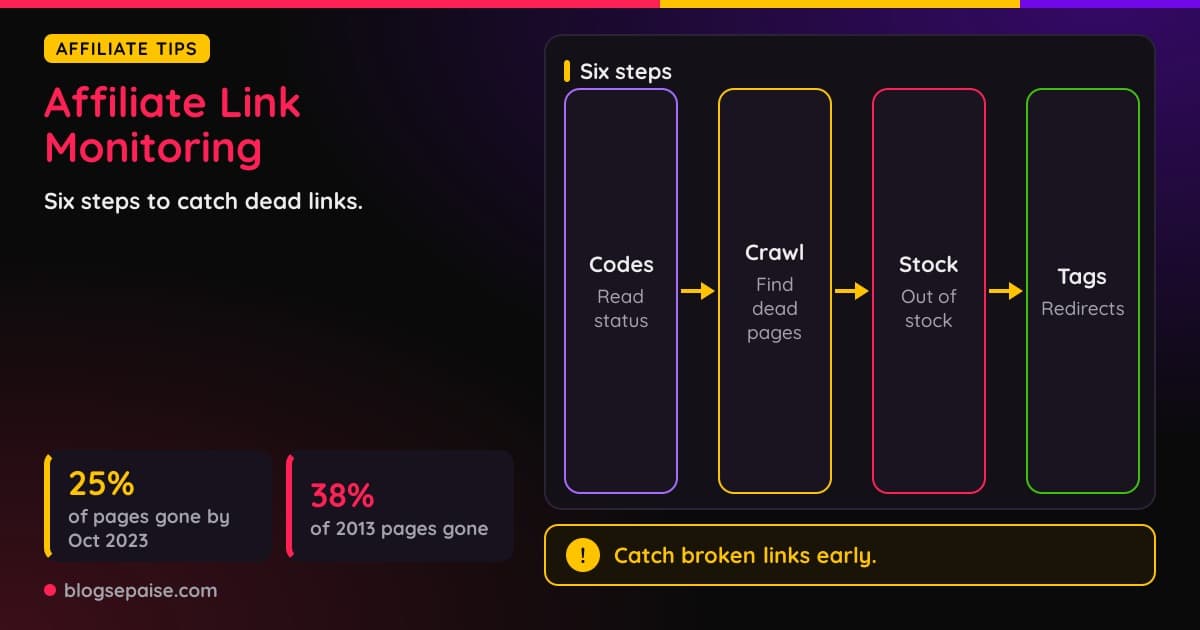
Search 1,500+ affiliate programs in the Blogsepaise Program Database and filter them by category, network and commission type, then go straight to each program's signup page. The Link Health Monitor then checks your posts for broken, redirected and untagged affiliate links.
How Google Finds And Indexes A New Post
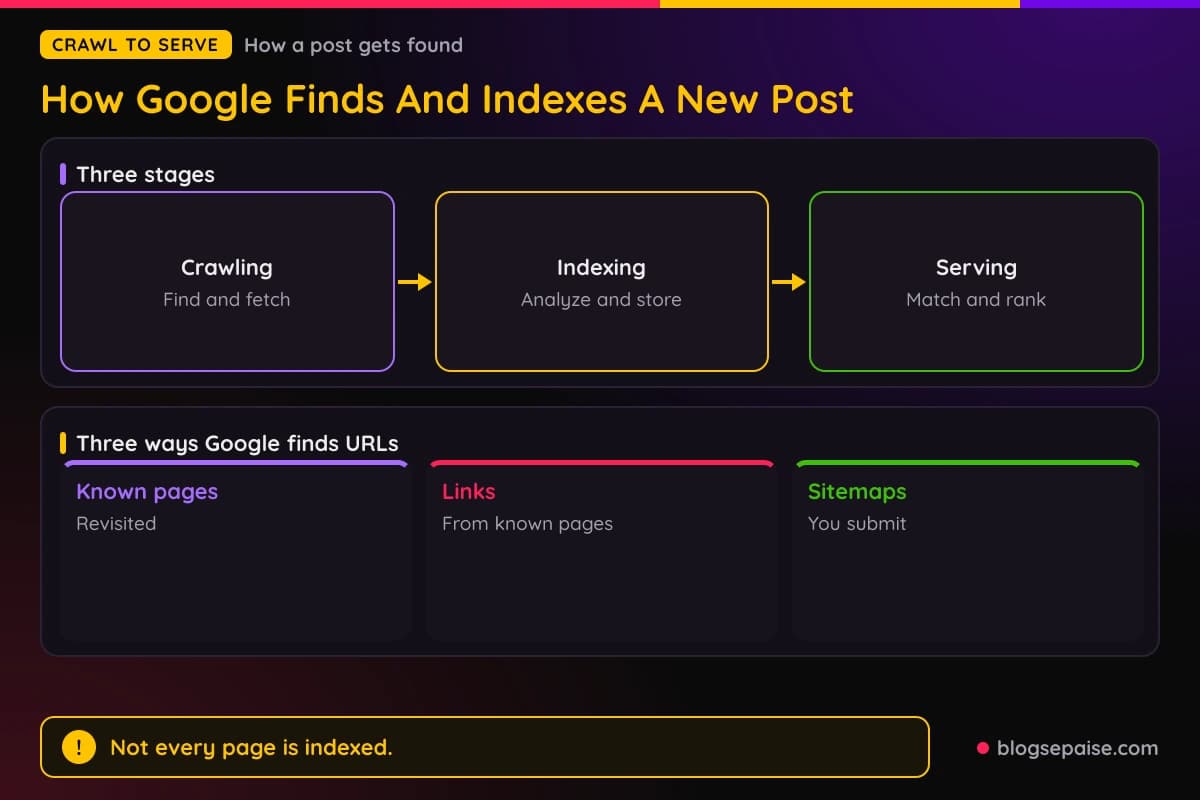
Google's documentation says there is no central registry of web pages. Google finds URLs in three main ways: it revisits pages it already knows, it follows links from those pages, and it reads sitemaps that site owners submit.
Google's own example of the second way is a category page that links to a new post. A post with no link and no sitemap entry gives Googlebot nothing to follow.
Crawling is the first stage. Googlebot, Google's crawler, decides which sites to crawl, how often, and how many pages to fetch from each, and it slows down when a server signals strain, such as with HTTP 500 errors.
Indexing is the second stage. Google analyzes the text, key tags and attributes such as titles and image alt text, images, and videos, then stores what it learns in the Google index.
Google groups near-duplicate pages into clusters and picks one canonical page to represent each cluster. A new post can lose out at that step even when your server and your markup are fine.
Serving is the third stage. When someone searches, Google looks up matching pages in the index and returns the ones it judges most relevant and highest quality.
Google states that not every page is indexed. It does not guarantee it will crawl, index, or serve a page, even when the page follows Google Search Essentials.
Google also states that it does not accept payment to crawl a site more often or to rank it higher. Ranking is done programmatically, so paying Google is not a route to faster crawling.
Google's How Search Works documentation lists what can go wrong at each stage. Crawling can fail because of server problems, network issues, robots.txt rules that block Googlebot, or pages behind a login.
Indexing can fail because of low-quality content, robots meta rules that disallow indexing, or site designs, often heavy JavaScript, that make indexing difficult. Serving can fail when a page is indexed but irrelevant to queries or low in quality.
Google adds that Search Console may report a page as indexed even when it does not show up in search. That is why the first job is to find out which stage your post is stuck at.
Step 1: Read The Status In Search Console
Start with the URL Inspection tool in Search Console. Enter the full URL in the search bar, and note that the URL must belong to the property you are viewing.
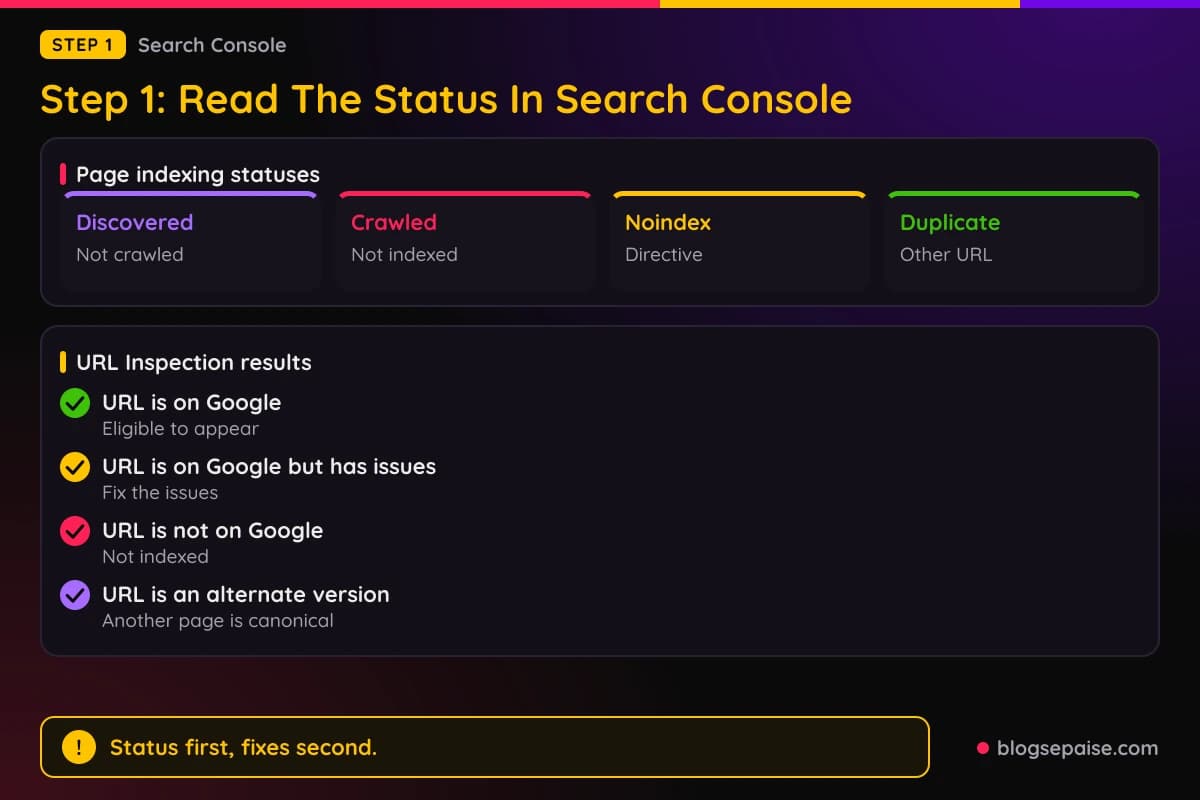
The result comes from the most recently indexed version of the page, not the version on the web today. The overall status has four possible values: URL is on Google, URL is on Google but has issues, URL is not on Google, or URL is an alternate version.
Google's help text says URL is on Google means the page is eligible to appear in results, not that it will appear. Treat that status as a starting point, not a finish line.
The Page indexing section tells you far more than the headline. It shows the indexing status, how Google discovered the URL, the last crawl date in your local time, and if Google crawled as a desktop or mobile user agent.
It also shows if robots.txt allows crawling, if the page fetch succeeded, if a noindex directive blocks indexing, and two canonical lines. One is the user-declared canonical, and the other is the Google-selected canonical, which can lag the index by a few hours.
The Sitemaps line lists submitted sitemaps that include the URL, and it can say No referring sitemap. The Referring page line shows a page that may have led Google to the URL, and Google notes it may be absent even when a referring page exists.
The Page indexing report groups every URL by status. Two statuses cause most of the worry about new posts.
Discovered currently not indexed means Google found the page but has not crawled it. Google's documentation says it likely rescheduled the crawl to avoid overloading the site, which is why the last crawl date is empty.
Crawled currently not indexed means Google crawled the page but did not index it. Google's documentation says this status does not necessarily indicate an issue, and for important pages it points you to URL Inspection and other diagnostics.
Google's documentation also lists statuses you can fix directly, including URL marked noindex, URL blocked by robots.txt, Soft 404, Server error (5xx), Redirect error, and the duplicate and canonical statuses covered later.
The Test live URL button fetches the page in real time. The page must be reachable without a login, and it does not need to be indexed first.
Live test results can differ from the indexed version. For example, a noindex tag you just removed shows as gone in the live test before Google recrawls the page.
The View crawled page option shows the raw HTML, the HTTP headers, the JavaScript console output, and the loaded resources. Google limits live tests with a daily per-property quota.
You need a verified Search Console property to see any of this. Google's help pages say a verified owner has the highest level of permissions, and that data collection starts once a property is added but takes a few days to appear.
Search Engine Roundtable reported John Mueller's replies on Twitter in June 2021 about this report. He wrote that you cannot force pages to be indexed and that it is normal Google does not index all pages on all websites.
Mueller added that the issue is not usually one page and is more site-wide, so the work is a good site structure and a site of the highest quality possible.
Step 2: Confirm Google Can Reach And Read The Post
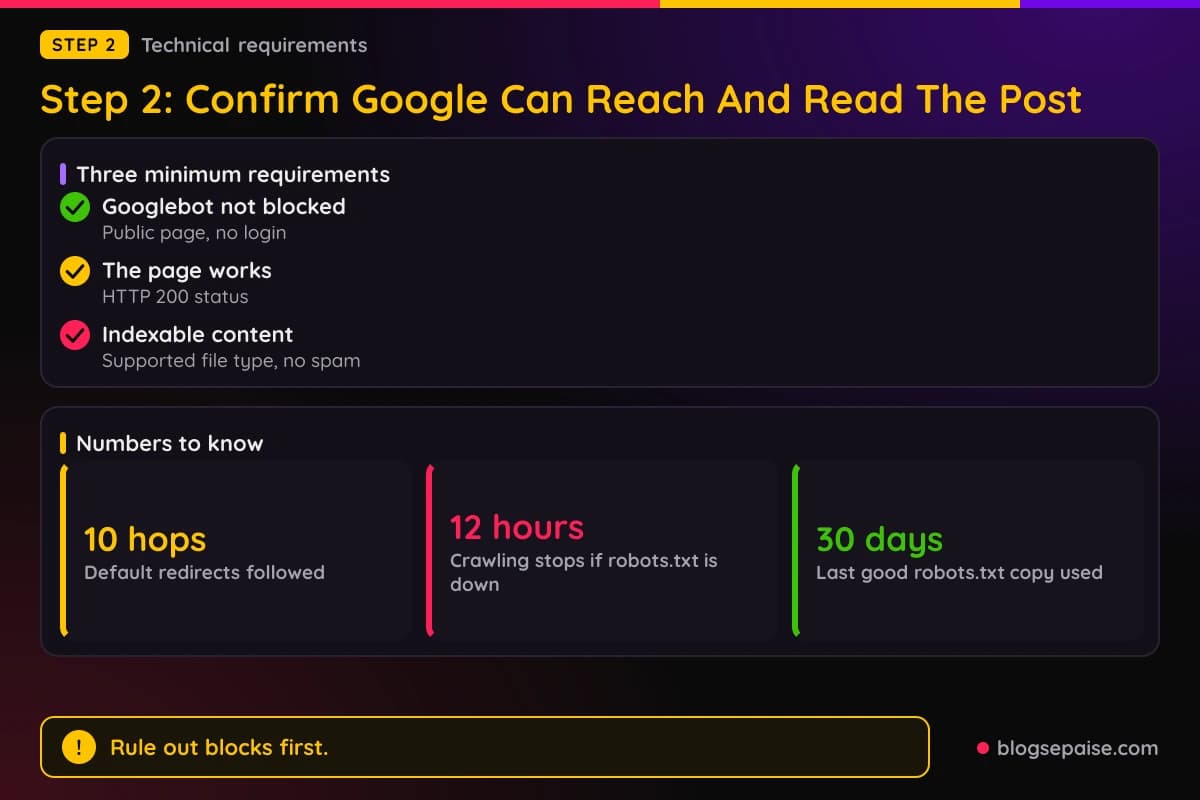
Google's Search Essentials list three minimum technical requirements for indexing. Meeting them does not guarantee indexing, but missing one rules it out.
First, Googlebot must not be blocked, which means the page is publicly accessible. Pages behind a login are not crawled.
Second, the page must work. The server must return an HTTP 200 success status code, and client or server error pages are not indexed.
Third, the page must have indexable content. The text must be in a file type Google Search supports, and the content must not violate Google's spam policies.
Google's HTTP status code documentation explains how each code family behaves. A 2xx response means Google considers the content for processing, though indexing is not guaranteed.
For 4xx responses, Google ignores the content and removes those URLs from the index over time. The exception is 429, which Google treats as a sign of server overload and handles like a server error.
For 5xx responses, Google temporarily slows crawling. Indexed URLs are kept for a while but are eventually dropped if they keep returning errors, and Google raises the crawl rate again after the server returns 2xx.
Search Console's Server error (5xx) status comes with a clear to-do list. Check the host status in the Crawl Stats report, confirm the server is not down or overloaded, and make sure no firewall or DNS setting blocks Googlebot.
Two other statuses trip up new blogs. Blocked due to unauthorized request (401) means the server asked for authorization, and Blocked due to access forbidden (403) means Googlebot was refused, since Googlebot never provides credentials.
Google's documentation treats a 403 as a server error and tells you to admit users who are not signed in or to explicitly allow Googlebot. Google also warns against using 401 and 403 to limit crawl rate.
Redirect problems show up as Redirect error. Google lists a redirect chain that is too long, a redirect loop, an over-long URL, or a bad or empty URL in the chain as causes.
By default, Google's crawlers follow up to 10 redirect hops. A 301 or 308 is a strong signal that the target should be processed, while 302, 303, and 307 are weak signals.
The Soft 404 status means the page shows a not found message, or looks empty, without returning a 404 HTTP code. Google says to return a real 404 for pages that are truly missing, or add content so Google does not treat the page as a soft 404.
A soft 404 is a 2xx response whose content looks like an error, an empty page, or an error message. Google's crawl budget guide adds that soft 404s keep being crawled and waste crawling time.
The Not found (404) status needs less worry than it sounds. Google recommends fixing only the 404 URLs that you link to yourself or list in a sitemap, and says a 404 is fine when a page was removed without a replacement.
The Crawl Stats report shows Google's crawling history for your site, including host status, response codes, and robots.txt availability. Google notes that sites with fewer than about a thousand pages usually do not need it, and that it exists only for root-level properties.
Host status has three levels: no significant issues in the past 90 days, issues that occurred more than a week ago, and issues in the last week. Availability is judged in three categories: robots.txt fetching, DNS resolution, and server connectivity.
If robots.txt stays unavailable, Google stops crawling for the first 12 hours. It then uses the last good copy for up to 30 days, and after that it crawls without restraint if the homepage is available or stops if it is not.
Step 3: Remove Noindex From The Post
A noindex rule keeps a page out of Google. Google's documentation says Google drops the page from Search results even when other sites link to it.
The rule comes in two forms. A meta tag in the head, written as meta name robots content noindex, works for HTML pages, and an X-Robots-Tag HTTP response header works for non-HTML files such as PDFs, videos, and images.
A Google-only version uses googlebot as the meta name. You can combine directives, for example noindex with nofollow.
Google does not honor a noindex rule placed in robots.txt. The rule has to be on the page or in its response header.
Search Console reports this as URL marked noindex. Google's fix is to remove the directive, then confirm with URL Inspection and a live test.
If you run WordPress, check the reading settings. WordPress documentation describes a Discourage search engines from indexing this site checkbox, and since version 5.3 it prints a robots meta tag with noindex and nofollow in the head.
WordPress core notes say the box is unchecked by default during installation, because most sites are meant to be indexed. The documentation also notes the option does not block access to the site and that it is up to search engines to honor the request.
Other platforms have a similar switch. Google's noindex documentation says CMS platforms such as Wix, WordPress, and Blogger may offer a search engine settings page instead of direct HTML edits.
Mobile and desktop versions need the same robots meta tags. Google's mobile-first indexing guide warns that a noindex or nofollow on the mobile page can stop Google from crawling or indexing that page once mobile-first indexing applies.
JavaScript can cause the same trouble. Google's JavaScript documentation says that when Google sees a noindex tag it may skip rendering, so removing noindex with JavaScript may not work.
Google's advice is to keep noindex out of the original page code if you want the page indexed. Check the rendered HTML in URL Inspection to confirm what Google sees.
After you remove the tag, Google still has to recrawl the page. Its documentation says a page stays in results until Google recrawls it and sees the rule, and that depending on the page's importance it may take months for Googlebot to revisit a page.
The fix for the wait is the URL Inspection tool. Google recommends requesting a recrawl there, and the Page indexing report keeps showing pages where Googlebot found a noindex rule so you can watch the count fall.
Step 4: Fix Robots.txt Blocks
A robots.txt file tells search engine crawlers which URLs they may access on your site. Google says its main purpose is to manage crawler traffic and avoid overloading your server.
Google is blunt that robots.txt is not a way to keep a page out of Google. To keep a page out, use a noindex directive or password protection.
Search Console reports a blocked post as URL blocked by robots.txt. Google's fix depends on your goal: to index the page, update robots.txt, and to keep it out of results, remove the robots.txt block and use noindex.
A blocked URL can still show up in results, often without a description, because Google may index it from links elsewhere. Search Console labels that case Indexed, though blocked by robots.txt, and warns that the snippet will probably be limited.
Blocking also breaks noindex. Google's documentation says that if robots.txt blocks a page, the crawler never reads its noindex rule, so the page can still appear when other pages link to it.
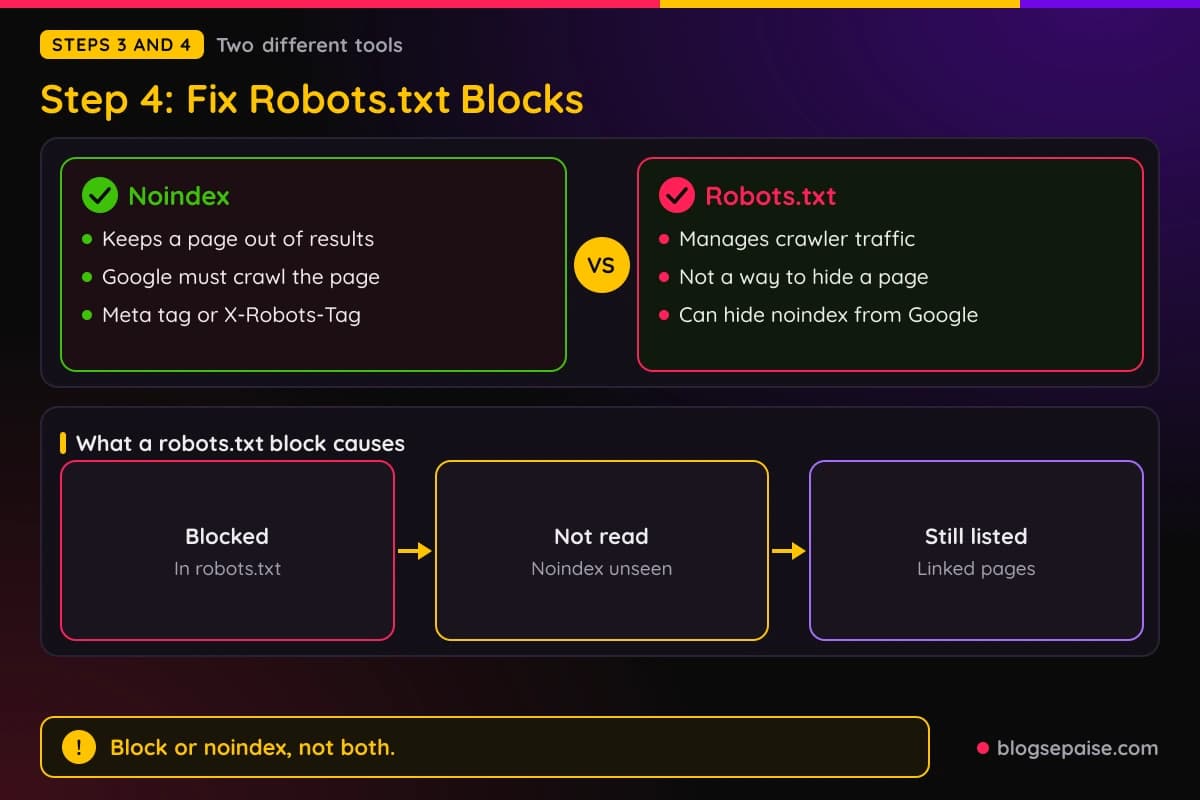
WordPress made the same point in its version 5.3 notes. Blocking crawling can still allow a site to be indexed if other pages link to it, so WordPress moved to a robots meta tag instead of a Disallow rule.
Do not block the files Google needs to render a page. Google's robots.txt documentation says to avoid blocking CSS, JavaScript, or images that Google needs to understand your pages.
The JavaScript documentation adds that Googlebot checks robots.txt before requesting a URL. If the URL is disallowed, Google skips the request and does not render JavaScript from blocked files or pages.
Google's robots.txt documentation also warns that crawling and indexing rules can counteract each other, so check how your rules interact. Review your rules for conflicts before you publish them.
If you need a clean file, our robots.txt generator builds a ready-to-paste file with your chosen user agents, rules, and sitemap settings.
A recap of Google's Search Central Live event in Barcelona, published by PPC Land, lists robots.txt updates as typically taking about 24 hours and at most 25 hours. The recap attributes the figures to Google analyst Gary Illyes and describes them as based on Google's internal analysis.
Step 5: Sort Out Canonicals And Duplicates
Sometimes Google knows your post and has chosen not to index it because it treats another URL as the main version. Google's Page indexing report has four statuses for this situation.
Alternate page with proper canonical tag means the page is an alternate of a canonical page that is indexed. Google says there is nothing you need to do.
Duplicate without user-selected canonical means Google chose another page as canonical. Google says this is not an error, and if the page is not really a duplicate you should make its content differ substantially.
Duplicate, Google chose different canonical than user means you declared one URL and Google picked another. Google's fix is to compare both canonicals in URL Inspection, then either make the content distinct or correct the canonical.
Page with redirect covers a non-canonical URL that redirects. It is not indexed, and the target may or may not be indexed depending on Google's assessment.
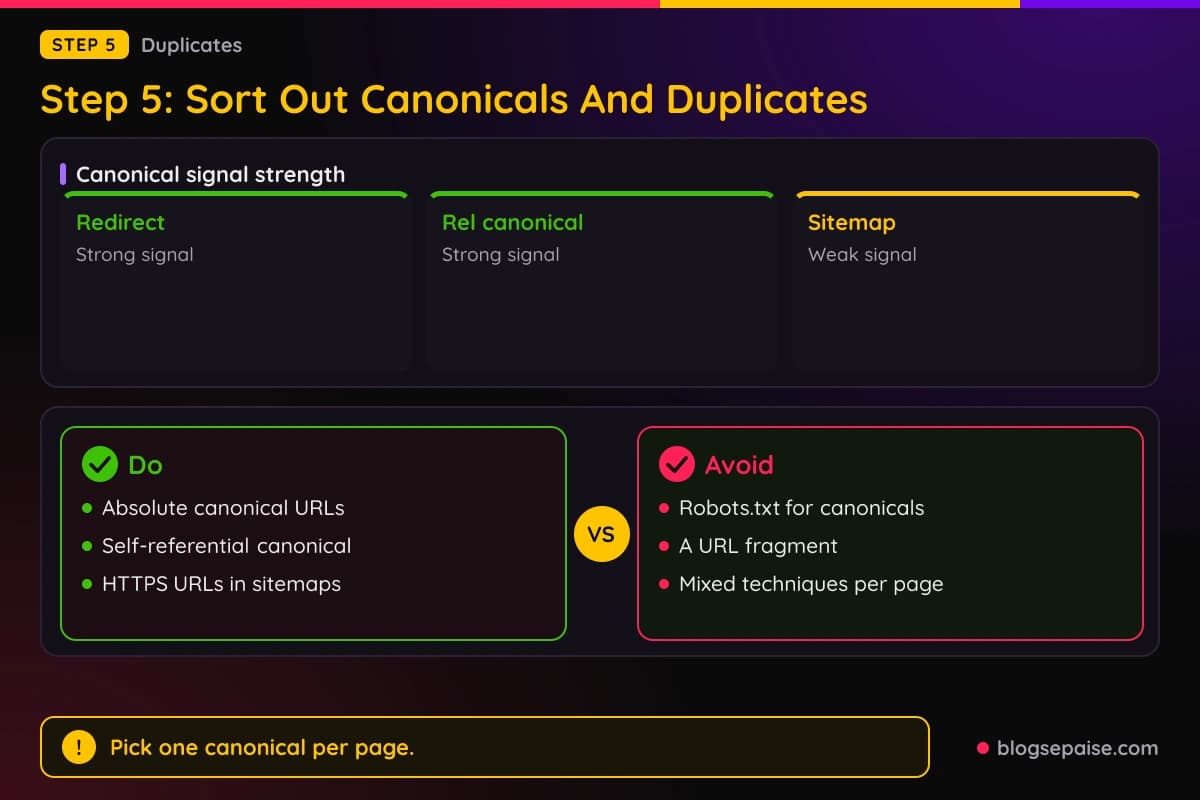
Google's canonicalization documentation ranks the methods by strength. A redirect is a strong signal that the target should be canonical, and a rel canonical link annotation is also a strong signal.
Including a URL in a sitemap is a weak signal. Google says these methods can stack and become more effective when combined.
The rel canonical link element is only accepted if it appears in the head section of the HTML. Google recommends absolute paths and recommends adding a self-referential rel canonical to the canonical page itself.
Google lists mistakes to avoid. Do not use robots.txt for canonicalization, do not specify different URLs as canonical for the same page with different techniques, and do not specify a URL fragment as canonical.
HTTPS matters here too. Google prefers HTTPS pages over equivalent HTTP pages as canonical, so do not list HTTP URLs in a sitemap instead of the HTTPS versions, and avoid HTTPS-to-HTTP redirects.
Google's canonical documentation also says not to use noindex to choose a canonical within one site. Link internally to the canonical URL rather than to duplicates.
JavaScript can change a canonical, so keep it in the HTML source when possible. Google's JavaScript documentation says to make sure only one rel canonical tag exists, since duplicate or conflicting tags can produce unexpected results.
Google's SEO Starter Guide notes that duplicate content is not a spam violation, but it wastes crawling resources and can confuse users. To consolidate duplicates it recommends a redirect from the non-preferred URLs where possible, or a rel canonical link element if you cannot redirect.
Canonical changes take time. The PPC Land recap of the Barcelona event lists a canonicalization change as typically taking 1 to 3 weeks, with months in the slowest cases when signals conflict.
Step 6: Link To The Post From Pages Google Already Knows
Google's SEO Starter Guide says Google mainly discovers pages through links from pages it has already crawled, so most new pages are found that way. A post that nothing links to has a weak path to discovery.
Google's documentation on crawlable links states the rule plainly. Every page you want indexed should have at least one link from another page on your site.
The link also has to be a real link. For Google to follow it, the link generally needs to be an a element with an href attribute, and links in other formats often are not extracted.
Google does not recommend using routerLink, a span with an href, or an element that only has an onclick handler. Google may still try to parse them, but there is no guarantee.
Links inserted by JavaScript are crawlable if they use the same HTML markup. If JavaScript inserts the anchor text, Google says to check that it appears in the rendered HTML using URL Inspection.
Anchor text matters for discovery and for context. Google advises descriptive and concise text, and it calls out generic phrases such as click here, read more, website, and article as poor choices.
Google also says not to force keywords into anchor text, since that violates its spam policies. For image links, Google uses the image's alt text as the anchor text.
Search Engine Journal reported in March 2018 that John Mueller discouraged leaning on the URL submit tool. His advice was to link new content from a visible place on the site and to add it to a sitemap or RSS feed.
Search Engine Roundtable reported in September 2021 that Mueller advised new sites to build a funneled structure at the start. He said to create an internal linking structure that focuses on the pages you find important, start with really high quality content, and expand step by step.
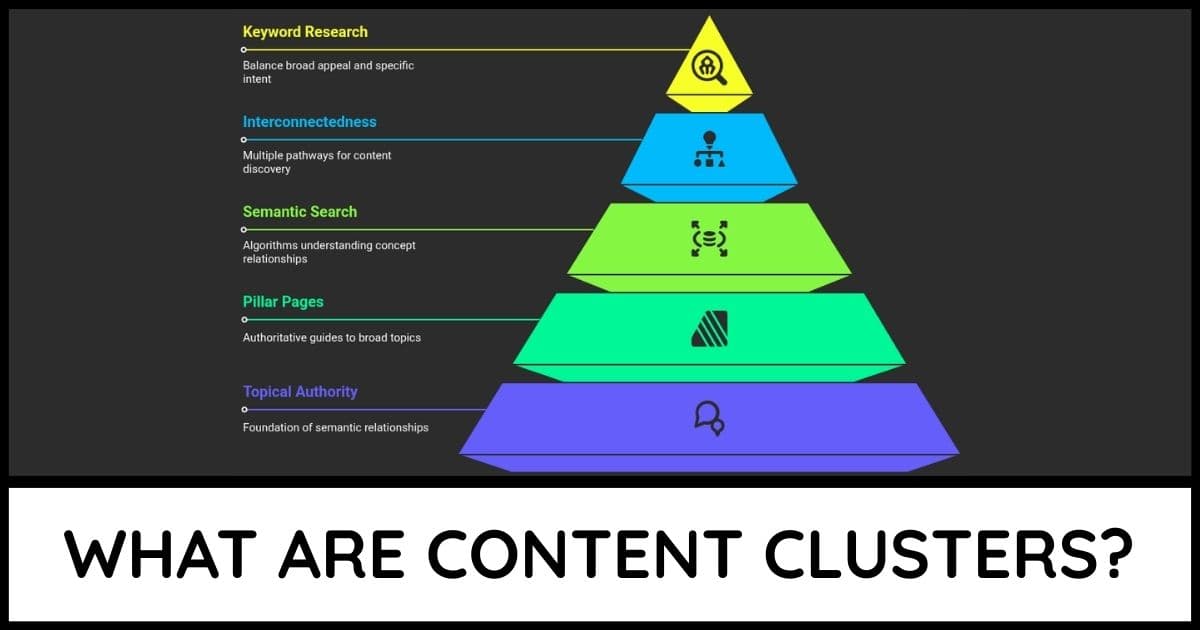
Good internal links come from planning. Our guide on what content clusters are shows how pillar pages and supporting articles link together.
For a list of link ideas on your own site, try our internal link opportunity finder. Our article on AI internal linking covers where automated linking helps and where it falls short.
Outside promotion can also bring Googlebot to a post. Google's SEO Starter Guide lists social media, community engagement, advertising, word of mouth, and offline materials such as business cards, and it warns that overpromoting can backfire.
Our guide to getting traffic to a brand-new affiliate site covers those promotion channels for new sites.
Step 7: Submit And Maintain A Sitemap
Google describes a sitemap as a file where you provide information about the pages, videos, and other files on your site. Search engines read it to crawl your site more efficiently.
Google says a well-linked site can usually be discovered without one. A sitemap helps more if your site is large, is new with few external links, or has a lot of video, image, or news content.
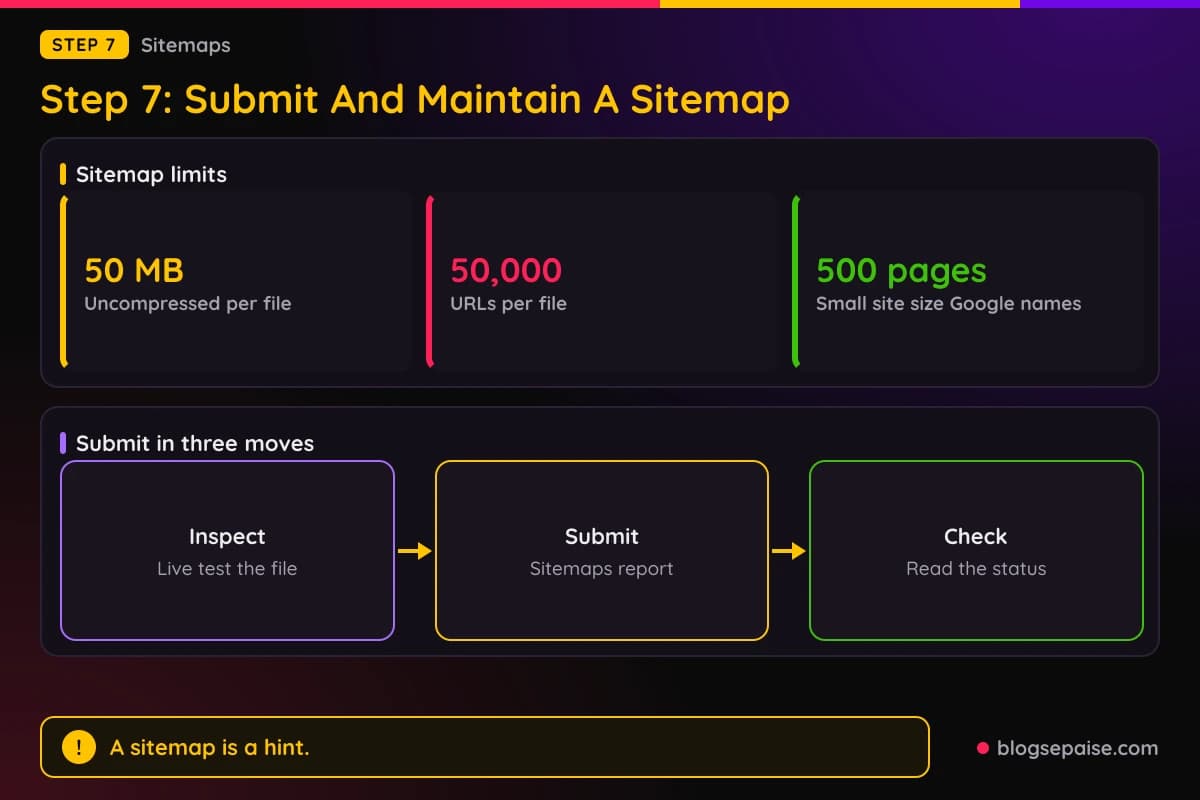
Google also says you likely do not need one if your site is small, at about 500 pages or fewer, and well linked internally. Many blogs still benefit, because the file costs little to keep.
Google supports three formats: XML, RSS or Atom feeds, and plain text. Google has no preference, though it notes a feed only provides information on recent URLs.
A single sitemap is limited to 50 MB uncompressed or 50,000 URLs. Larger sets must be split across multiple sitemaps, and a sitemap index can list up to 50,000 sitemaps.
Include absolute, fully qualified URLs, and include the canonical URLs you want in search results. The file must be UTF-8 encoded.
Google ignores the priority and changefreq tags. It uses lastmod only if the value is consistently and verifiably accurate, and a minor change such as a copyright date should not update it.
To submit, confirm the file loads. Google's steps say to run a live URL inspection on the sitemap, check that the page fetch succeeds, then paste the URL into the Add a new sitemap box in the Sitemaps report and click Submit.
The report uses three statuses. Success means Google fetched and read the file with no errors and queued all listed URLs for crawling, Has errors means some entries failed, and Couldn't fetch means Google could not retrieve the file.
The Discovered pages count is the number of page URLs parsed from the sitemap. It does not mean those pages will be crawled or indexed, so filter the Page indexing report by sitemap to check indexing.
Submission is a hint, not a command. Google says a sitemap does not guarantee that all items will be crawled and indexed.
Google will not read sitemaps while a manual action is unresolved. If a fetch or parse fails, Google retries for a few days, then stops, so fix the problem and resubmit.
You can also add a Sitemap line to robots.txt with the full URL. Google's sitemap documentation lists the robots.txt line and the Search Console API as other submission methods.
Google's crawl budget guide says Google reads your sitemap regularly, so include all the content you want crawled and add lastmod for updated content. Our XML sitemap generator builds the file, and our sitemap validator checks it.
The PPC Land recap of Google's Barcelona event lists sitemap processing as typically taking about 24 hours, with up to 14 days or never at the slow end. The recap ties the never cases to quality.
Step 8: Request Indexing The Right Way
Once the earlier steps are clean, ask Google to look at the post. Google's recrawl documentation says you can only request indexing for URLs you manage, and you must be an owner or full user of the Search Console property.
The steps are short. Inspect the URL, then click Request indexing on the result page.
The tool runs a quick check for immediate errors and queues the page. You cannot request indexing if the live test shows the page as non-indexable.
Google's help says indexing typically takes about a day but can take longer, and that a request does not guarantee inclusion. The recrawl documentation adds that crawling can take a few days to a few weeks.
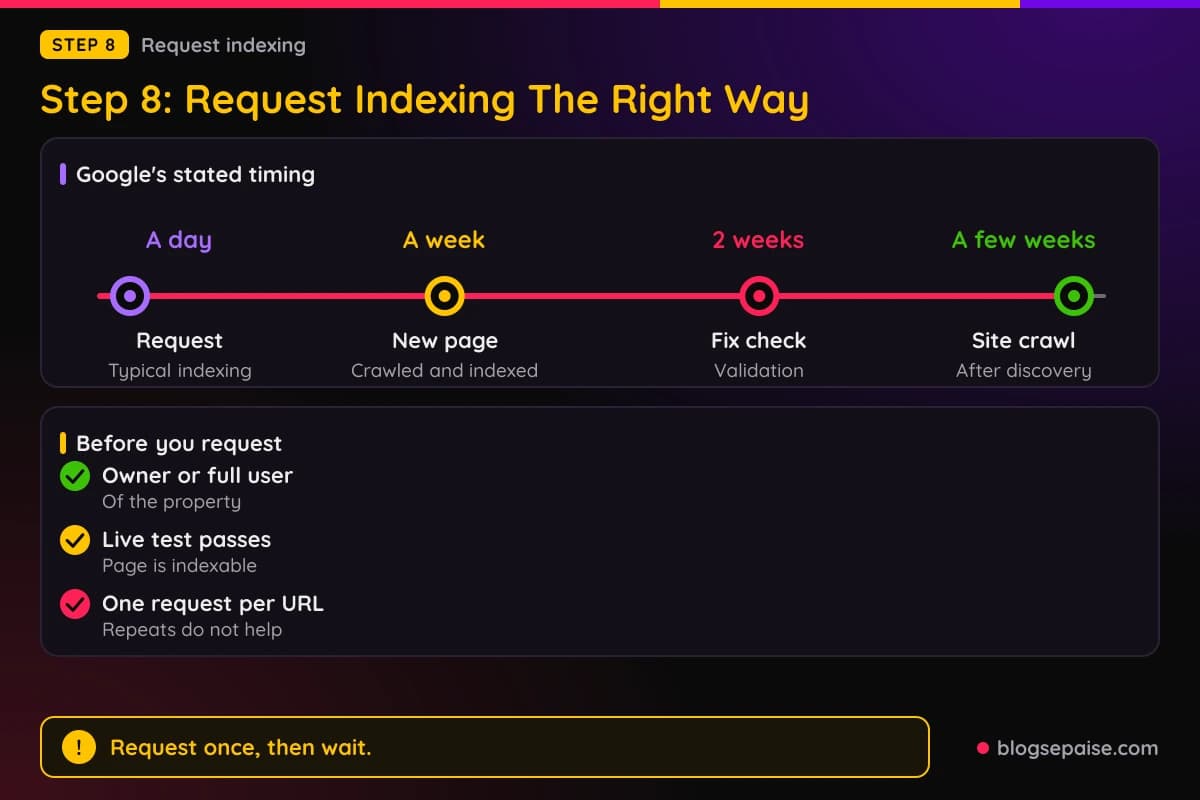
Asking again does not help. Google states that requesting a recrawl multiple times for the same URL will not get it crawled any faster.
Google limits inspection requests and index requests with daily per-property quotas. Google's help pages do not give the numbers.
For many pages, use a sitemap instead. The URL Inspection help recommends submitting a sitemap with lastmod values when you have many pages to update.
Google's documentation says a request does not ensure that your page appears in search results quickly or at all. Google prioritizes fast inclusion of high-quality, useful content.
John Mueller said in 2018, according to Search Engine Journal, that for most websites you should not need the submit tool at all. He described it as worth using for urgent problems, such as removing privately published information or correcting a wrong phone number in results.
Do not reach for the Indexing API as a shortcut. Google's documentation says it can only be used to crawl pages with JobPosting structured data or a BroadcastEvent embedded in a VideoObject, which covers livestream videos.
If you publish on a hosted platform, check its support pages first. Google's documentation says that on platforms such as Blogger or WordPress, the platform usually submits your new content to search engines automatically.
After you request indexing, track the result. Google's recrawl documentation points to the Index Status report and the URL Inspection tool for monitoring progress.
When you fix a Page indexing issue, Search Console's validation flow also takes time. Google's help says validating a fix typically takes up to about two weeks, though it can take longer.
Step 9: Judge The Quality Of The Post
If every technical check passes and the status stays Crawled currently not indexed, quality is the next suspect. John Mueller has connected the two in public replies.
Search Engine Roundtable reported on November 11, 2026 that Mueller replied on Bluesky to a site owner with a high share of Crawled and Discovered pages. He said Google's quality systems are unconvinced about the site, and that just making the site smaller does not significantly raise its overall quality.
Mueller also said crawl budget and trust are very distinct things. If the indexed share is tiny, he said, the cause is either a severe technical issue that would be noticeable at that scale or that Google is not convinced about the site overall.
Search Engine Roundtable also reported in July 2021 that Mueller cautioned against over-indexing on quality. He said site-wide quality improvements are not simple technical tweaks, and that the report is not meant to flag low-quality content.
Google's guidance on creating helpful content gives you questions to ask about the post. Does it offer original information, reporting, research, or analysis, and does it offer insight beyond the obvious?
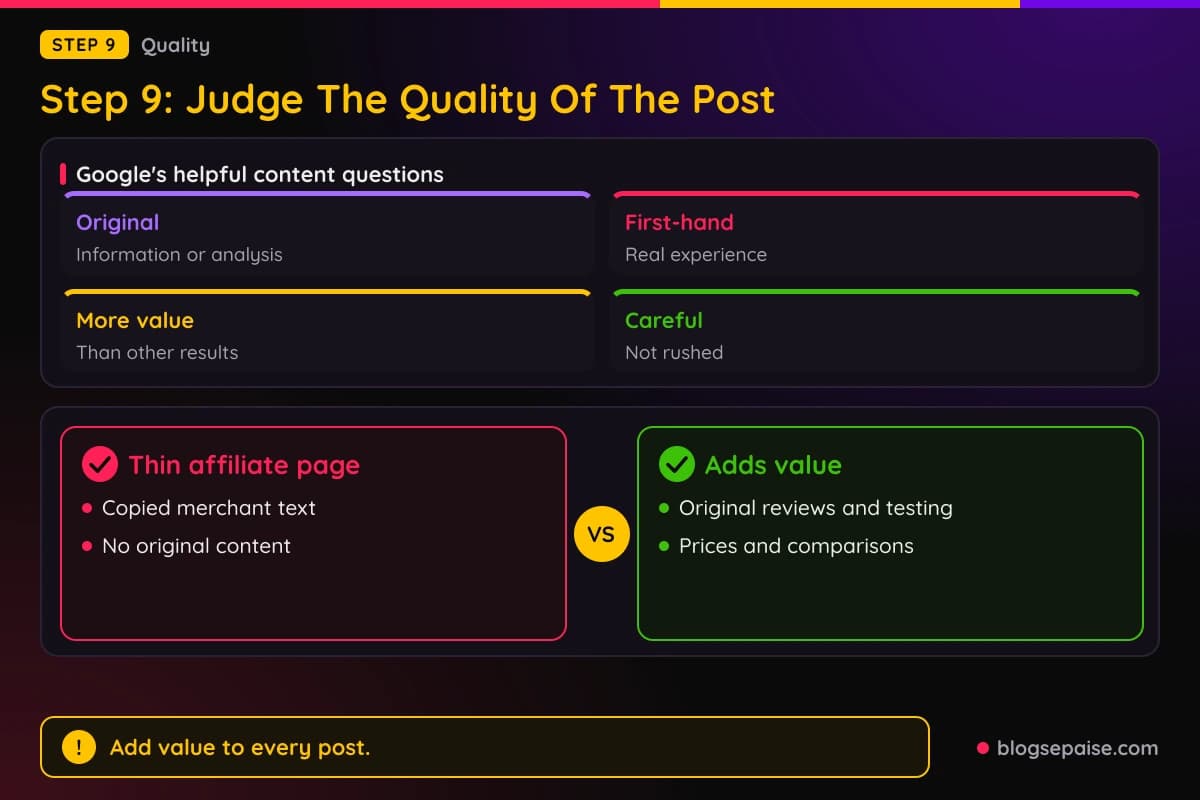
Google also asks if the post offers more value than other pages in the search results, if it looks carefully made or rushed and sloppy, and if it demonstrates first-hand experience and deep knowledge, such as from using a product.
Google's list of search engine-first warning signs is just as direct. It includes producing lots of content on many topics in hopes that some will rank, using extensive automation to produce content on many topics, and mostly summarizing others without adding value.
The same list includes writing to a word count based on a supposed Google preference, and Google says no such preference exists. It also names changing page dates to look fresh without substantial updates.
Google asks three questions it calls Who, How, and Why. Who means a clear author, How means explaining how the content was made, such as testing and evidence like photos for product reviews, and Why is the most important, since the primary reason should be helping people who visit directly.
Affiliate posts face a specific rule. Google's spam policies define thin affiliate pages as pages with product affiliate links where the descriptions and reviews are copied from the merchant with no original content or added value.
Google says participating in an affiliate program is not a violation by itself. Its good practices include adding price information, original reviews, testing, ratings, product comparisons, or useful navigation.
Automation is covered too. Google says automated, AI-generated, and AI-assisted content all fall under the How question, and using automation mainly to manipulate search rankings violates its spam policies on scaled content.
Google defines scaled content abuse as creating many pages mainly to manipulate rankings rather than help users, regardless of how the content is made. Its examples include using generative AI to produce many low-value pages and stitching together content from other pages.
Our article on AI hallucinations in SEO content shows what to check before you publish machine-written text. If your site already feels hit, the plan to recover an affiliate site after a spam update covers audits and fixes.
How Long Indexing Takes And When To Act
Google's Search Console Help says a new site or page may take a week or so to be crawled and indexed. It adds that after Google knows about a new page, it can take up to a few weeks before Google crawls some or all of the site.
The same documentation says new content can take a few days to index, and that indexing is never instant, even with a crawl request. Google's SEO Starter Guide says changes can take effect within hours or take several months to appear.
Google's guide recommends waiting a few weeks before judging a change's impact. It also says not every change will be noticeable.
PPC Land published a recap on October 3, 2026 of Google's Search Central Live event in Barcelona. The recap by John Campbell of the agency ROAST says Gary Illyes showed timing data on screen.
The recap lists discovery of a new URL at about 20 hours typical, and weeks to never at the slowest. It lists refresh of a known URL at about 30 days.
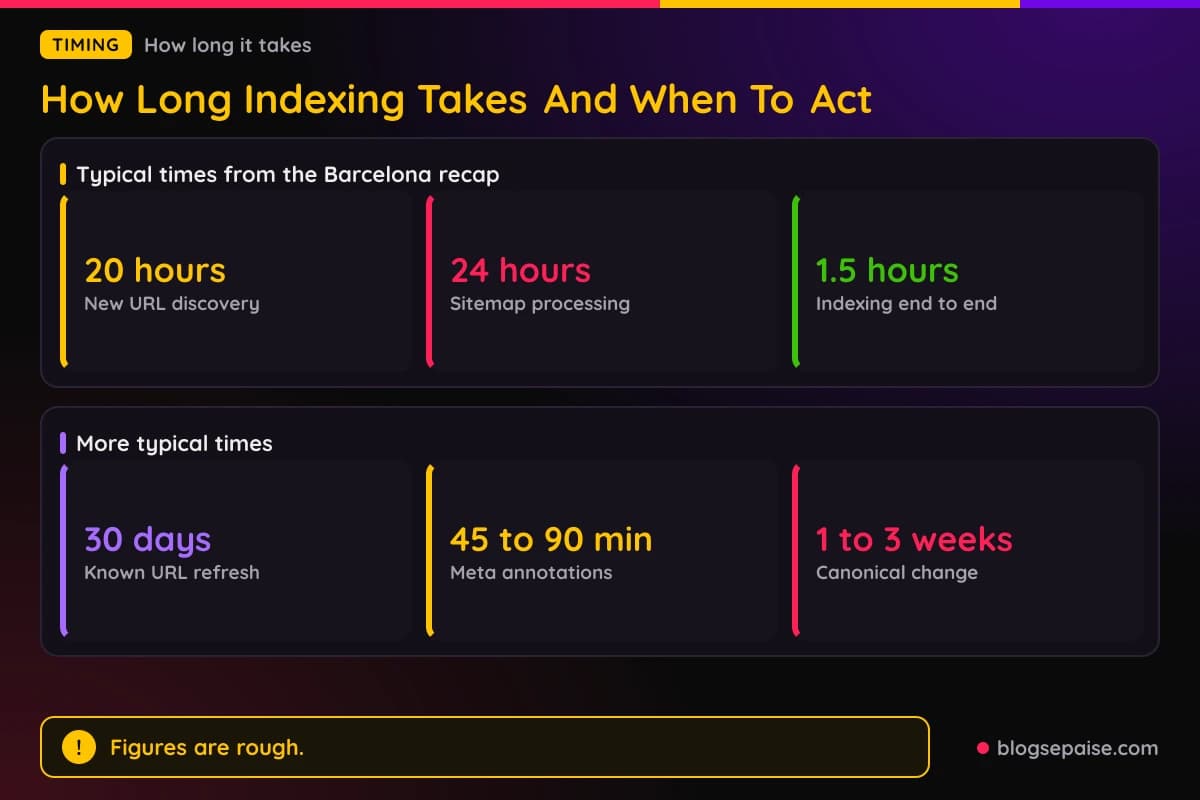
For indexing, the recap lists end to end indexing at about 1.5 hours typical, and months or never at the slowest. It ties the never cases to quality.
It lists rendering as seconds of rendering with hours in the queue, and days to weeks at the slowest. Meta annotations take 45 to 90 minutes typically, and 1 to 4 days at the slowest.
The recap says the figures are based on Google's internal analysis. It gives no methodology, sample size, or measurement period, and PPC Land notes the tables did not appear in a Google blog post or help page.
Treat the numbers as rough. They line up with Google's own wording, which describes quick indexing for some pages and long waits for others.
A simple rule keeps you calm. If the post is new and the status is Discovered currently not indexed, check your technical steps and give Google the time its documentation describes before you change content.
If weeks pass and a post still sits at Crawled currently not indexed, spend your time on quality and internal links. Google says it does not guarantee that all pages everywhere will make it into the index.
Rendering, Mobile, And Crawl Budget
Three smaller issues can sit behind a stubborn post. They are JavaScript rendering, mobile content, and crawl budget.
Google's JavaScript documentation says Googlebot handles JavaScript in three phases: crawling, rendering, and indexing. Every page that returns a 200 status code goes into the render queue, and a headless Chromium later executes the JavaScript.
Pages can wait in the render queue for a few seconds or longer, depending on Google's resources. Google says server-side or pre-rendering is still recommended because not all bots run JavaScript.
Google can only index content that is visible after rendering. Use URL Inspection or the Rich Results Test to confirm that your content, links, and tags appear in the rendered HTML.
Mobile-first indexing means Google uses the mobile version of your content, crawled with its smartphone agent, for indexing and ranking. Google says only the content shown on the mobile site is used, so content that appears only on desktop is not indexed for mobile-first sites.
You can change the layout for mobile, such as using accordions or tabs, as long as the content stays equivalent. Google warns that intentionally showing less content on mobile may lose you traffic.
Crawl budget gets blamed more often than it deserves. Google's crawl budget guide is written for large sites with 1 million or more unique pages and weekly changes, medium or larger sites with 10,000 or more unique pages and daily changes, and sites with a large share of URLs classified as Discovered currently not indexed.
Google says smaller sites that are crawled soon after publishing do not need the guide. Keeping the sitemap current and checking the Page indexing report is adequate for them.
The guide defines crawl budget as the set of URLs Google can and wants to crawl. Crawl capacity depends on crawl health, with stable response times raising the limit and slowdowns, 5xx errors, or 429 signals lowering it.
Crawl demand depends on site size, update frequency, page quality, and relevance. Google says that without guidance it tries to crawl all or most of the URLs it knows about, so duplicates and unwanted URLs waste crawl time.
Google's tips for efficient crawling include consolidating duplicate content, returning 404 or 410 for permanently removed pages, fixing soft 404s, avoiding long redirect chains, and keeping sitemaps current. It also says that returning a 304 for unchanged content saves your server bandwidth.
Google's Crawl Stats help adds that you cannot ask Google to raise its crawl rate. For small and medium sites, keeping sitemaps current and avoiding unintended blocks helps.
Final Thoughts
Most unindexed posts have a visible cause. A noindex tag, a robots.txt block, a duplicate that Google folded into another URL, a server error, or a post that nothing links to explains the problem more often than a mysterious penalty.
Start with URL Inspection and the Page indexing report. Fix what the status names, then add internal links, keep your sitemap current, and request indexing once.
When every technical check passes, look at the post itself. Google's guidance asks for original information, first-hand experience, and more value than the pages already ranking.
Give Google the time its documentation describes, and keep your expectations honest. Google says it does not guarantee that every page will be indexed, so a post worth ranking is also a post worth strengthening.
Frequently Asked Questions
1. Why are my blog posts not indexed by Google?
Common causes in Google's documentation are a noindex rule, a robots.txt block, server errors, a duplicate that Google folded into another URL, a post with no internal links, and content that Google judges low in quality. Check the status in URL Inspection first.
2. How long does Google take to index a new blog post?
Google's Search Console Help says a new site or page may take a week or so, and new content can take a few days. It also says indexing is never instant, even with a crawl request.
3. What does Discovered currently not indexed mean?
Google found the page but has not crawled it. Google's documentation says it likely rescheduled the crawl to avoid overloading the site, so the last crawl date is empty.
4. What does Crawled currently not indexed mean?
Google crawled the page but did not index it. Google says this does not necessarily indicate an issue, though John Mueller has linked a high share of these pages to site quality.
5. Does Request indexing guarantee my post will be indexed?
Google says a request does not ensure your page appears in search results quickly or at all, and that requesting a recrawl multiple times for the same URL will not get it crawled any faster.
6. Do I need a sitemap for a new blog?
Google says a site that is new with few external links likely needs one, while a small site of about 500 pages or fewer that is well linked internally may not. A sitemap is a hint and does not guarantee crawling or indexing.
7. Can robots.txt keep a post out of Google?
Google says robots.txt is not a way to keep a page out of Google, and a blocked URL can still appear in results without a description. Use noindex or a password instead.
8. Can I use the Indexing API for blog posts?
Google's documentation says the Indexing API can only be used to crawl pages with JobPosting structured data or a BroadcastEvent embedded in a VideoObject. Blog posts are outside that scope.
9. Does page quality affect indexing?
Google's How Search Works documentation lists low-quality content as an indexing problem. John Mueller said in November 2026 that a high share of Crawled and Discovered pages can mean Google's quality systems are unconvinced about a site.