Programmatic SEO Using WordPress
You do not need to know how to code to build a programmatic SEO project.
WordPress, the platform behind a huge share of websites on the internet, has grown a whole toolkit of plugins that let regular site owners build hundreds or thousands of pages using nothing but a spreadsheet and a few clicks.
If you have ever felt like programmatic SEO sounded like something only developers could pull off, this guide should change that feeling completely.
The tools have matured a lot over the past few years, and a careful, patient site owner with no technical background can now build a genuinely strong project using nothing more than the free plugin directory and a few affordable paid tools.
This guide walks through exactly how to do this on WordPress, step by step, using tools that need no coding skills at all.
We will cover picking the right plugins, setting up your data, building a page template, and publishing your full batch of pages safely.
By the end, you will have a clear, doable path for building your own programmatic SEO project on WordPress, even if you have never touched a line of code in your life.
For a complete overview of how AI fits into every stage of search engine optimization, read our complete AI SEO guide. It covers how AI tools handle everything from keyword research to technical audits.
Disclosure: Some of the links I share might be affiliate links. If you click on one and make a purchase, I may earn a small commission as a thank you. But don’t worry, it won’t cost you anything extra. I only recommend stuff I genuinely believe in. Your support helps me keep creating awesome content. You can read my full affiliate disclosure in my disclaimer page.
If you want to save a lot of hours searching for high-paying affiliate programs, check out our exclusive list of 2500+ affiliate programs. You’ll find all the information about the programs inside the list. This list is perfect for affiliate bloggers and influencers.
Why WordPress Works So Well For This
WordPress powers a massive share of the websites you visit every day.
Because so many people use it, a huge community of developers has built plugins for nearly every task you could need, including programmatic SEO.
The biggest reason WordPress fits this job so well is its plugin system.
Instead of building a custom system from scratch, you can install a plugin built specifically for importing data and turning it into pages.
Using a plugin like this saves you from needing any coding knowledge at all.
WordPress also gives you full control over how your pages look.
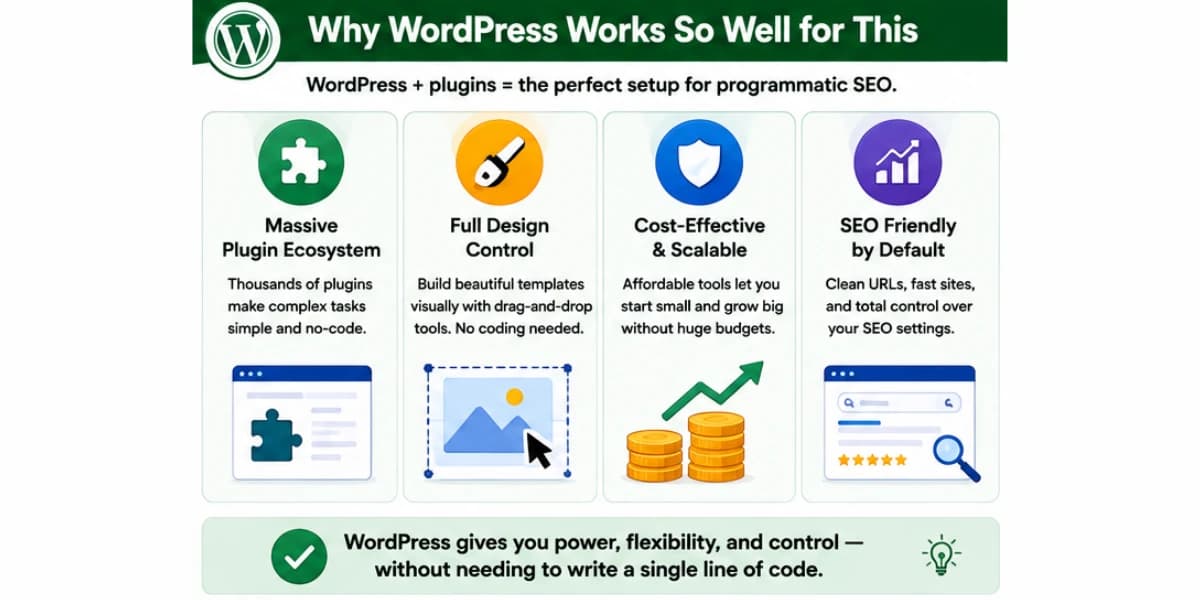
Page builder plugins let you design a template visually, dragging and dropping sections until the layout feels right, without writing a single line of code.
Once your design is ready, you connect it to your data and let the system handle the rest.
Another strong reason is cost. Many of the tools needed for this kind of project are affordable, and some even offer a free version that works fine for smaller projects.
You do not need a huge budget or a development team to get started, which is a big part of why this method has become so popular with independent site owners.
Using the right SEO plugins for your website can help you manage and monitor your content alongside other on-page optimization tasks.
What You Need Before You Start
A few basic pieces need to be in place before diving into the actual build process.
Getting these ready first saves a lot of frustration later, since scrambling to set up a missing piece halfway through a project tends to slow everything down far more than a bit of upfront planning would have.
You need a WordPress site, of course, ideally one that is not brand new with zero trust built up yet.
A programmatic SEO project tends to perform better when it sits on a site search engines already know and trust at least a little.
You need clean data, usually living in a spreadsheet, with each row holding the details for one page you plan to build.
Every column should hold one clear piece of information, like a city name, a price, or a short description.
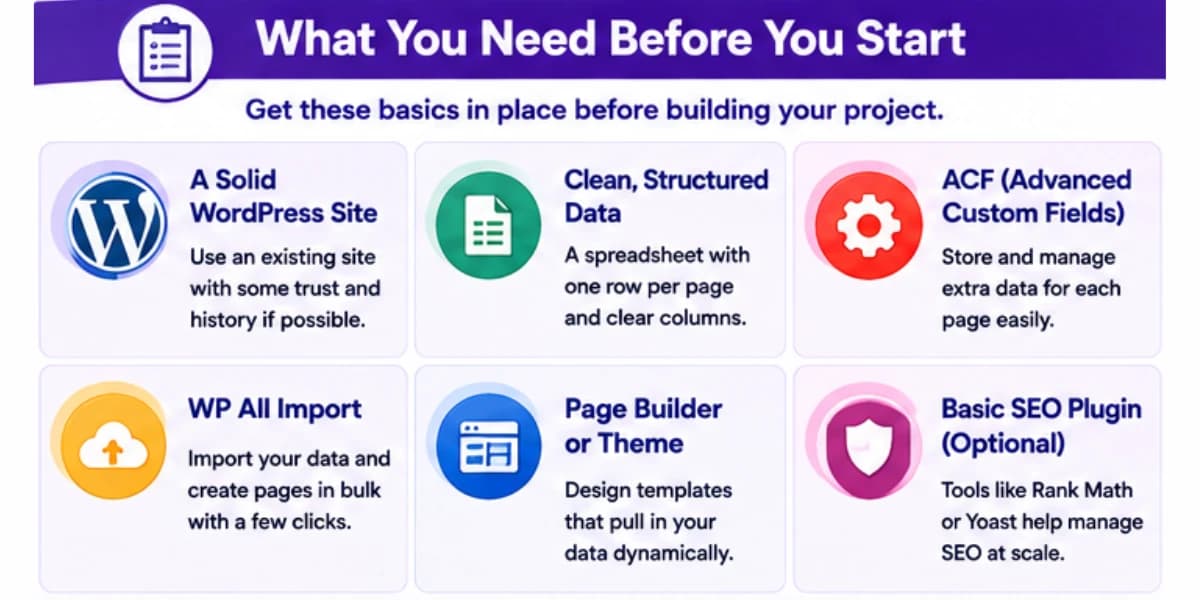
You need a custom fields plugin, the tool that lets WordPress store extra pieces of data for each page, beyond the normal title and body text.
Advanced Custom Fields, often shortened to ACF, is the most popular choice for this job.
You need an import plugin, the tool that reads your spreadsheet and creates a real WordPress page for every single row, filling in the custom fields as it goes.
WP All Import is among the most widely used tools for this exact task.
You need a page builder or theme that supports custom templates.
A tool like this controls how your pages look on the front end, pulling in the custom field data and displaying it in a clean, readable layout.
Our free CSV to Excel converter and Excel to CSV converter tools can help you manage and organize your data files as you prepare them for your programmatic SEO project.
Other No-Code Tools Worth Knowing About
While Advanced Custom Fields and WP All Import form the core setup described in this guide, a few other tools can fit into this workflow depending on your specific needs, your budget, and how comfortable you feel with each individual plugin's interface.
Pods is a free alternative to Advanced Custom Fields that also lets you build custom fields and custom post types without any coding.
Some site owners prefer its interface, and it works well as a starting point for smaller projects with a tighter budget.
Meta Box is another custom fields plugin that many programmatic SEO builders like, since it offers a large number of field types and works smoothly with several popular page builder plugins.
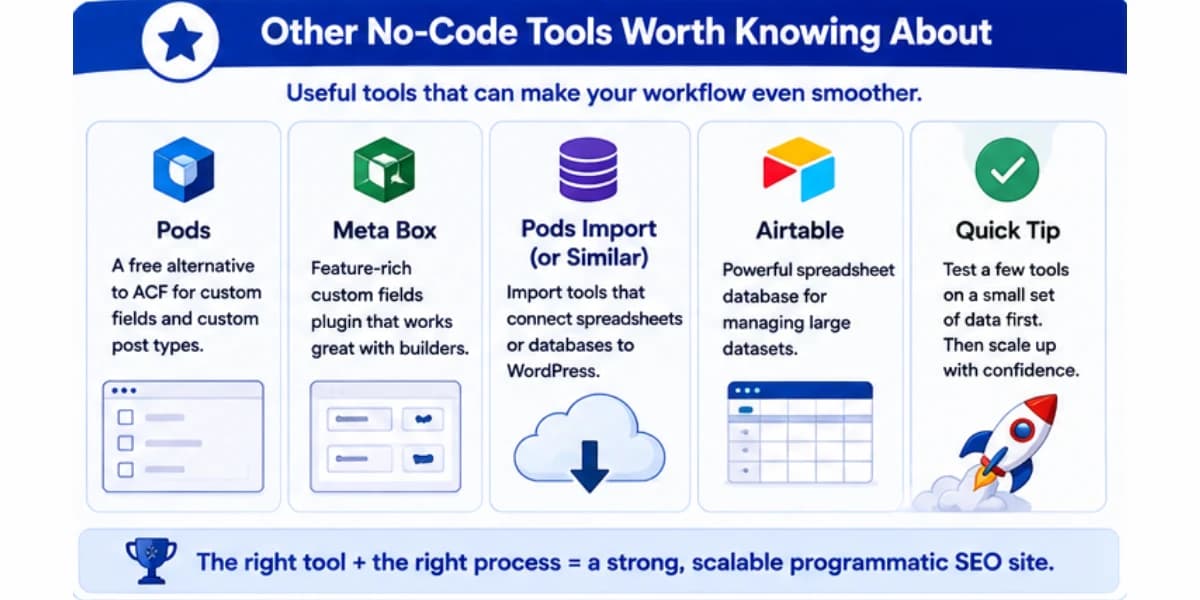
For importing data, WP All Import has a close competitor called Pods Import, along with newer tools built specifically for connecting spreadsheets or online databases directly to WordPress without any manual file uploads at all.
Airtable, a spreadsheet-style database tool, pairs well with WordPress for larger projects.
Some site owners keep their master data in Airtable, since it offers more powerful sorting and filtering than a basic spreadsheet, then export a clean CSV file from Airtable whenever they are ready to run a WordPress import.
Trying a couple of these tools on a small test project before committing to a full build helps you find the combination that feels most comfortable for your own workflow and budget.
Choosing The Right Page Builder For Your Template
The page builder plugin you choose has a big effect on how easy this whole process feels, so it deserves a closer look before you commit to one.
Elementor ranks among the most popular page builder plugins for WordPress, well known for its visual, drag-and-drop design tools.
It works well with custom fields plugins, letting you insert dynamic data directly into your design without touching any code.
Bricks Builder has grown popular among more advanced no-code users, offering deeper control over dynamic data display while still avoiding the need for actual coding.
It tends to suit users who want a bit more flexibility than simpler drag-and-drop tools provide.
Many modern WordPress themes also come with their own built-in page-building tools, which can work fine for simpler programmatic SEO projects without needing a separate plugin at all.
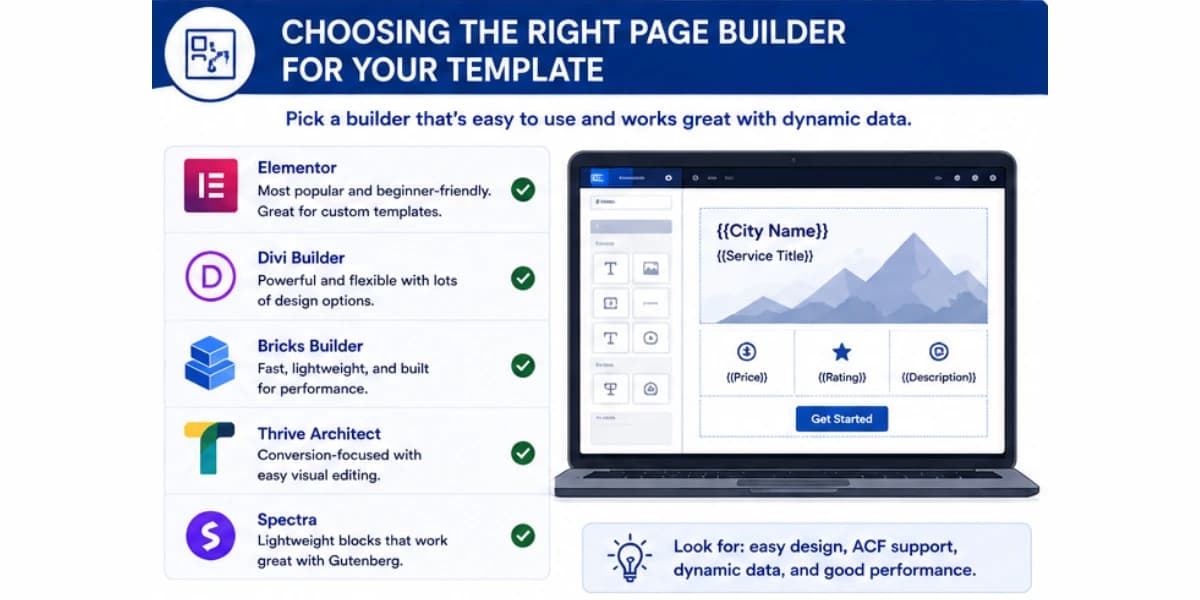
If your theme already includes solid dynamic content support, it may be worth testing that built-in option before adding another plugin to your site.
Whatever tool you pick, check that it clearly supports dynamic fields from your custom fields plugin before building your full template.
A quick search for your specific page builder plugin combined with the name of your custom fields plugin usually turns up a clear answer, along with tutorials showing the exact steps for connecting the two together.
If you are building comparison pages for software products, our software reviews like the GetResponse review, AWeber review, and ClickMagick review are built around real hands-on testing that gives each page genuinely unique detail.
Step One: Preparing Your Data
Before touching any plugin, your data needs to be clean, organized, and ready to go.
Getting this step right matters more than almost any other step in the whole process, since every later stage depends directly on the quality of the raw information you start with here.
Open your data in a spreadsheet program and give every column a clear, simple name.
If one column holds city names, name it city, not something vague like field one or column b.
Clear column names make every later step much easier to follow.
Check every row for missing information. A row with a blank field will create a page missing that piece of content, which can leave gaps that feel awkward or unfinished to a real visitor.
Fill in missing details where you can, or remove rows that are too incomplete to use.
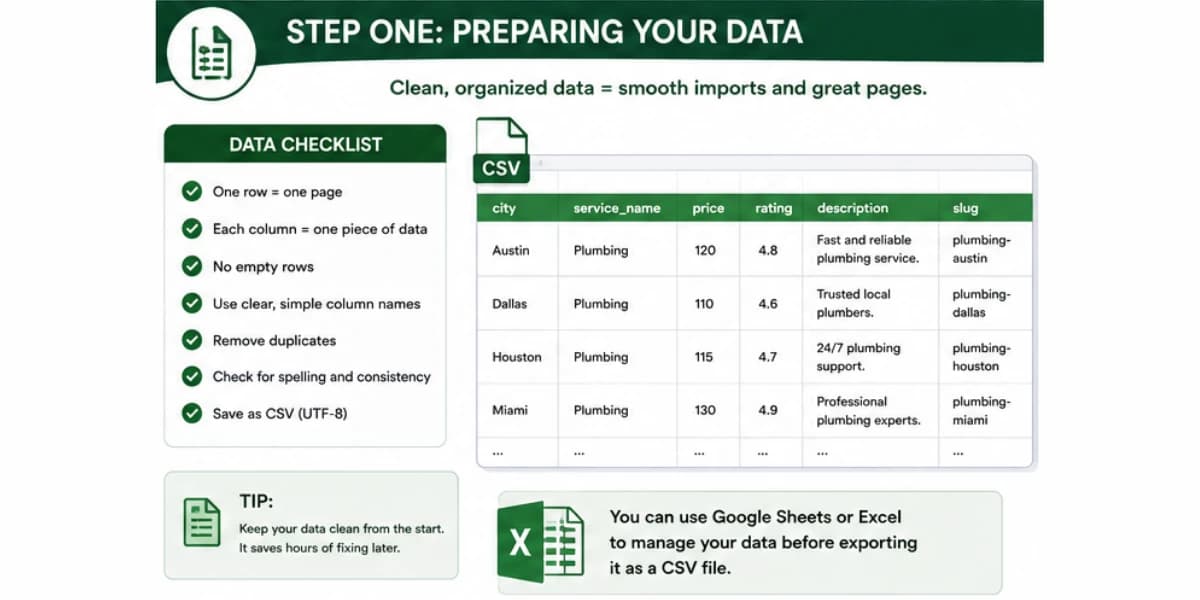
Check your data for spelling mistakes and formatting problems.
A price listed as $400 in one row and 400 dollars in another creates confusing, inconsistent pages.
Pick one clear format for each type of data and make sure every row follows it.
Save your finished spreadsheet as a CSV file, the file format most WordPress import plugins expect.
It works reliably across almost every tool you might use in this process.
Step Two: Setting Up Custom Fields With ACF
Custom fields give WordPress a place to store the extra pieces of data your pages need, beyond the normal title and content area, which is exactly the kind of structured storage a programmatic SEO project depends on from start to finish.
Install and activate the Advanced Custom Fields plugin from your WordPress dashboard.
Once it is active, you will see a new menu option where you can build field groups, which are just organized sets of custom fields tied to a specific type of page.
Create a new field group and give it a clear name that matches your project, like City Page Fields or Product Page Fields.
Inside this group, add one field for every column in your spreadsheet. If your spreadsheet has a column for city name, add a matching text field called city name.
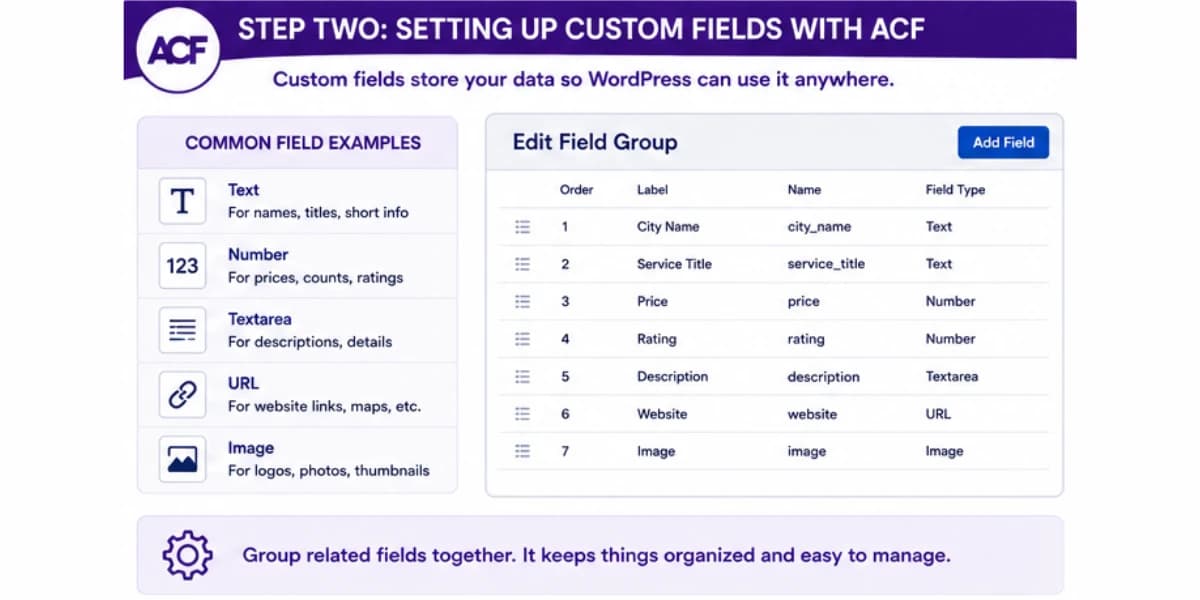
If it has a column for average price, add a matching number field called average price.
Match your field types carefully to the kind of data each one holds.
Use a text field for names and short descriptions, a number field for prices or counts, and a larger text area field for longer paragraphs.
Getting these types right helps your data display correctly later.
Set your field group to apply to the specific page type you plan to use for this project, like a regular page, a post, or a custom post type built just for this purpose.
Doing this tells WordPress exactly where these fields should show up.
Step Three: Deciding Between Pages, Posts, Or Custom Post Type
WordPress gives you a few different content types to choose from, and picking the right one early makes the rest of your project much smoother.
This is because switching content types midway through a large project usually means redoing work you have already completed.
Regular pages work fine for smaller projects, but they are not built with bulk creation in mind, and they can get messy to manage once you have hundreds of them mixed in with your site's normal pages.
Posts are a natural fit if your programmatic SEO project fits a blog-style structure, though they come bundled with blog-specific features like categories and tags that you may or may not really need for this project.
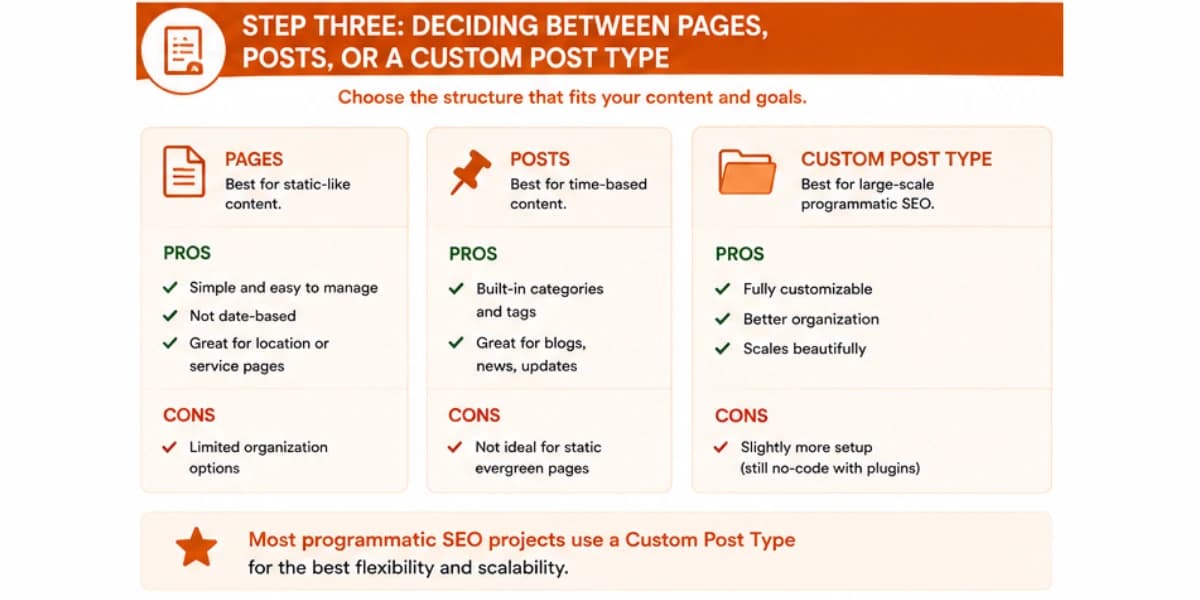
A custom post type is often the cleanest choice for a serious programmatic SEO project.
Choosing this route creates a totally separate content type, like City Guides or Product Comparisons, that stays neatly organized apart from your normal pages and posts.
Several free plugins let you create a custom post type without writing any code, using a simple visual form to define its name and settings.
Choosing a custom post type early on keeps your site organized as your project grows, and it makes it much easier to apply your template and your import settings consistently across every page in the batch.
Understanding how your content fits together is essential for effective workflows. Our guide on what content clusters are explains how pillar pages and supporting articles work together to build topical authority.
Step Four: Building Your Page Template
Your template controls how every page in your project will look and read.
Here is where your data really turns into a real, useful page for visitors, so it deserves careful attention rather than a rushed first draft.
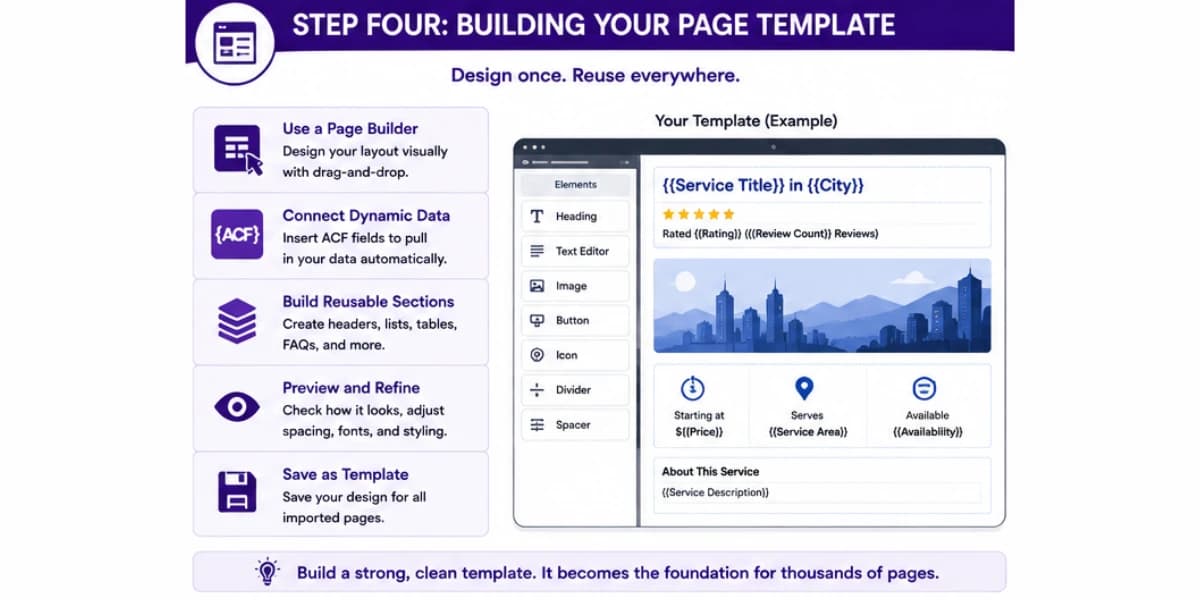
If you are using a page builder plugin, start by designing a single page by hand, using placeholder text where your real data will eventually go.
Lay out your title, an opening paragraph, any tables or lists, and a closing section, just like you would for a normal page.
Once your layout looks right, replace the placeholder text with dynamic fields from your custom fields plugin.
Most page builder plugins have a simple way to insert a dynamic field directly into your design, so instead of typing a fixed sentence, you insert a tag that pulls in whatever value sits in that field for each specific page.
Test your template using one real row of data before moving forward.
Fill in the custom fields for a single test page by hand, then check how the finished page really looks on the front end.
Adjust spacing, font size, and layout until it feels clean and easy to read.
Write a short paragraph of connecting text around your data points, not just a bare list of numbers.
A page that flows naturally, explaining what the data means, feels far more helpful to a real visitor than a page that just displays raw numbers with no context.
Step Five: Using AI To Write The Connecting Text
WordPress alone cannot write natural-sounding paragraphs for you, so this step is a great place to bring in an AI writing tool to fill that gap, turning bare data points into something that really reads well to a visitor.
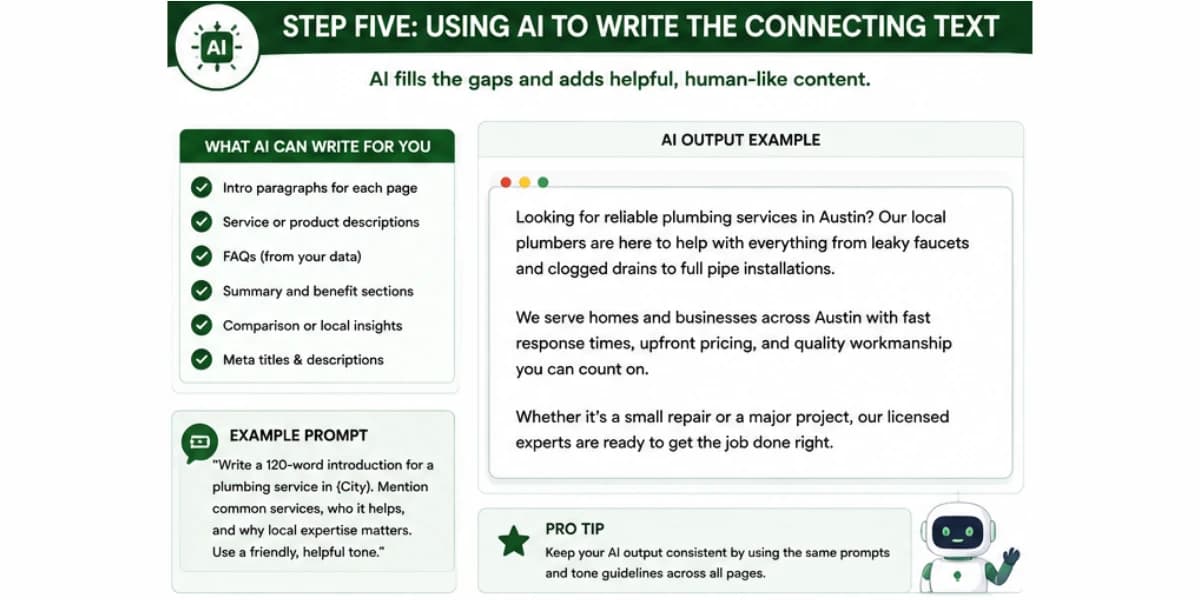
For each unique entry in your data, feed the specific facts into an AI tool and ask it to write a short paragraph following your template's tone and structure.
A helpful prompt sounds like this. Using this data for a single city, write a short paragraph in a friendly, clear tone that explains what a visitor should know before choosing a provider in this area.
Add this AI-generated paragraph as a new column in your spreadsheet, right alongside your other data columns.
Working this way means that when you import your data into WordPress, the connecting paragraph gets pulled in automatically along with all your other custom fields, with no extra manual work needed on the WordPress side.
Review a sample of these AI-written paragraphs closely before moving forward.
Check that the facts match your original data and that the tone feels consistent with the rest of your template.
Catching problems here, before importing anything into WordPress, saves you from having to fix hundreds of live pages one at a time later.
If you are producing informational content at scale, using the right AI writing tools can help you draft faster, but our Rytr review and ContentBot AI review show why a human editing pass still matters for the best results.
Step Six: Importing Your Data With WP All Import
With your spreadsheet complete, including your AI-written paragraphs, it is time to bring everything into WordPress using an import plugin, turning your carefully organized data into real, live pages your visitors will soon see.
Install and activate WP All Import from your WordPress dashboard. Start a new import and upload your finished CSV file.
The plugin will show you a preview of your data, letting you check that everything loaded correctly before moving any further.
Match each column in your spreadsheet to the correct field in WordPress.
The plugin usually shows a simple drag-and-drop interface, letting you connect your city name column to your city name custom field, your price column to your price field, and so on for every single column in your data.
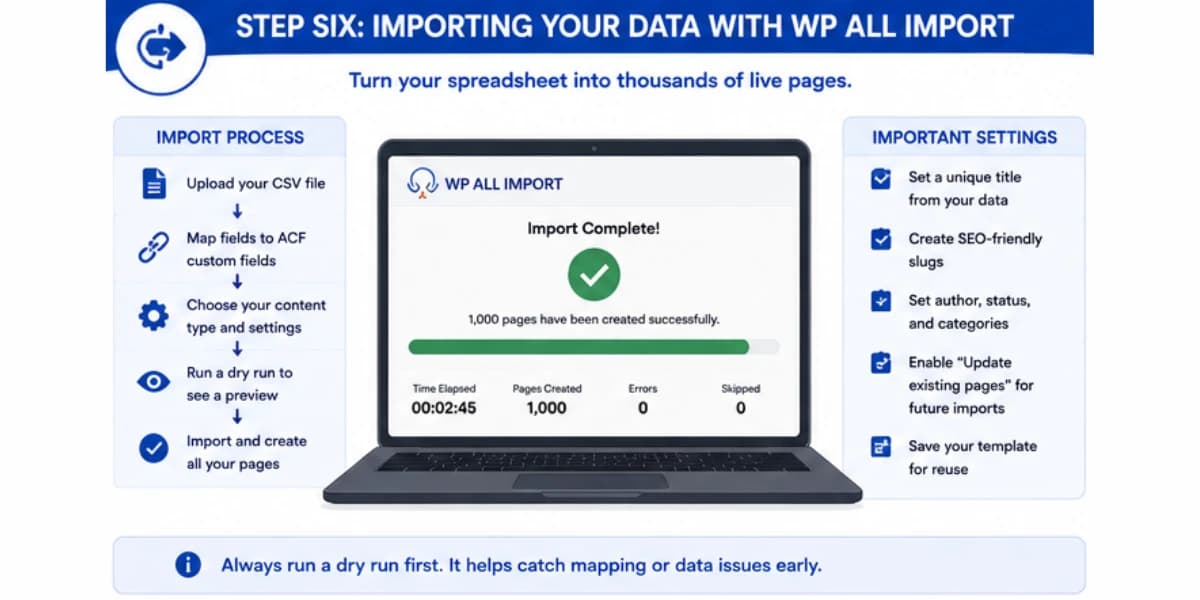
Set your import to create a new page for every row in your spreadsheet, using the post type you decided on earlier.
Choose a clear naming pattern for your page titles and URLs, often based on one of your data columns, like the city name or product name.
Run a small test import first, maybe just five or ten rows, rather than importing your entire data set right away.
Check these test pages carefully on the front end of your site before committing to the full import.
Once your test batch looks correct, run the full import.
Depending on the size of your data set, the process might take anywhere from a few minutes to a couple of hours, but WordPress will handle creating every single page automatically once the import is running.
Step Seven: Checking Your Pages Before Going Fully Live
Even after a successful import, it pays to slow down and check your work carefully before treating the whole batch as finished and ready for search engines, since a rushed final check is exactly the kind of shortcut that lets small problems slip through unnoticed.
Pick a random sample of your newly created pages and view them as a real visitor would.
Check that every custom field displays correctly, that your AI-written paragraph reads naturally, and that nothing looks broken or oddly formatted.
Check your page titles and URLs for the whole batch.
A common problem with bulk imports is titles that look strange or repetitive once you see many of them lined up together, even though a single title looked fine on its own during testing.
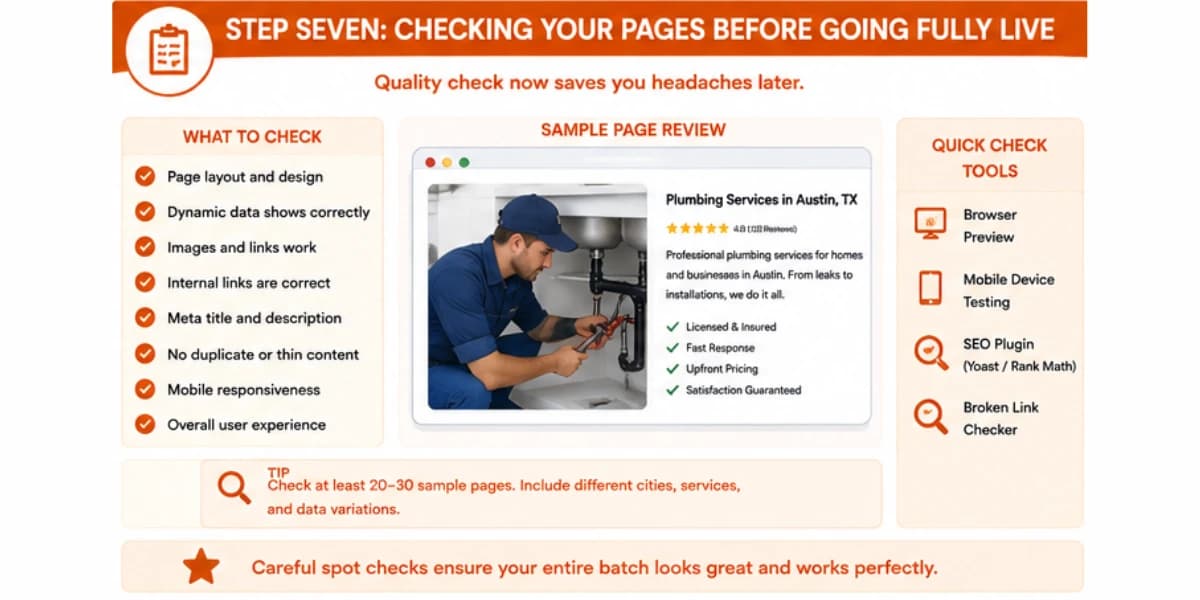
Check that your meta descriptions are filled in properly across the batch, since search engines often use these to write the snippet shown in search results.
Many import plugins let you set a pattern for meta descriptions using your data fields, so this can be handled automatically during the same import.
Check your internal links.
If your project includes pages that should link to each other, like a hub page linking out to every city page, confirm these links are working correctly across a sample of your new pages.
If you need help finding where to add links in your existing content, try our internal link opportunity finder tool. It scans your pages and highlights where new internal links would add the most value.
Step Eight: Publishing In Waves Instead Of All At Once
Even though WP All Import can create thousands of pages in one go, it is smarter to publish your pages in smaller waves rather than making everything live all at once
This is because a careful rollout gives you real room to catch and correct problems before they touch your whole site.
Set your import to save new pages as drafts first, rather than publishing them immediately.
Doing this gives you a chance to review the full batch, or at least a larger sample, before anything really goes live on your site.
Publish your first wave, maybe one hundred to five hundred pages, and give it a few weeks to settle.
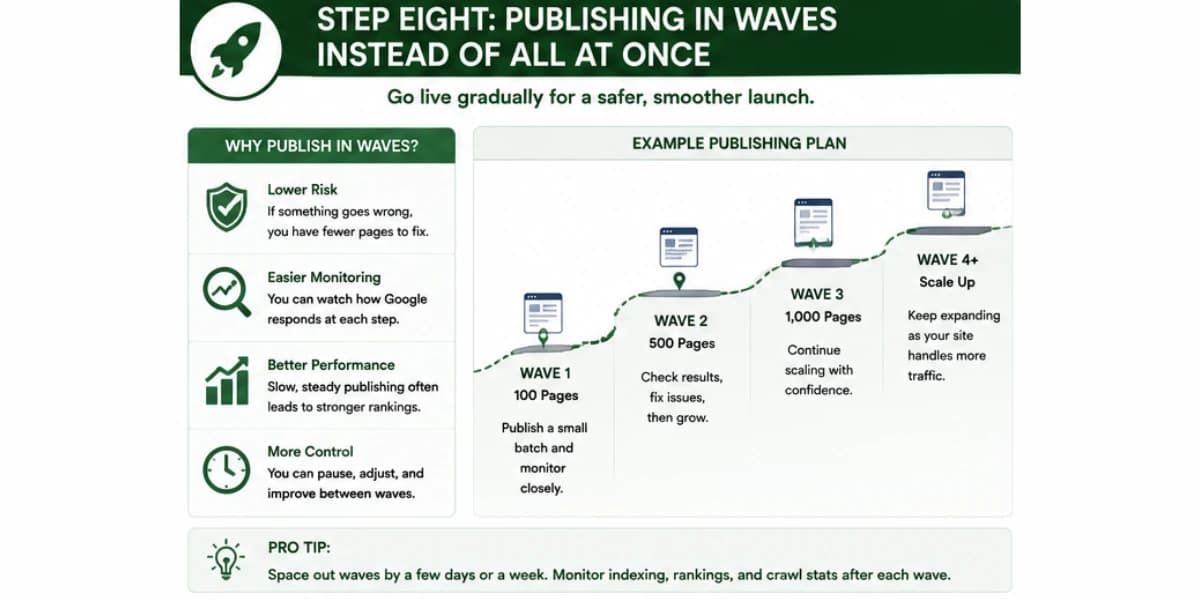
Watch how these pages get indexed and how they perform in search results before publishing your next wave.
A slower approach like this protects you from a common risk.
If something is wrong with your template or your data, a smaller first wave limits the damage and gives you a chance to fix the problem before it spreads across your entire planned batch of pages.
Keeping Programmatic Pages Updated Over Time
Your work is not finished once your pages go live.
Data changes, and your pages need a plan for staying accurate over time, or the strong batch you worked so hard to build will slowly drift out of date without anyone noticing until traffic starts to slip.
Keep your original spreadsheet as your master file, updating it whenever your underlying data changes, like new pricing or new availability.
Treat this spreadsheet as the single source of truth for your whole project, rather than editing pages directly inside WordPress one at a time.
Use WP All Import's update feature to refresh existing pages rather than creating duplicates.
Most import plugins let you match new spreadsheet rows against already published pages, updating the custom fields on the matching page instead of creating a brand new one.
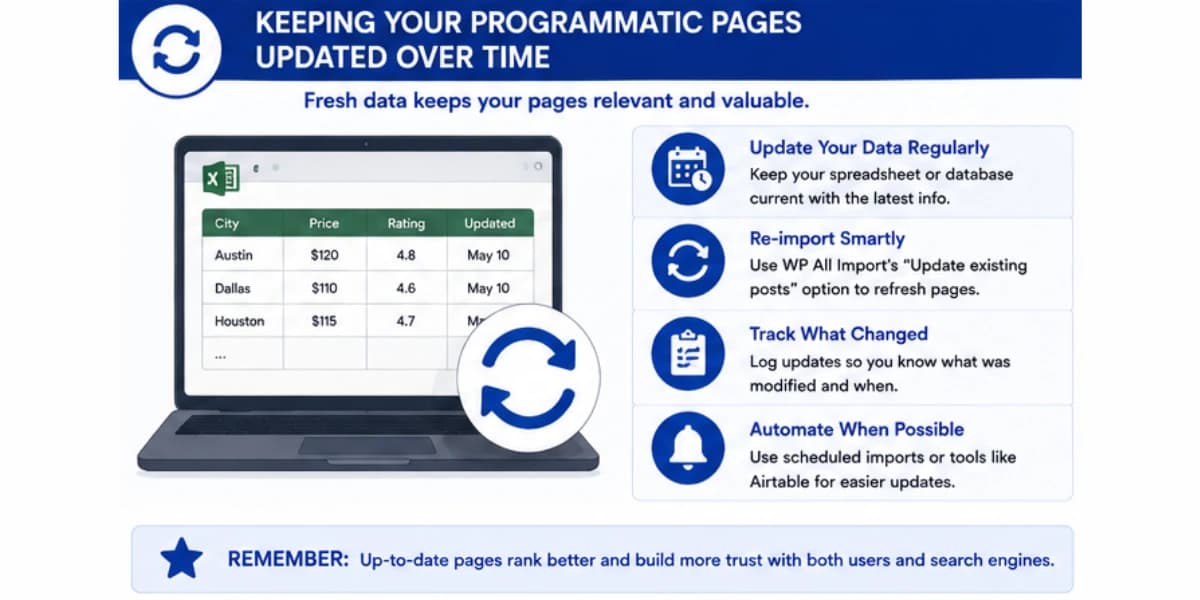
Set a regular schedule for refreshing your data, maybe every few months depending on how quickly your topic changes.
Prices and availability often need frequent updates, while more stable facts might only need a check once or twice a year.
Watch for pages that need to be removed entirely, not just updated.
If a product gets discontinued or a location closes, the cleanest fix is often removing that page and setting up a redirect, rather than leaving an outdated page live on your site.
Keeping time sensitive content fresh and accurate is where a solid AI content refresh workflow becomes genuinely valuable, since it helps you catch outdated details before they hurt your credibility.
Handling SEO Settings Across Your Whole Batch
Beyond the actual page content, a few important SEO details need to be set correctly across every single page in your batch, and a good SEO plugin makes this manageable at scale rather than a task you have to repeat by hand on every page.
Install a well-known SEO plugin like Yoast SEO or Rank Math alongside your other tools.
These plugins let you set patterns for page titles and meta descriptions that automatically pull in your custom field data, rather than requiring you to write each one by hand.
Set a title pattern using your data fields, like best coffee shops in followed by the city name field, so every page in your batch gets a unique, relevant title without any extra manual work.
Most SEO plugins let you build this pattern once and apply it across your entire custom post type.
Do the same for meta descriptions, building a short pattern that pulls in a key fact or two from your data, like the number of results or the average price for that specific page.
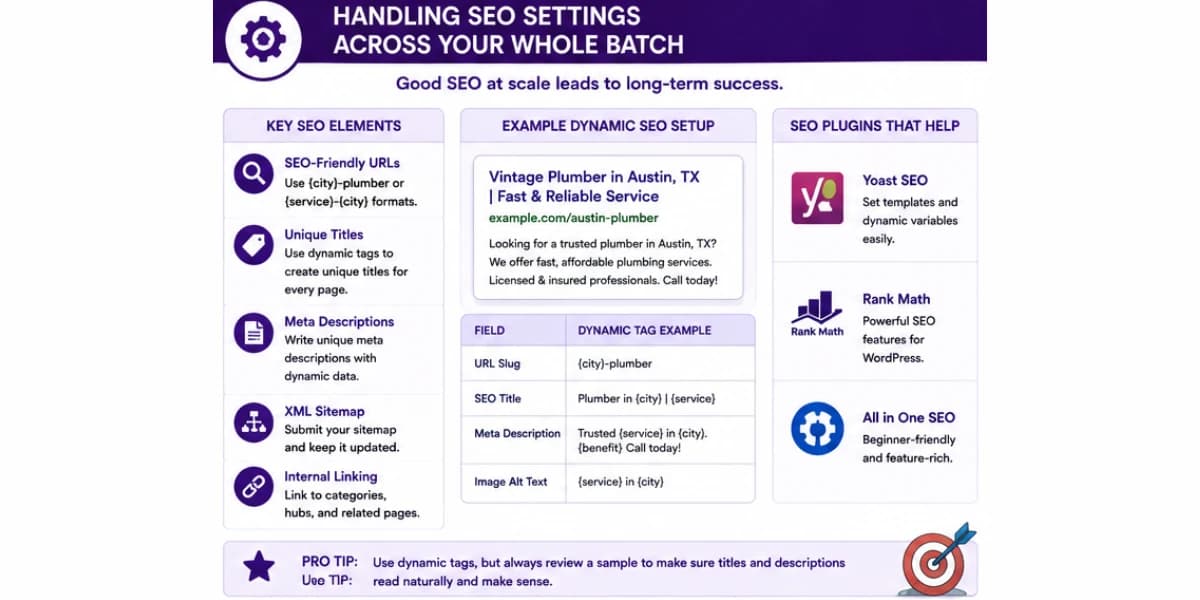
A meta description built this way feels far more specific and clickable than a generic, repeated sentence used across every page.
Check your sitemap settings to confirm your new custom post type is included.
Most SEO plugins generate an automatic sitemap, but newer custom post types sometimes need to be manually enabled in the plugin settings before they start showing up in that sitemap correctly.
Review a sample of your finished pages in a tool that shows how they would appear in real search results.
Seeing an actual preview helps you catch title or description patterns that look awkward or get cut off, before your full batch goes live and this problem repeats across thousands of pages.
Using the right SEO plugins for your website can help you manage and monitor your content alongside other on-page optimization tasks.
Troubleshooting Common Import Problems
Even a carefully planned import can run into small hiccups, so it helps to know a few common problems and their usual fixes ahead of time, rather than feeling stuck the first time something does not work exactly as expected.
If your custom fields show up empty on the finished pages, the most common cause is a mismatch between your spreadsheet column names and your field mapping inside the import plugin.
Double-check that every column is matched to the correct field, since even a small typo in a field name can cause data to silently fail to import.
If your page titles look strange or contain leftover formatting symbols, the issue often traces back to how your original spreadsheet was saved.
Re-saving your file as a clean CSV, free of extra formatting, usually clears up this kind of problem.
If some rows fail to import at all, check those specific rows in your spreadsheet closely.
Missing required fields, unusual characters, or extremely long text in a single cell can sometimes cause an individual row to fail, even when the rest of your data set imports without any trouble.
If your pages import correctly but display incorrectly on the front end, the problem is usually in your template rather than your data.
Double-check that your page builder is correctly pulling from the right custom field, since a small mismatch here can cause a page to show blank space where real content should appear.
If your import runs very slowly or times out on a large data set, try breaking your file into smaller batches of a few hundred rows each, importing them one batch at a time rather than attempting several thousand rows in a single pass.
An approach like this is gentler on your server and much easier to troubleshoot if something does go wrong partway through.
Keeping a simple log of any problems you run into, along with how you fixed them, saves real time on your next programmatic SEO project, since many of these small issues tend to repeat across different projects using the same tools.
Common Mistakes To Avoid On WordPress
A frequent mistake is skipping the test import entirely and jumping straight to importing the full data set.
A small mistake in your field mapping can create thousands of broken pages in minutes if you do not catch it on a small test batch first.
Another mistake is forgetting to check how your pages really look on mobile devices.
A template that looks great on a desktop screen can sometimes break or look cramped on a phone, so checking a sample of pages on mobile before your full launch catches problems that are easy to miss otherwise.
Publishing everything live immediately, instead of saving new pages as drafts first, removes your safety net for catching mistakes before search engines ever see them.
Taking the extra step to review drafts before publishing is worth the small amount of extra time it takes.
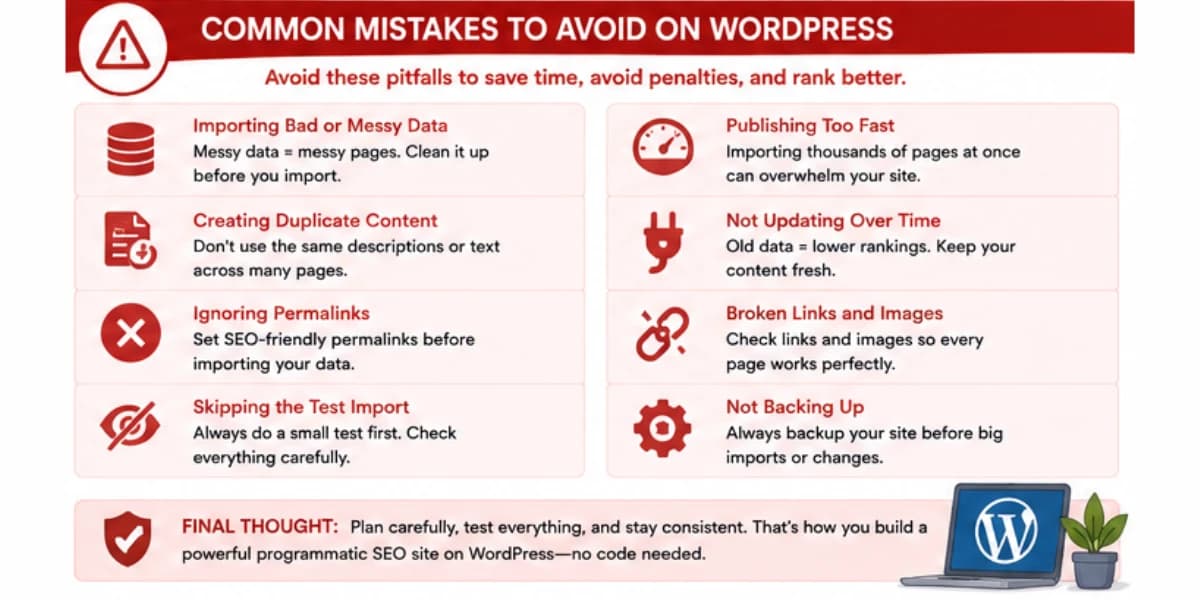
Ignoring page speed is a mistake that quietly hurts a large batch of pages.
If your template includes heavy images or complicated design elements, multiplying that across thousands of pages can slow your whole site down.
Keep your template lean and test its loading speed before scaling up to your full batch.
Forgetting to set up a clean URL structure ahead of time creates a mess that is hard to fix later.
Decide on your URL pattern, like site dot com slash city slash city name, before you run your first import, since changing URLs after thousands of pages are already live and indexed creates a much bigger cleanup project.
Running a regular AI content audit helps you identify pages that may be too thin or repetitive before the problem grows into a bigger issue.
A Simple Example Walkthrough
Picture a site that wants to build pages listing gyms in every major city across the country.
Here is how the whole process might unfold using this WordPress workflow, from the very first spreadsheet all the way through a fully published batch of pages.
The site owner starts with a spreadsheet listing five hundred cities, along with the number of gyms in each one, average membership prices, and a short list of popular gym chains available locally.
They clean up the spreadsheet, fixing a handful of missing prices and standardizing how numbers are formatted.
Next, they install Advanced Custom Fields and build a field group called City Gym Fields, with fields matching every column in their spreadsheet.
They set this field group to apply to a new custom post type called City Gyms, built using a simple custom post type plugin.
They design a template using their page builder plugin, laying out a title, an opening paragraph, a short table of gym pricing, and a closing tip section.
They connect each part of this template to the matching custom field, so the layout will pull in real data once pages get created.
They feed each city's data into an AI tool, asking it to write a short paragraph explaining the local gym scene using the specific facts for that city.
They add these paragraphs as a new column in their spreadsheet.
Using WP All Import, they run a test import of ten cities first, checking each test page carefully on both desktop and mobile.
After fixing a small spacing issue in their template, they set the import to save the remaining pages as drafts, then publish the first one hundred cities as a test wave.
Two weeks later, seeing solid early results with no major problems, they publish the remaining four hundred cities in two more waves over the following month.
They set a calendar reminder to refresh their pricing data every three months, using WP All Import's update feature to keep every page accurate without creating duplicates.
Building a topical map for AI SEO gives you the content structure that makes planning programmatic pages much easier, since you already know which pages should support which others.
Final Thoughts
Programmatic SEO on WordPress no longer requires a developer or a custom-built system.
With a clean spreadsheet, a custom fields plugin like Advanced Custom Fields, an import tool like WP All Import, and a bit of help from AI for your written content, you can build a strong batch of useful pages without writing a single line of code.
The steps that matter most are the ones many people skip in their rush to publish fast.
Clean your data carefully. Build and test your template before scaling up. Review a real sample of pages before going fully live.
Publish in smaller waves instead of one giant batch. Follow this careful, steady path, and WordPress becomes a genuinely powerful tool for programmatic SEO, no coding required.
If this is your first time trying anything like this, permit yourself to move slowly through your very first project.
The tools described here work well, but they still reward careful setup over rushed shortcuts.
Once you have gone through the whole process one time, from clean data all the way through a published, well-performing batch of pages, every future project on WordPress will feel a lot more familiar and a lot faster to pull off.
If you are exploring how AI agents fit into this picture, our guide on AI SEO agents explains where automated tools genuinely help and where they still need a human in the loop.
Frequently Asked Questions
1. Do I need any coding knowledge to do programmatic SEO on WordPress?
No. Tools like Advanced Custom Fields, WP All Import, and most modern page builder plugins are built specifically so you can complete this whole process without writing any code at all.
2. Which WordPress plugin is the most important for this process?
Advanced Custom Fields and WP All Import together form the core of this workflow. ACF gives your pages a place to store structured data, and WP All Import handles turning your spreadsheet into real, published pages.
3. Should I use pages, posts, or a custom post type for my project?
A custom post type is usually the cleanest choice for a serious programmatic SEO project, since it keeps your new pages neatly separated from your site's normal content and makes bulk management much easier.
4. How many pages should I publish in my first wave?
A range of one hundred to five hundred pages works well for most first waves, giving you enough scale to judge real performance while still keeping the batch small enough to review carefully and fix if something goes wrong.
5. Can I update my pages later if my data changes?
Yes. WP All Import includes an update feature that matches new spreadsheet rows against already published pages, refreshing the content instead of creating duplicate pages, which makes ongoing updates fairly simple.
6. Is this method safe for search engine rankings, or does WordPress get penalized for bulk created pages?
WordPress itself is not penalized for this method. The quality of the finished pages is what matters. Thin, unhelpful pages can hurt your rankings regardless of the platform, while well built, genuinely useful pages tend to perform just fine.
Understanding the difference between informational and commercial content helps you decide which types of programmatic pages to build first and how to structure them for the right search intent.